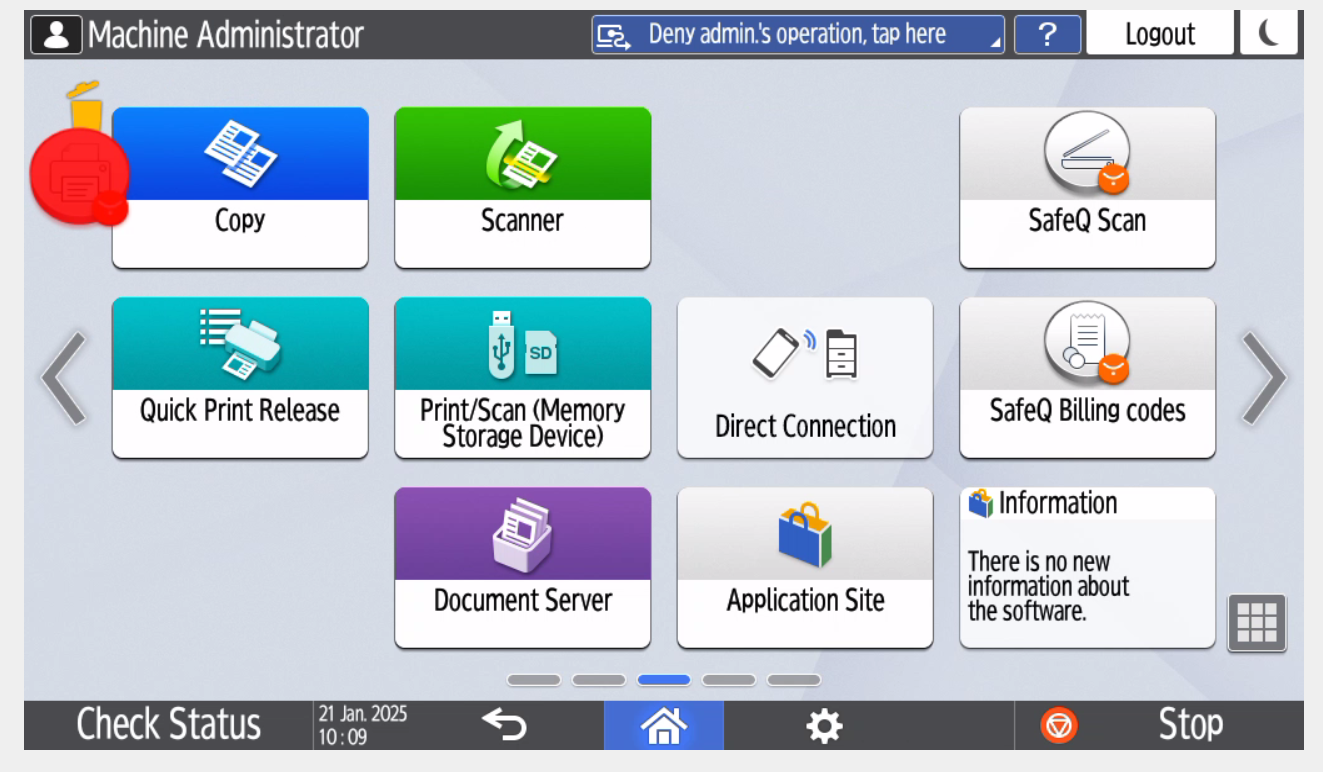
All of the steps listed in this section are done automatically during the uninstallation. In the following cases, they need to be done manually:
-
On G2 machines without Java enabled (admin is informed about this during the installation)
-
Remote configuration fails due to unexpected error (admin is notified about this situation during installation)
-
Remote configuration failed to remove existing the application shortcut (admin is notified about this situation during uninstallation)
Authentication settings in Web Image Monitor (WIM)
-
Go to the Ricoh MFD web interface (Web Image Monitor).
-
Log in as an administrator.
-
Go to Device Management > Configuration and change the following settings to allow display of authentication application:
-
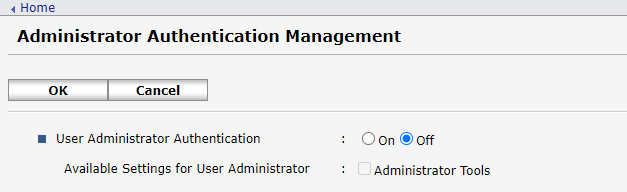
In Administrator Authentication Management, set User Administrator Authentication to Off.
-
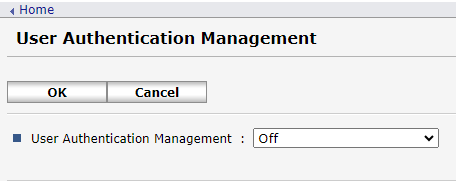
In User Authentication Management, set User Authentication Management to Off.
-
Manual removal of existing application shortcuts when it fails during uninstallation
-
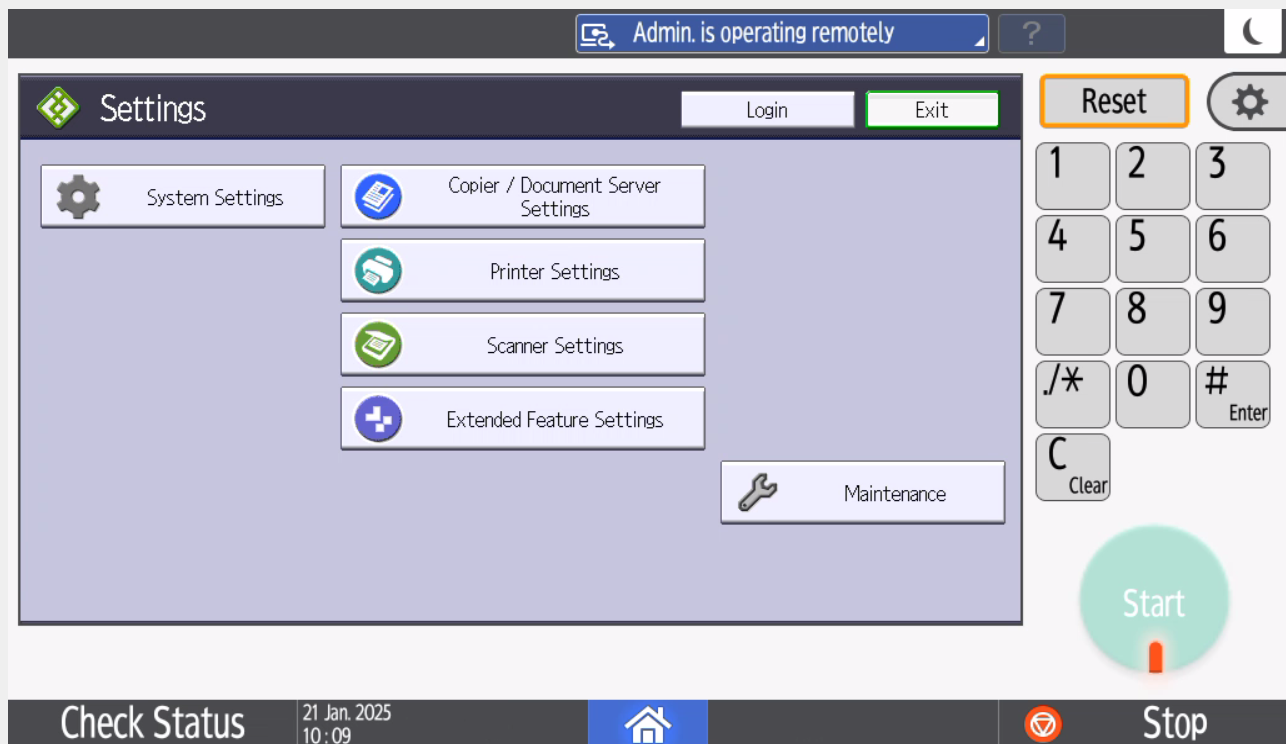
Login in to the Ricoh MFD as a Machine administrator - Go to Settings → Machine feature settings and click Login.
-
Go to the home dashboard and delete all application icons (Print, Scan, Billing Codes) if they exist. Drag the icon and move it to the trash icon.