
This document describes YSoft SafeQ Embedded Terminal for Konica Minolta - 2nd Gen. for authentication. It is an alternative to YSoft SafeQ Embedded Terminal for Konica Minolta - 1st Gen.
Logging In with a PIN
-
Enter your PIN.
-
Tap Login.
Scroll conditional content ipm Scroll conditional content ysoft_safeq
Logging in with a username/password
-
Enter your username.
-
Enter your password.
-
Tap Login.
Scroll conditional content ipm Scroll conditional content ysoft_safeq
Logging in with a card
-
Put your card on the reader attached to the printer.
Scroll conditional content ipm Scroll conditional content ysoft_safeq
In case that another user is logged in, you will log him/her out by placing your card to the card reader. If you want to log in yourself, place your card once again to the card reader.
Logging in with a card or a PIN (username/password)
-
Put your card on the reader attached to the printer.
-
Or enter your PIN (username/password) and tap Login.
Scroll conditional content ipm Scroll conditional content ysoft_safeq
Logging in with a card or a PIN or a username/password
-
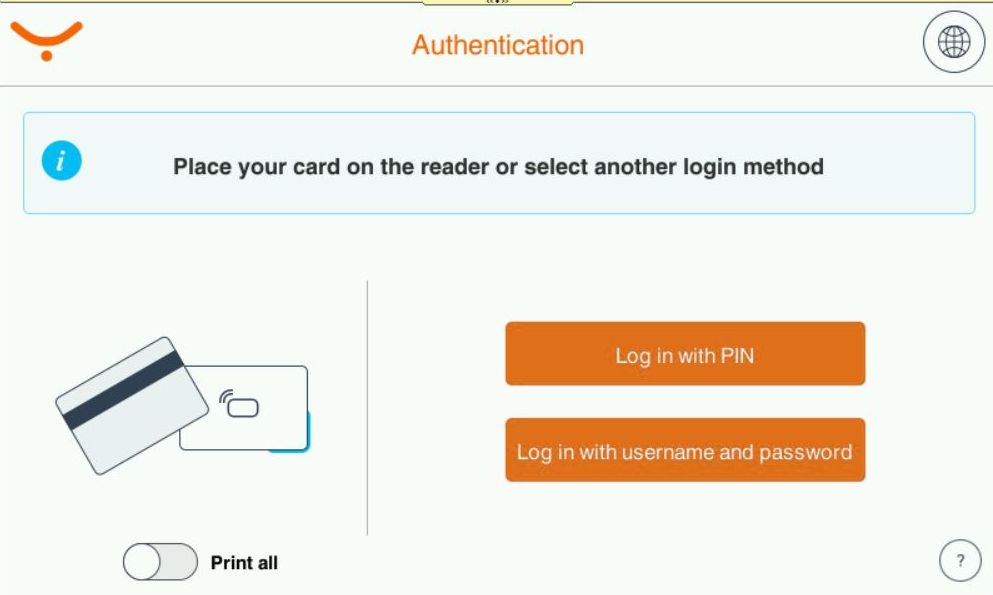
Go to the device and see initial screen offering following options of authentication:
-
Swiping the card performs authentication by card;
-
Selecting 'Login with PIN' and leads to page where user inserts PIN;
-
Selecting 'Login with username and password' leads to page where user inserts Username and password
-
-
(Card authentication) Swipe the card. If the card is recognized, you will be logged in.
-
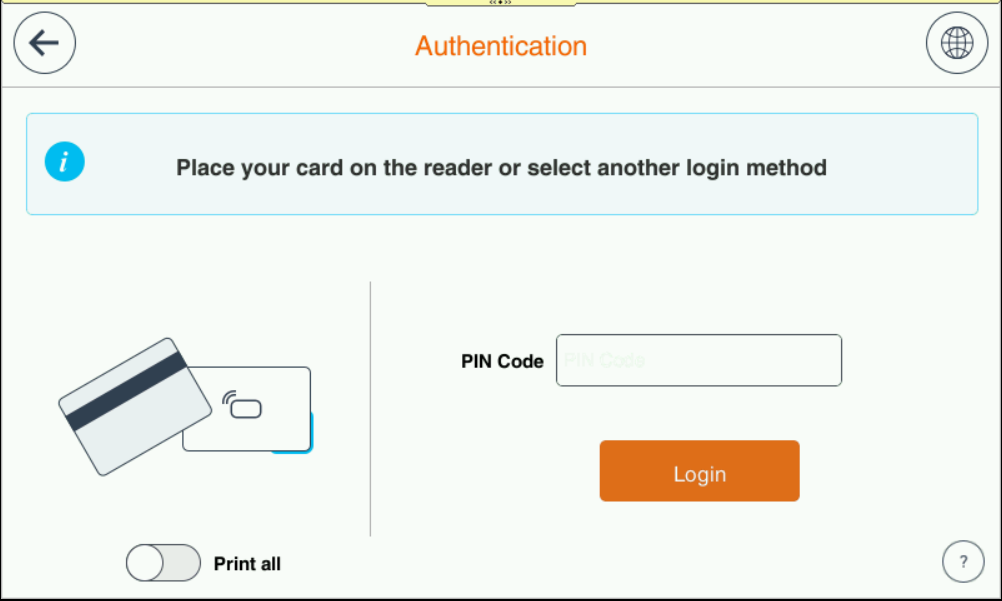
(PIN authentication) Enter your PIN and tap Login.
You can also swipe the card on this screen, or go back and select the login using username/password.
-
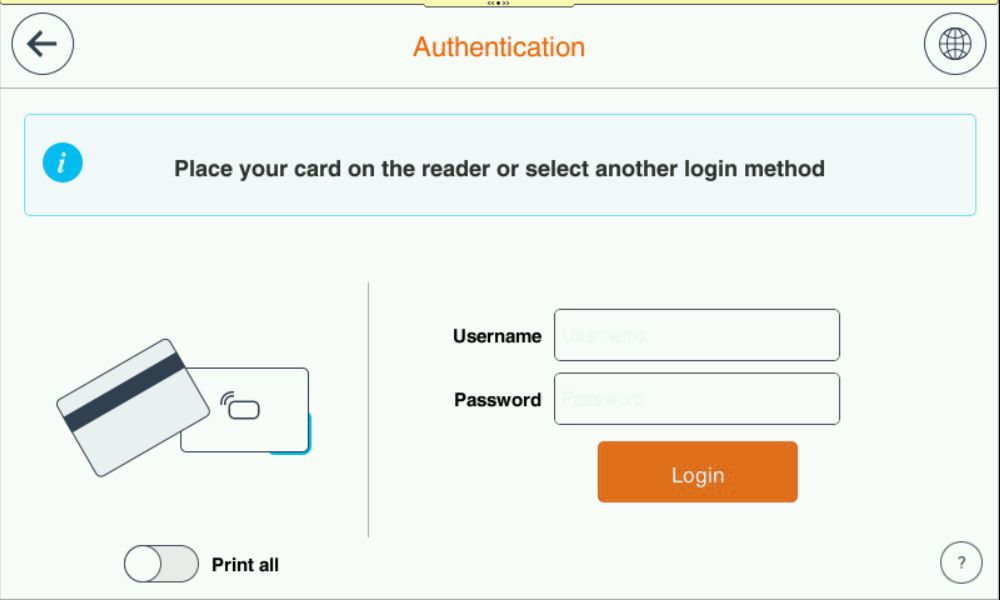
(Username and password authentication) Enter your username/password and tap Login.
You can also swipe the card on this screen, or go back and select the login using PIN.
Logging in with a card and a PIN (username/password)
-
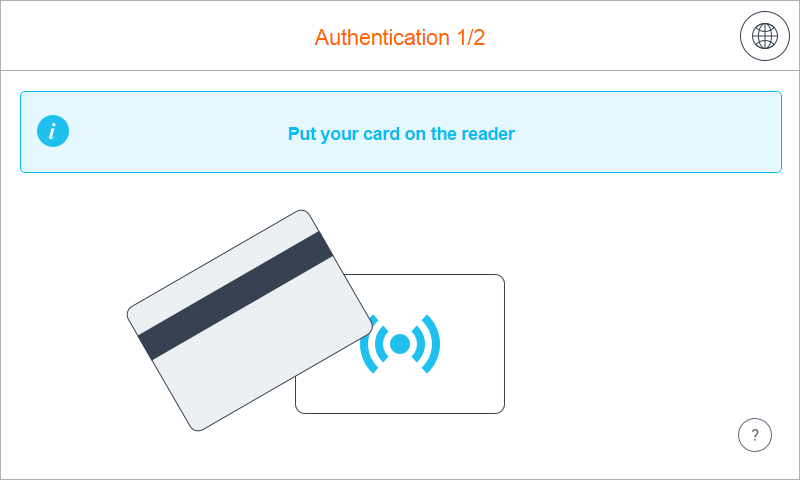
Put your card on the reader attached to the printer and continue to the next step.
Scroll conditional content ipm
2. Enter your PIN (username/password).
3. Tap Login.
Scroll conditional content ipm Scroll conditional content ysoft_safeq
Logging out
There are three options for logging out:
-
To log out, press the Access button (highlighted in the image) on the printer panel.
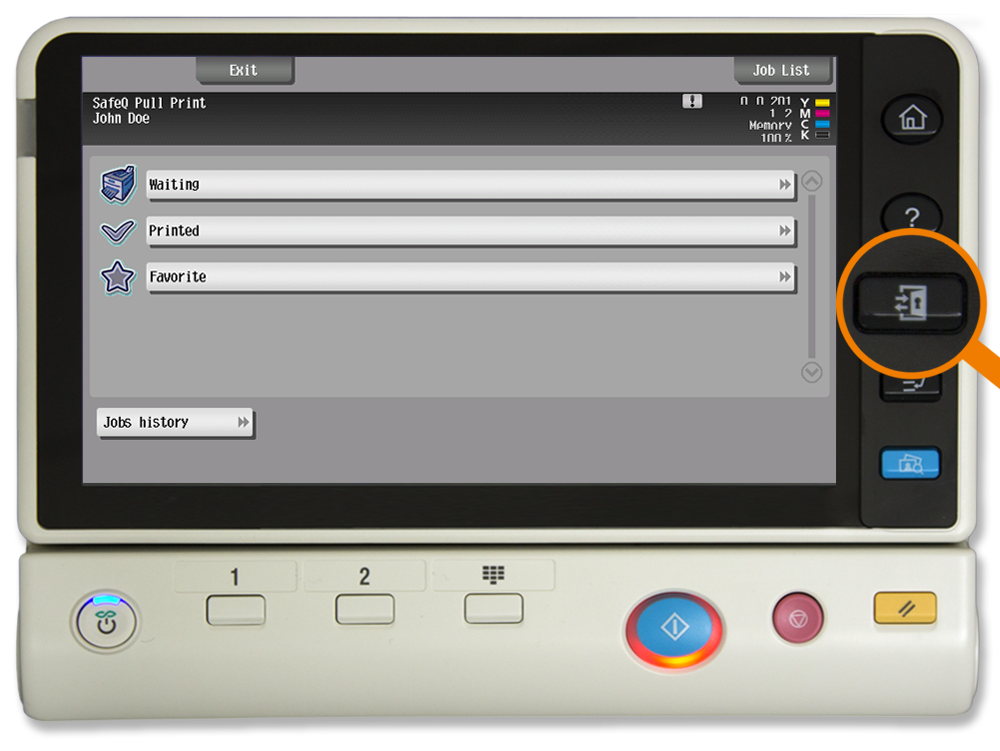
Scroll conditional content 2. Or to log out from the application, tap the icon Log out (highlighted in the image) on the printer display.3. Or put your card on the reader attached to the printer (if the terminal uses authentication by card). ipm Scroll conditional content 2. Or to log out from the application, tap the icon Log out (highlighted in the image) on the printer display.3. Or put your card on the reader attached to the printer (if the terminal uses authentication by card). ysoft_safeq
Display Help
-
Tap the icon

-
Tap OK and the Help dialog is hidden.
Scroll conditional content ipm Scroll conditional content ysoft_safeq
Select Language
-
Tap the icon

-
Select the language and tap Select. The Select a language dialog is hidden.
Scroll conditional content ipm Scroll conditional content ysoft_safeq