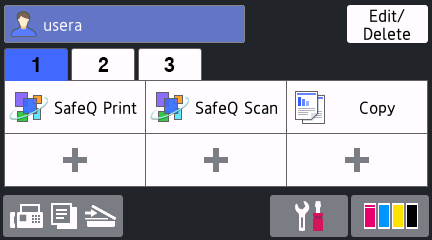
Add SafeQ Print and SafeQ Scan application to the home screen for logged-in users
Screen customization is not available on all BSI-enabled Brother devices.
Option 1 - device admin is allowed to log in via MFD display
-
Log in by some user to the Embedded terminal.
-
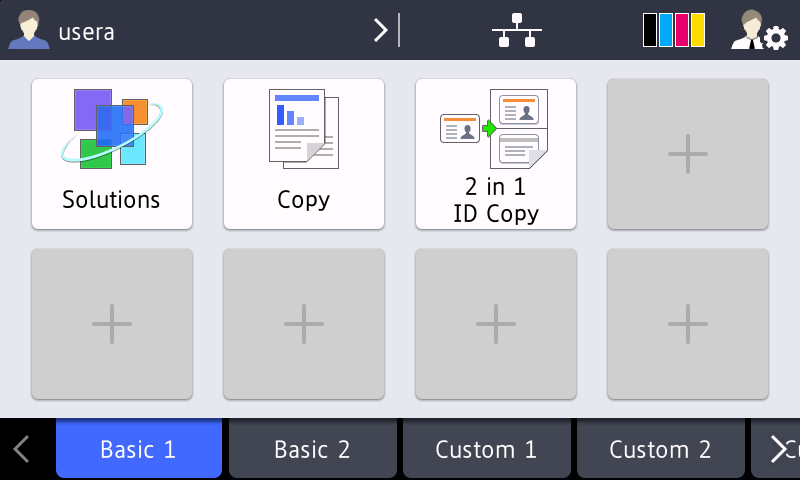
Tap the configuration icon in the top right corner.
-
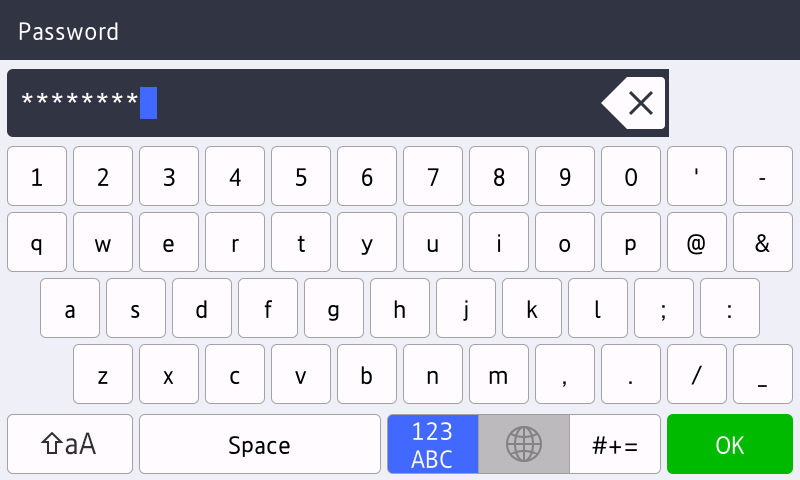
Enter the device administrator password.
-
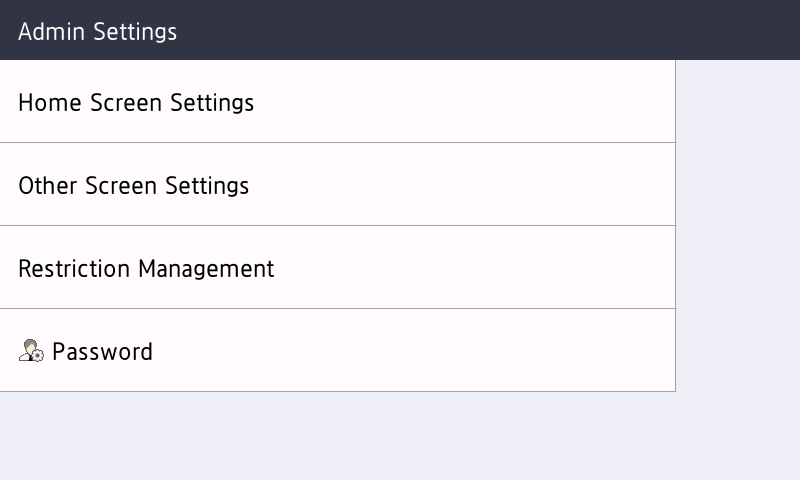
Click on the Home Screen Settings menu.
-
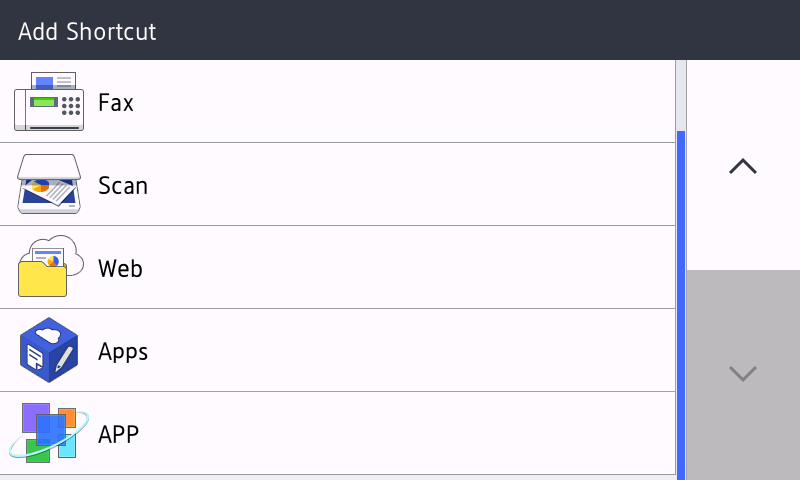
Click on Icons:
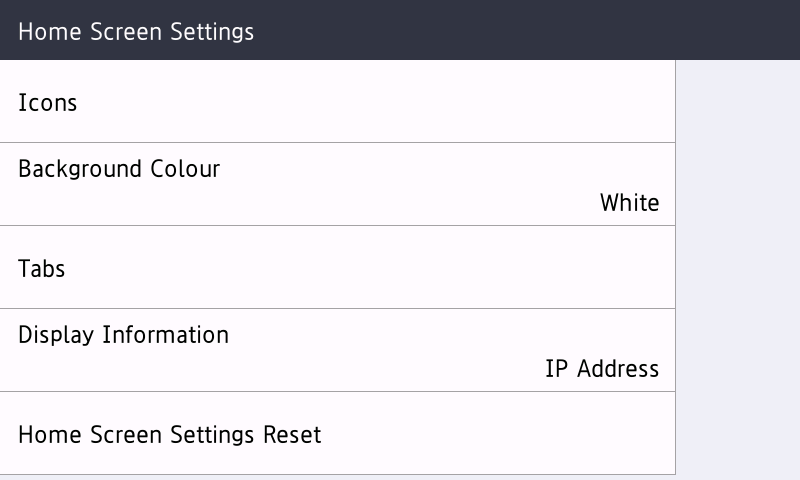
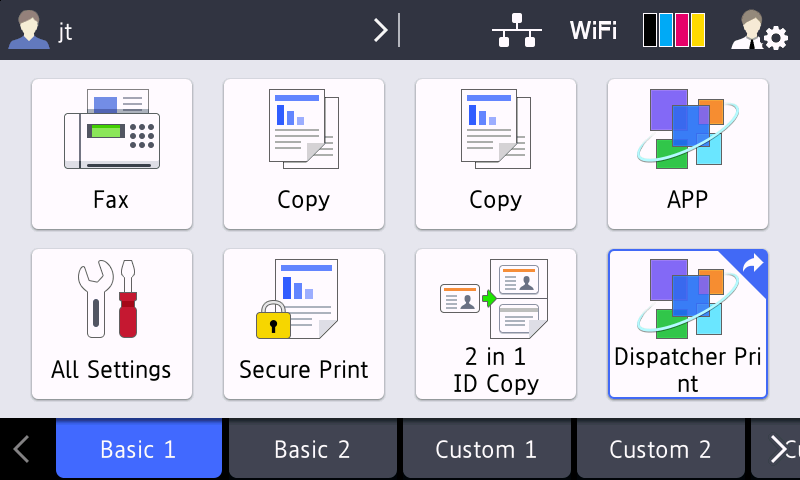
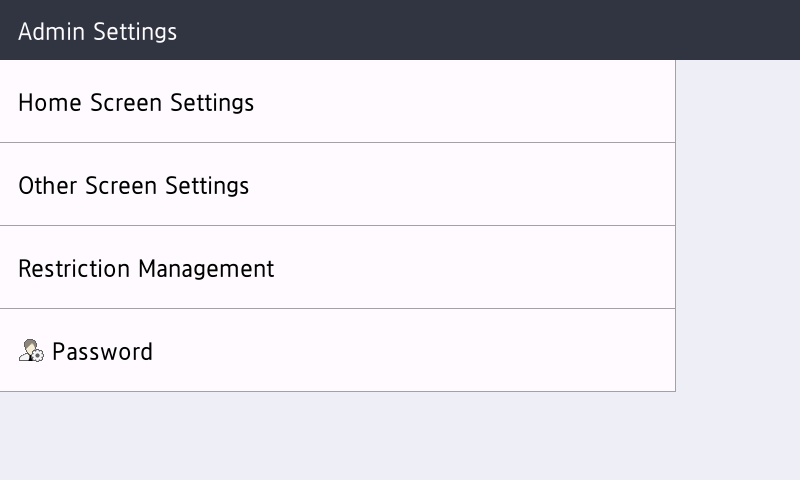
-
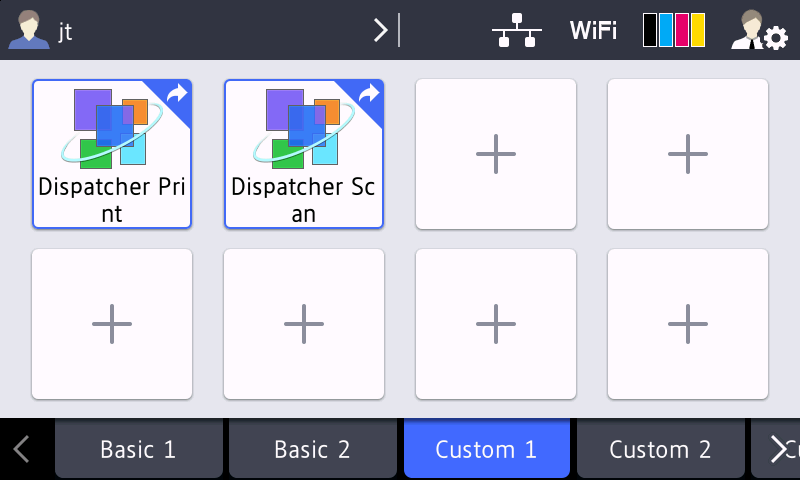
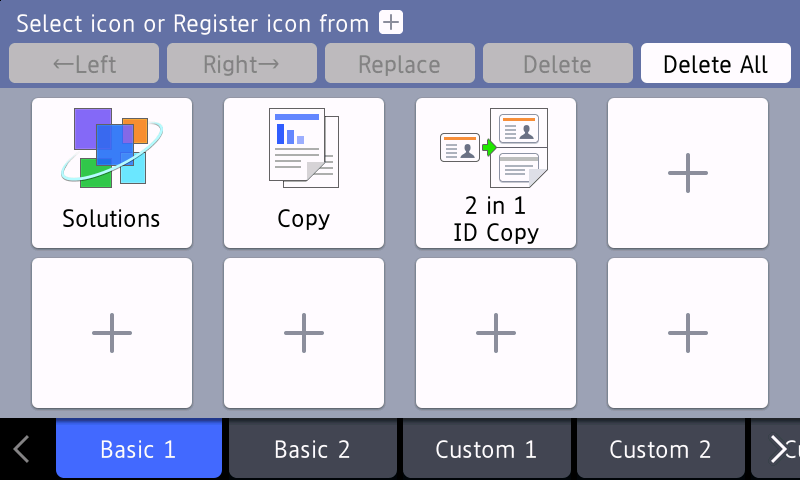
Click on the + sign where you want to add the YSoft SafeQ icon.
-
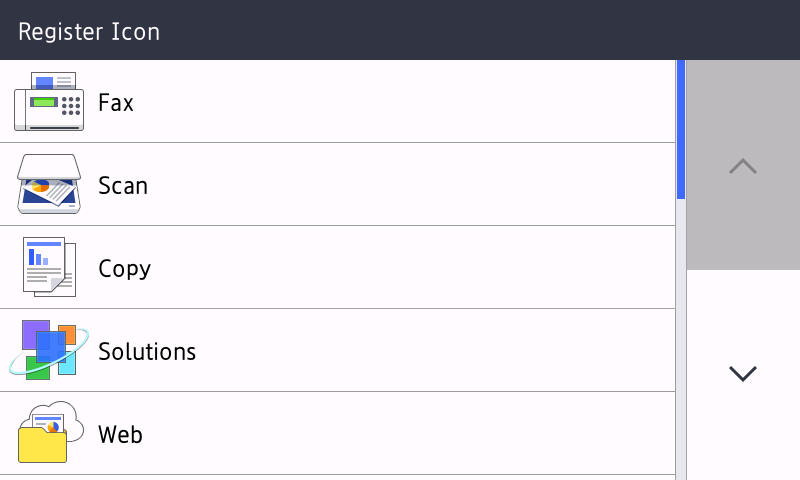
On the next screen, select Solutions:
-
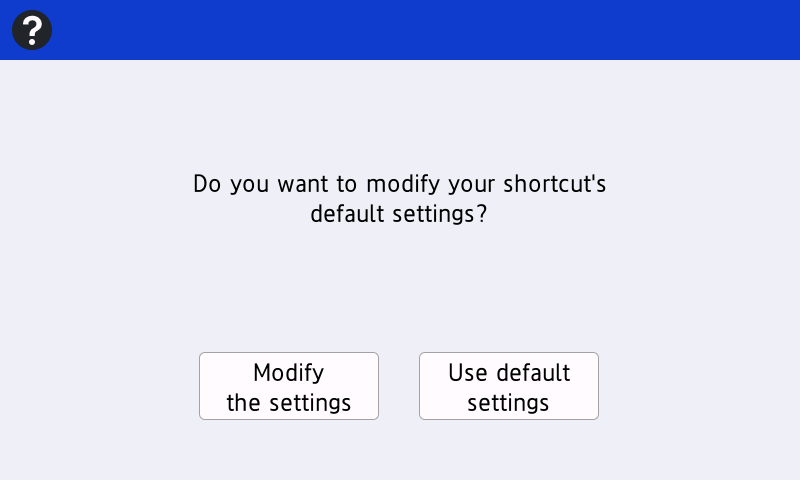
Confirm modification of the selected menu icon
-
Select SafeQ Print or SafeQ Scan.
-
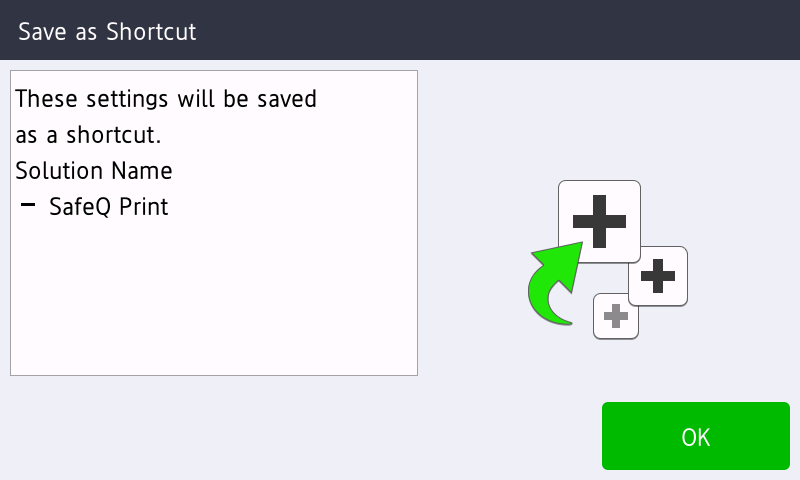
confirm application selection for the shortcut
-
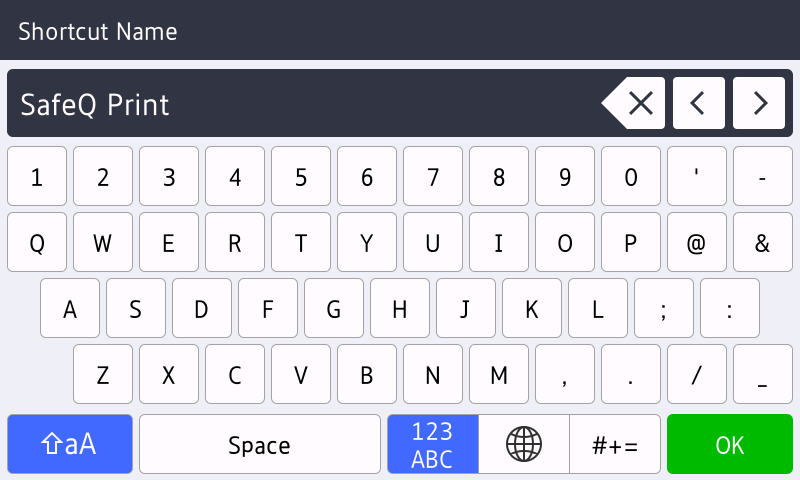
Confirm the name of the shortcut.
-
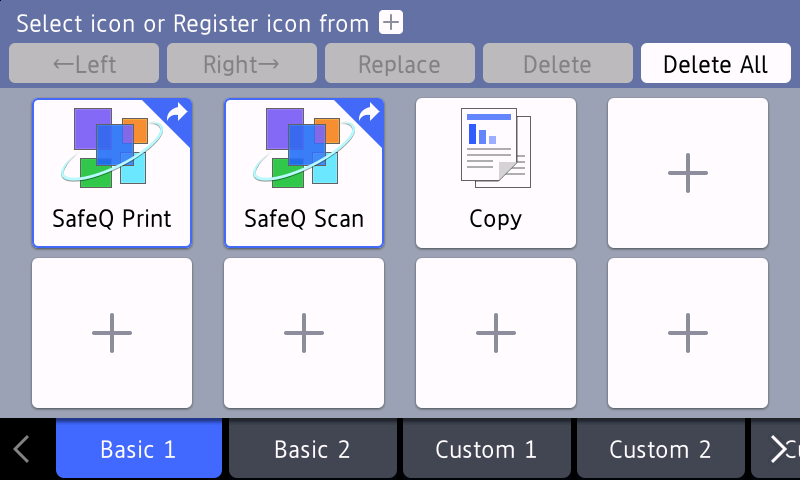
After changes are done press the Home button to save
Option 2 - device admin is not allowed to login via display
-
Install the Embedded terminal on the Brother device.
-
Navigate to the Web interface of the MFD.
-
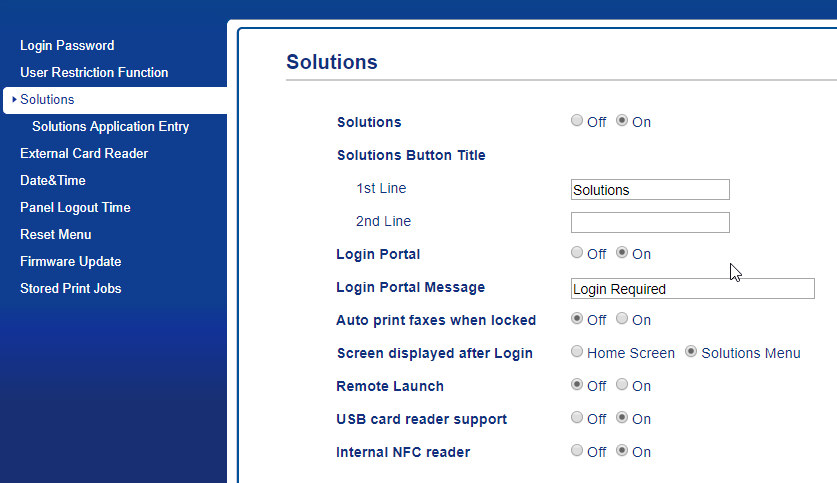
Navigate to Solutions.
-
Switch "Login Portal" to OFF and "Screen displayed after Login" to "Home Screen"
-
Save changes.
-
Wait for the MFD restart.
-
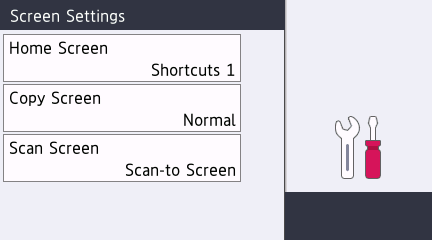
On the MFD display navigate to Settings → Screen settings. Set Home Screen to "Shortcuts 1"
-
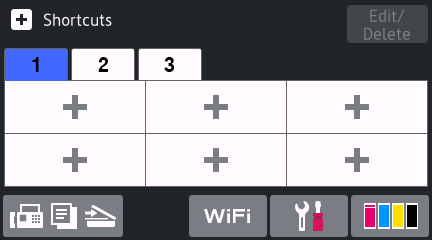
Navigate back to the main screen.
-
Click on + sing on the desired location.
-
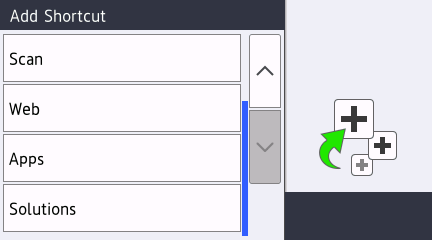
Add a new shortcut – Solutions option.
-
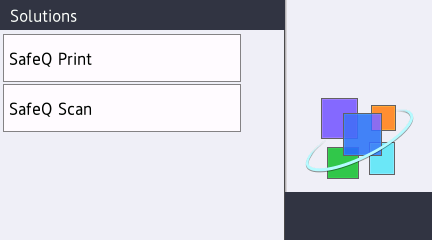
Locate SafeQ Print or SafeQ Scan
-
Confirm.
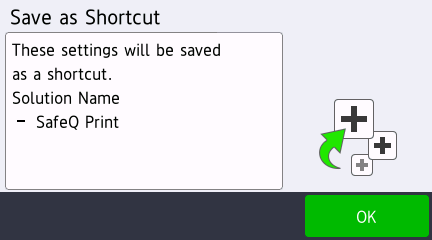
-
Repeat steps 5-9 with all other desired applications.
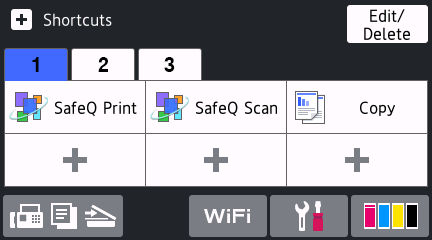
-
Navigate back to the Web interface of MDF – lock the device.
-
Set "Login Portal" to On and leave "Screen displayed after Login" to "Home Screen"
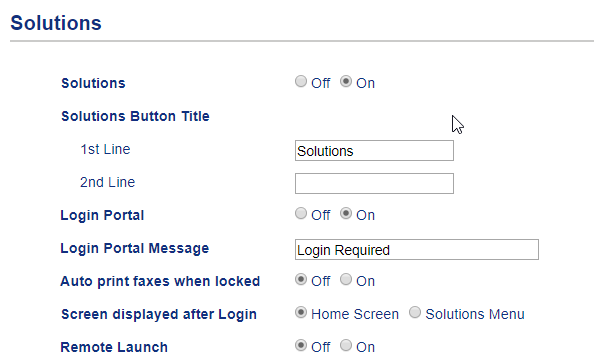
-
Save changes and wait for MFD restart.
-
After login, the logged-in user is presented with selected apps and copy in this case. The user is not able to change the Shortcuts.