Printing and Managing Jobs
-
Log into the embedded terminal.
-
On the Main Menu screen, tap YSoft SafeQ 6.
-
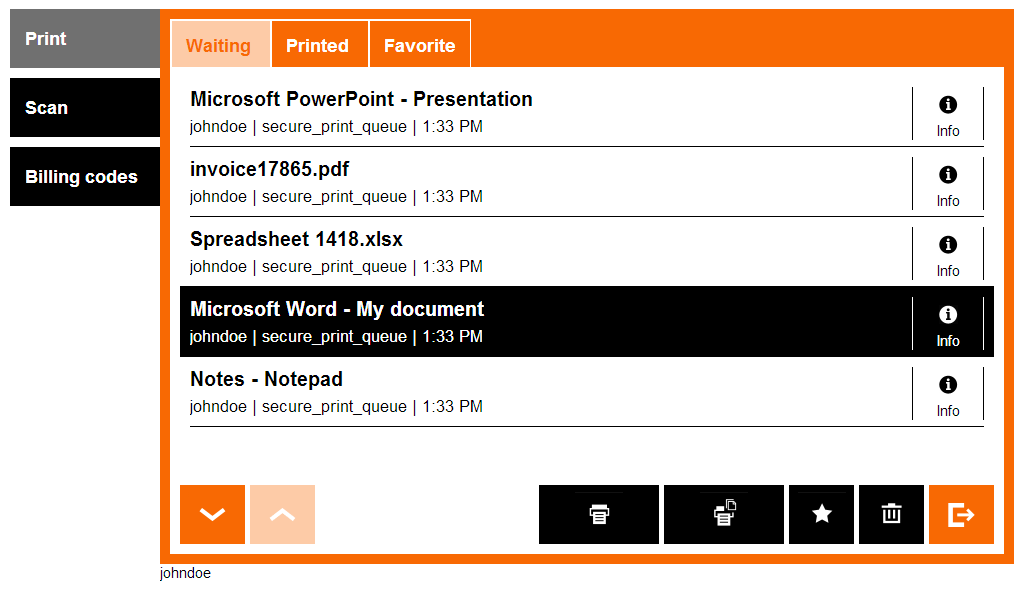
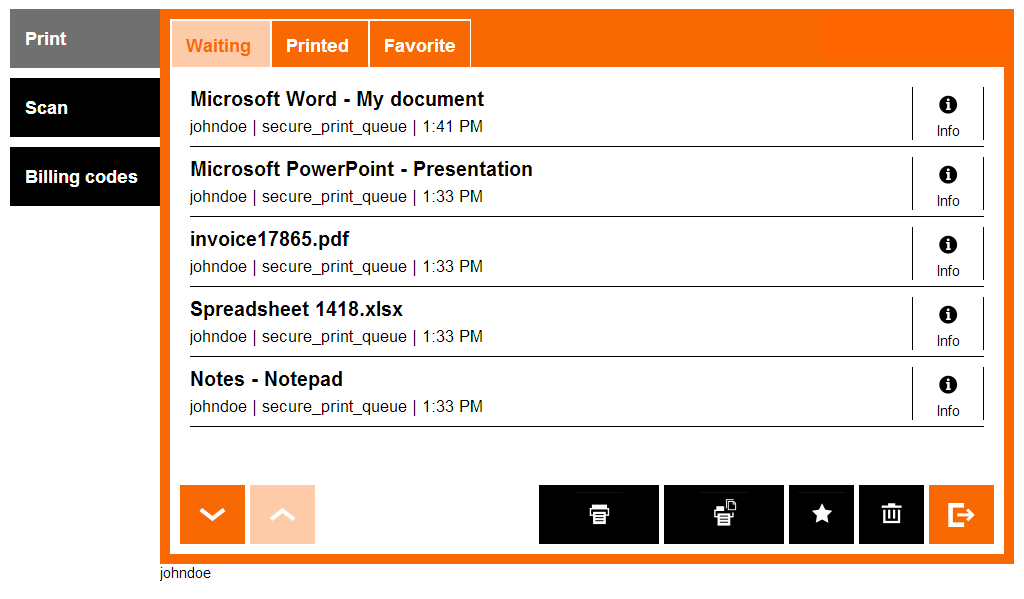
Print job menu is displayed.

-
Sometimes, a print job is not compatible with the particular device. This can be due to a variety of reasons but means that the print job cannot be printed at the device. Incompatible jobs are marked with a red cross and cannot be selected for printing.
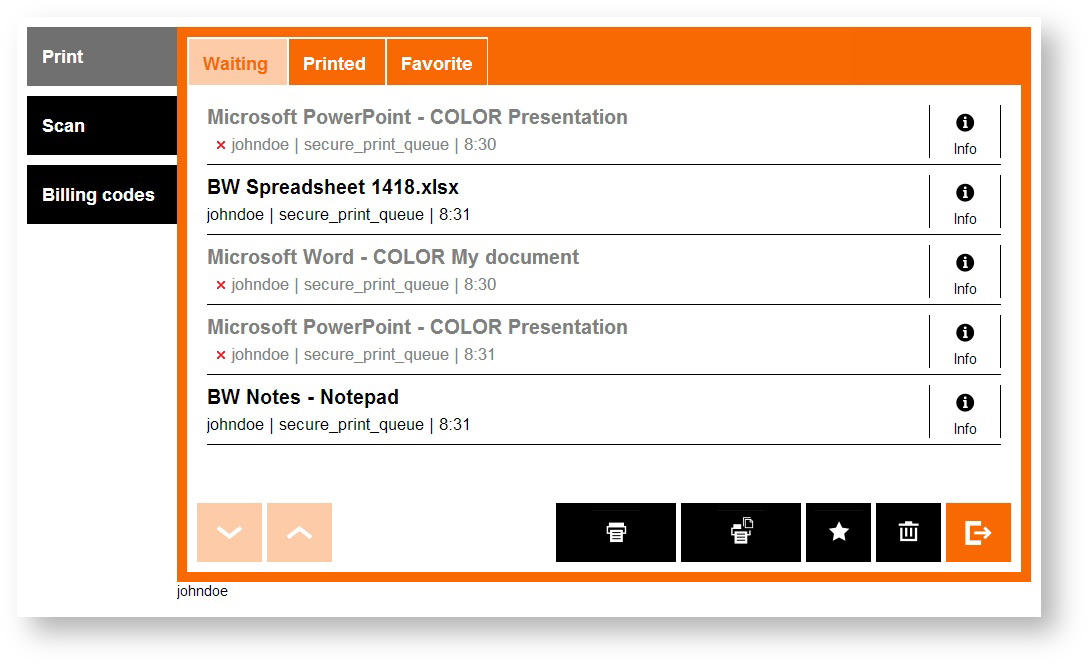
It is possible that another device supports your kind of print jobs (depending on the administrator settings for each device). It is recommended to try another device in your company and repeat the steps above.
-
Once the job is printed, it appears in the Printed folder. This job can be reprinted in the future.
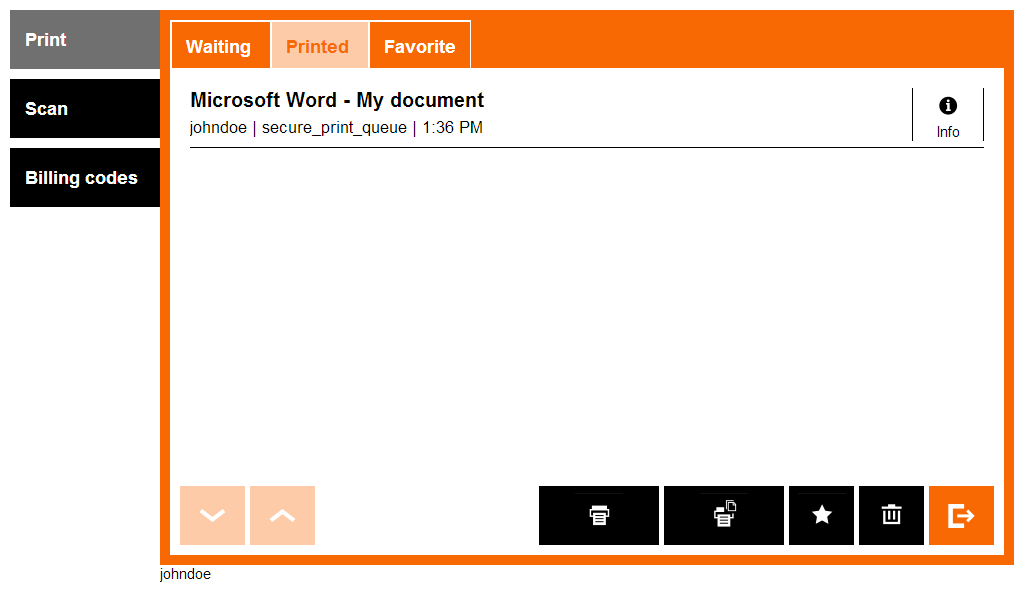
This behavior may not be available. It depends on the configuration of your YSoft SafeQ.
-
You can also perform the following actions in the print menu:





Job Details
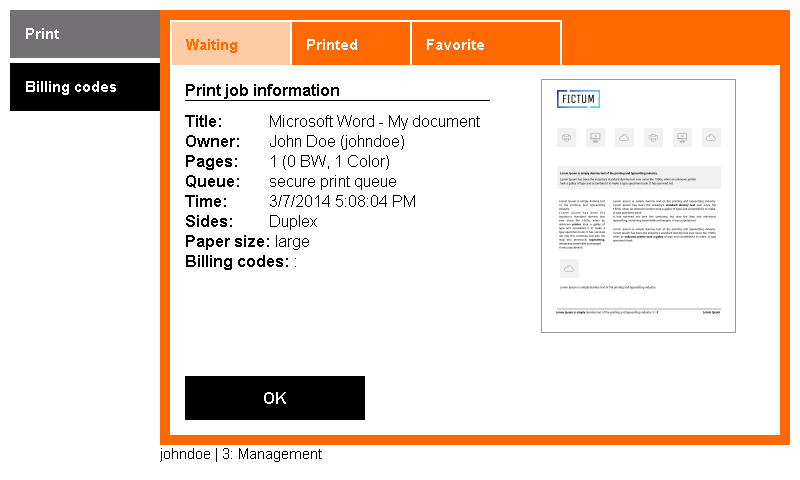
The info button provides access to print job details and a preview.
-
Tap the Info button next to the job to view jobs details.
-
Job details and a preview of the first page of the print job display. Tap the OK button to exit.