
YSoft SafeQ license got deactivated
The possible triggers are:
-
On Computer ID change (e.g., sysprep or operating system re-installation).
-
On version change (e.g., update to 6.0.x version)
-
On date expiration (some licenses are time-limited)
How to solve the issues:
-
If your version of YSoft SafeQ has been updated to the newest build or maintenance update.
Perform online or offline reactivation. The license will be updated to a newer build number. -
If your license has expired
All devices will be switched to no accounting status. Please contact our sales department to obtain the license without a time limitation.
The accounting method needs to be enabled manually for each device once activating non-expired license again.
In the case of issues with license activation, the first troubleshooting step is using the offline activation method. This method displays error messages returned by the activation server. The information from offline activation is required by support for an incident resolution. Each license incident needs to contain a screenshot of the error message, the generated integrity key, and a description of the steps that were performed prior to the activation (e.g., an old server has failed, and we are trying to activate the license on a new server).
Cannot install a device with an embedded terminal due to insufficient licenses
It is possible that when reporting devices are installed before devices with an embedded terminal, they get assigned the wrong license type. That can result in the inability to install a device with an embedded terminal even though the license should allow it.
To see which devices have which licenses assigned, you can visit System > License information page. In the section License usage, you can click the respective license to see a list of devices that have it assigned. You can also filter devices by license type in the Devices list using the Advanced filter.
How to solve this issue:
-
Remove a reporting device (taking the embedded terminal license slot) or remove the device itself to free the embedded terminal license.
-
Reactivate the license that fixes the incorrect license allocation.
-
Edit (or create) the device you want to update to an embedded terminal.
Removing a device and creating it again can have consequences in reporting (it would be considered a new device). There can also be issues with Counter reports.
If you choose Terminal Type „None“ while adding the printer, it consumes Reporting devices license by default. If no such free license is available it consumes Device without embedded terminal license and if also not available, it consumes Device with embedded terminal license.
Distinguish devices that consume a license for a different device type
A device that consumes a license for a different device type will appear in the list of those devices and can be distinguished by the following:
-
Devices without embedded terminal can be distinguished from other devices in the list by a specific hardware terminal name (e.g. Terminal UltraLight, Terminal Pro 4) in the Terminal Type column and by the presence of an installation status.
-
Reporting devices can be distinguished from other devices in the list by the value "None" in the Terminal Type column and by the absence of any installation status.
Cluster License activation issues after upgrading to newer Build
Users may encounter issues with cluster license activation right after upgrading from earlier versions to the latest one:
-
Error 500 appears when the user tries to activate the license.
How to solve this issue:
Re-activation of the license in YSoft SafeQ is required. However, using the "Re-activate Existing License" process in YSoft SafeQ does not always work to enable the updated license clustering.
The license activation key needs to be re-entered using the "Upgrade Existing License" process in YSoft SafeQ. The necessary steps are described in the License Upgrades guide.
Always make sure that all Management Service nodes are the same version. All nodes should be stopped before the update.
Hardware failure of all nodes
In the case of a hardware failure all nodes that were used for activation of the license, it is necessary to transfer the license to another node. The activated license is associated with the node identifiers and the system will be deactivated when licensed nodes are lost or after the simultaneous restart of all the remaining cluster server nodes that are not licensed (for example, during a power outage if the servers are not equipped with UPS protection). For more information about how to transfer the license see the section General solution below.
How to solve this issue:
-
Go through the section General solution below.
Potential issues
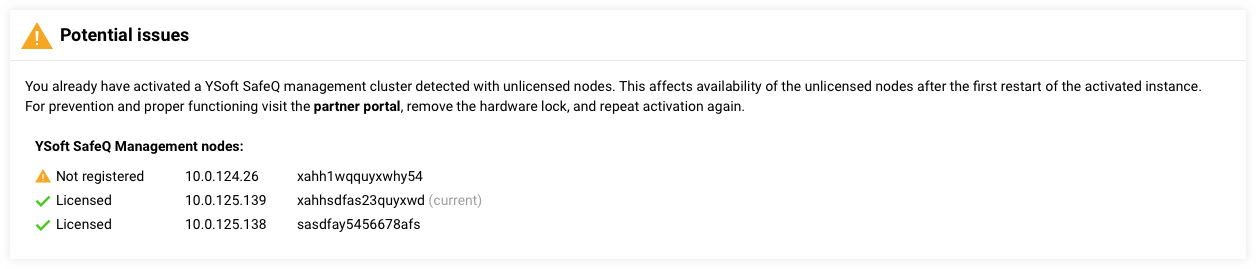
If you see the message "Potential issues: You already have activated a YSoft SafeQ Management Server cluster detected with unlicensed nodes", probably:
-
The new management node has been added to your management cluster.
-
The administrator activated the license before the last management server was installed in case he planned to install the management cluster.
How to solve this issue:
-
Go through the section General solution.
License activation failed
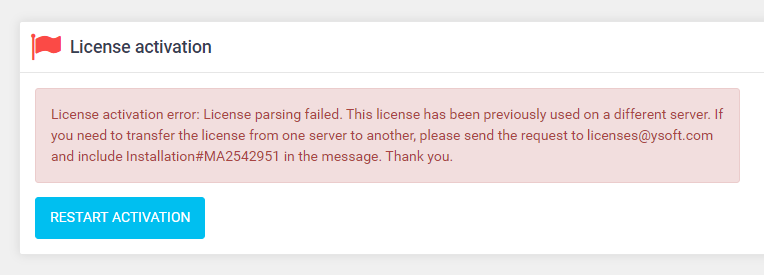
If you see the following screen, probably:
-
The license has been used previously to activate a different server and currently does not allow to enable another server.
-
You are trying to activate license MAxxxxxxx on a server where a different license (MAxxxxxxx) has been used in the past.
How to solve this issue:
-
Go through the section General solution below.
Printer listed as "Limited device" although the license does not include limited devices
The following scenario could happen:
-
the license contains Limited devices
-
a printer is added via the management interface and the checkbox "Use LD license for this device" is enabled
-
a printer is listed as a Limited Device
-
in the License Information (Management Interface > System > License information)
-
in the device overview (Management Interface > Devices > Printers > Advanced > License type = Limited device with/without Embedded Terminal)
-
-
a new license is activated, the new license does not contain Limited devices
-
a printer is still listed as a Limited Device in the Devices > Printers, the checkbox "Use LD license for this device" has disappeared
How to solve this issue:
-
Contact the support team of the supplier for assistance.
License content is not changed after the reactivation
It might happen that YSoft SafeQ dashboard shows the outdated license content after the license extension followed by the online reactivation.
How to solve this issue:
-
Start the license offline activation process via the YSoft SafeQ web interface.
-
Choose Upgrade existing license (avoid Reactivate option).
-
Enter the activation key (usually in format XXXXX-XXXXX-XXXXX-XXXXX-XXXXX ).
-
Choose Offline activation.
-
Finish the activation process by following the on-screen instructions.
-
Verify that the license shows correct information.
If the issue persists, raise an incident with supplier and provide:
-
a screenshot of the issue
-
a description of what is happening and what would be the expected behavior
-
integrity key as a plain text
-
it is generated during offline activation, it starts with text code,-
-
-
date and time of the last activation attempt
-
<Management>\logs\management-service.log covering the time of the last activation attempt
General solution
This solution is related to issues:
-
Hardware failure of all nodes
-
Potential issues
-
License activation failed
Variant 1:
Method requires portal role "Sales general" which is available mostly to sales personnel. If you account misses the role you are not able to see "Business support" menu. If you manage more users accounts, you can list their permissions in menu My Account -> Account Management -> My Users -> Organisation Users.
-
For prevention and proper functioning visit the Partner Portal
-
On the Partner portal remove hardware lock:
-
Login to the partner portal.
-
Left menu → Business support / License management.
-
Find customer license and click on the Detail.
-
On the detail page, click on the Software wizard button.
-
At the top of the screen, you will see the license information. Click on the HW-locked and insert the e-mail for a confirmation.
-
Now you should see "Unlocked to new HW."
-
-
Go back to the management interface and Activate license again (Online or Offline)
-
Use Upgrade existing license if it is available among other options.
-
Variant 2:
-
The partner responsible for the installation needs to send a request to allow reactivation on the new hardware to the license support e-mail.
-
The request must contain:
-
the reason why the transfer is needed
-
the support ID or the customer company name
-
-
Note that the approval process may take several days to complete.
-
If you urgently need the license, you can activate the trial license instead. Please see Trial Licenses for information about the volume of supported devices.