
This document describes YSoft SafeQ Embedded Terminal for Konica Minolta - 2nd Gen. for scan application. It is an alternative to YSoft SafeQ Embedded Terminal for Konica Minolta - Native.
Workflow scanning
Log in to the embedded terminal.
On the Main Menu screen, tap Scan
You may be redirected directly to the Scan application. In that case, skip this step.
Select a scan workflow you want to execute. Some of the workflows are marked as Quick and are executed directly from the workflows screen by tapping on the workflow. The other workflows need additional parameters to be entered and tapping on the workflow redirects you to a workflow detail screen.
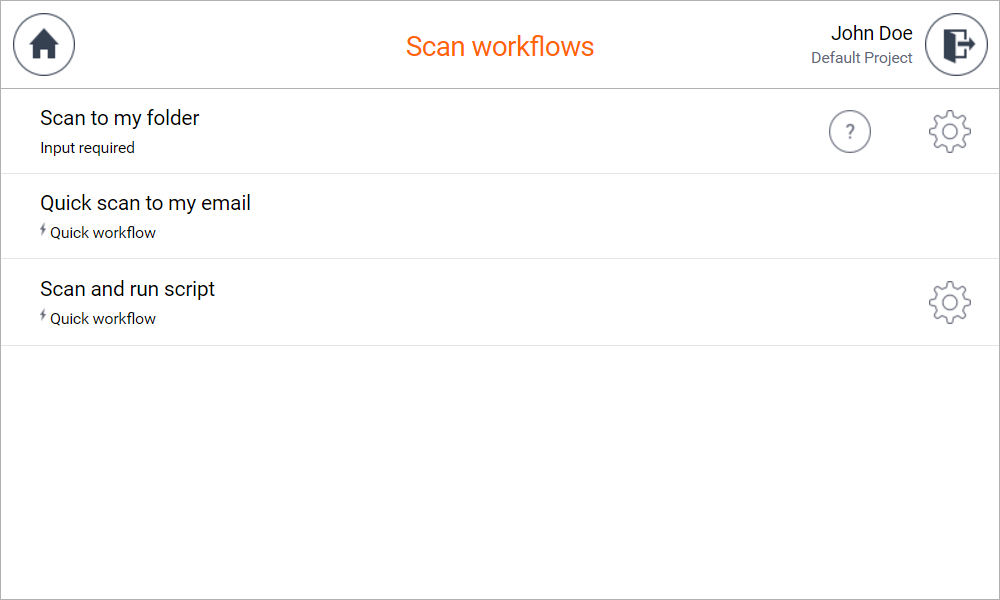
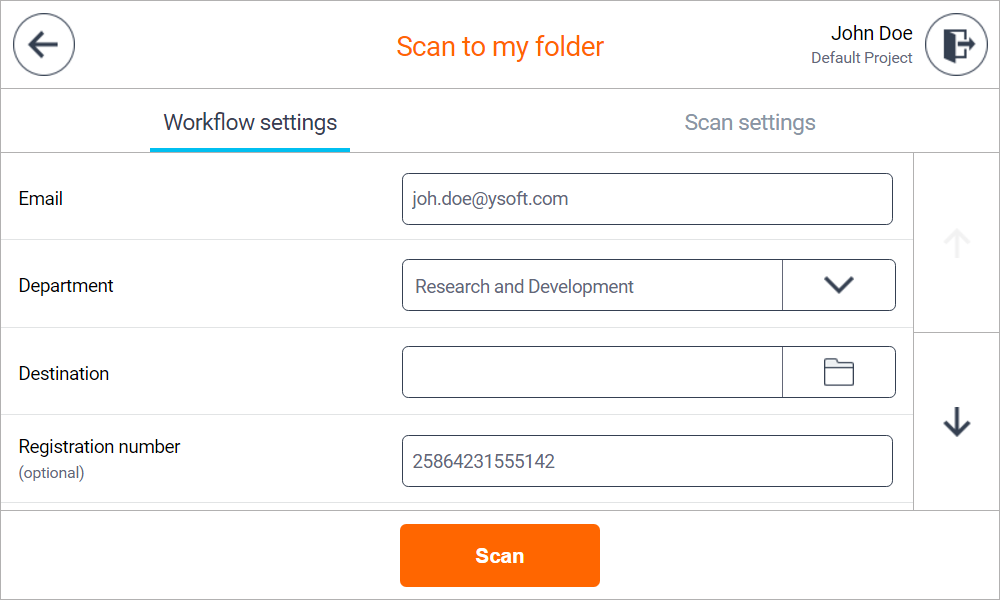
In workflow detail screen, you can enter additional workflow parameters.
Tapping Scan settings tab opens a screen where you can select properties of the scan job.
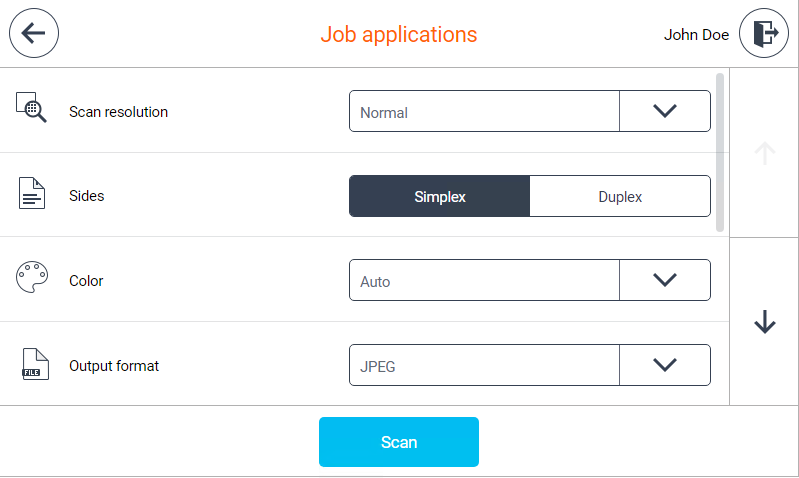
The workflow configuration might not allow to configure scan or workflow settings. In that case, the tab is not shown.
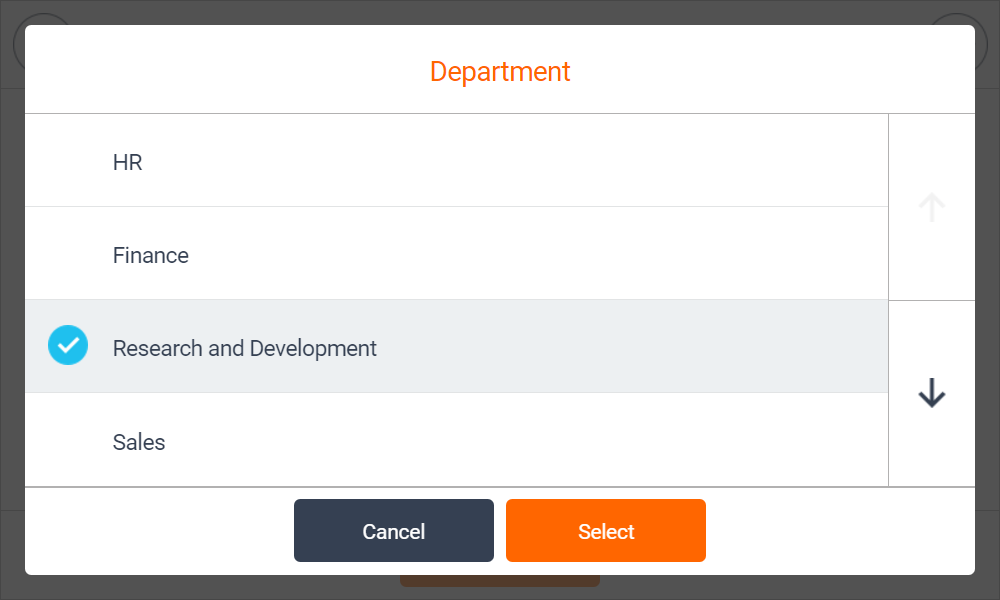
Some of the parameters allow you to browse folders or lists of available options. Tapping such parameter opens a new dialog for value selection.
Email parameters allow you to search for an email address. See this page for details:
When you are ready, tap the Scan button to initialize the scan job.
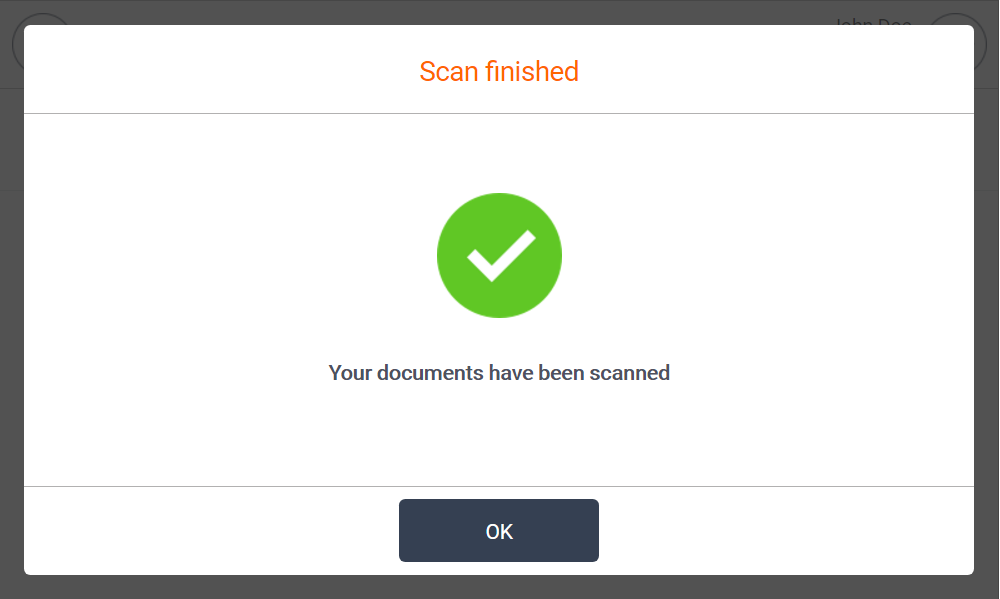
When scanning is finished, you receive information about the result. If the scan completes successfully, a message indicating success is displayed.
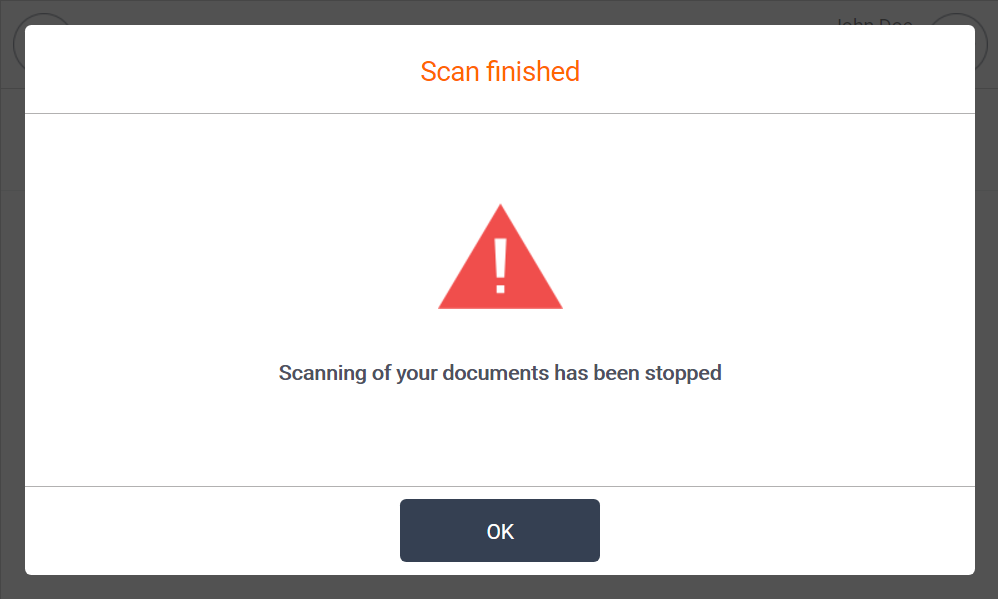
If the scan is interrupted or fails, a message indicating it was stopped is shown.
Note that the scan success message is displayed only when the "Merging Originals" option is enabled.