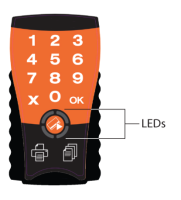
The YSoft SafeQ Terminal UltraLight contains status LEDs that serve for interaction with the user. This chapter describes the beeps the terminal emits and LED codes it displays to notify the user about various status conditions.
Beep code sequences
In the following table, a period ( . ) represents a short beep and a dash ( - ) represents a long beep.
This option is available only if the sound is enabled.
|
Sequence |
Description |
|---|---|
|
- |
Card read error. Place the card again or use a different card. |
|
. - |
Terminal validation failed. Server reports that the terminal is not registered on YSoft SafeQ. |
|
- - |
No print job is waiting in queue. |
|
. . - |
User quota has been exceeded or user has no billing code assigned. |
|
- . - |
User authentication failed. The PIN is not valid or the ID card is not registered in YSoft SafeQ. If YSoft SafeQ Payment System is used, it can indicate account is disabled. |
|
. - - |
The terminal received an error or warning message from the YSoft SafeQ server. If YSoft SafeQ Payment System is used, it can indicate insufficient credit balance for current user (according YSoft SafeQ system settings for YSoft SafeQ Payment System – pricePerPageReservationStrategyForCopyOnHwTerminal ) to perform copies/scans. |
|
- - - |
Connection to YSoft SafeQ server failed. |
|
. . . - |
Hardware configuration is corrupt and the terminal cannot continue booting. |
|
- .. - |
Maximum number of firmware update attempts reached but no valid firmware detected. |
|
. - . - |
Firmware update failed. |
|
- - . - |
Software configuration cannot be saved. Probably faulty terminal EEPROM. |
|
. . - - |
Software configuration is damaged and the terminal is loading defaults. |
|
- . - - |
Maximum number of firmware update attempts reached and the terminal is resuming normal boot. |
|
. - - - |
Firmware damaged. |
|
- - - - |
Network initiation failed. |
|
. . . . |
Keyboard PCB failure. |
|
- . . . |
No reader is connected. Reader is required for operation. |
|
. - . . |
Firmware update failed. Error in server response. YSoft SafeQ server is probably not configured correctly. |
|
- - . . |
Firmware update failed. Cannot connect to YSoft SafeQ server. |
LED code sequences
The following table shows the various LED code sequences and explains what they indicate.
There are following colors used for icons:
-
Green - Led is green
-
Red - Led is red
-
Orange - Led is orange
-
Grey - Led is off
|
Sequence |
Description |
|---|---|
|
|
Animated
|
|
|
All LEDs are off
|
|
|
Animated
|
|
|
Animated
|
|
|
Firmware upgrade in progress; please wait. |
|
|
Swipe card or enter PIN. |
|
|
Enter PIN (when authentication requires card + PIN). |
|
|
Enter Card Activation Code (when Card Activation Codes are enabled on the YSoft SafeQ server). |
|
|
Print jobs are available and copying is possible. Press the Print or Copy icon.
|
|
|
No print jobs are available in the queue. Copying is possible. Press the Copy icon.
|
|
|
Flashing
|
|
|
Flashing
|
|
|
Flashing
|
|
|
Flashing
|
|
|
Flashing
|
|
|
Sequential...
|

|
Terminal has not been fully configured. Please contact Y Soft Customer support services. |
|
|
During boot
|
|
|
During initialization beep sequence
|
|
|
During initialization beep sequence
|
|
|
During initialization beep sequence
|