
The SAFEQ Cloud Client can print even when it cannot reach the SAFEQ Cloudserver. For example during a network or server outage. Offline printing is always available and needs no configuration.
When you print to a secure (pull) print queue while offline, the client offers to send the job directly to one of the printers you have used recently. When you print to a direct queue, the job goes to its usual printer as normal. Everything printed offline is reported to the server automatically once the connection is restored, so your print history and accounting stay complete.
Printing while offline
When you print to a secure print queue while the client is offline, the Send directly to a printer dialog appears. It offers up to five printers where you recently released print jobs, with the most recently used one pre-selected. Select a printer and click Print Directly - the document prints immediately, without logging in at the device. Or click Cancel if you do not want to print right now.
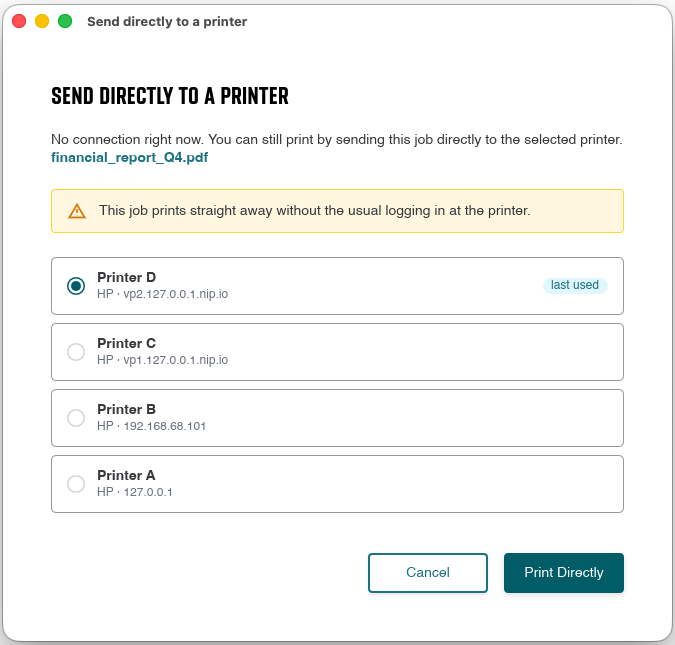
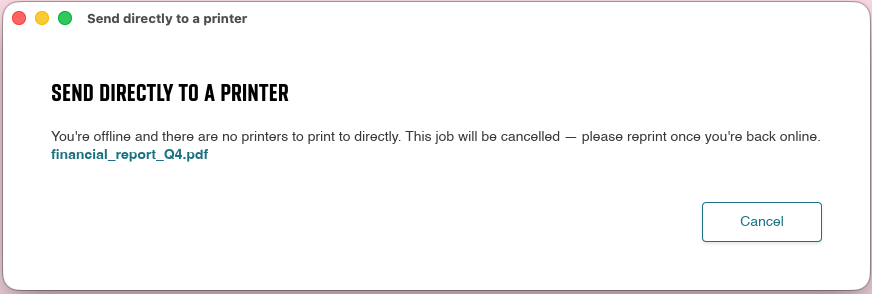
If there are no recently used printers to offer, the dialog tells you what happened to the job:
-
If your client stores print jobs locally, the job is saved and you can release it as usual once you are back online.
-
Otherwise the job is cancelled - print the document again after the connection is restored.
Printing while offline with balances enabled
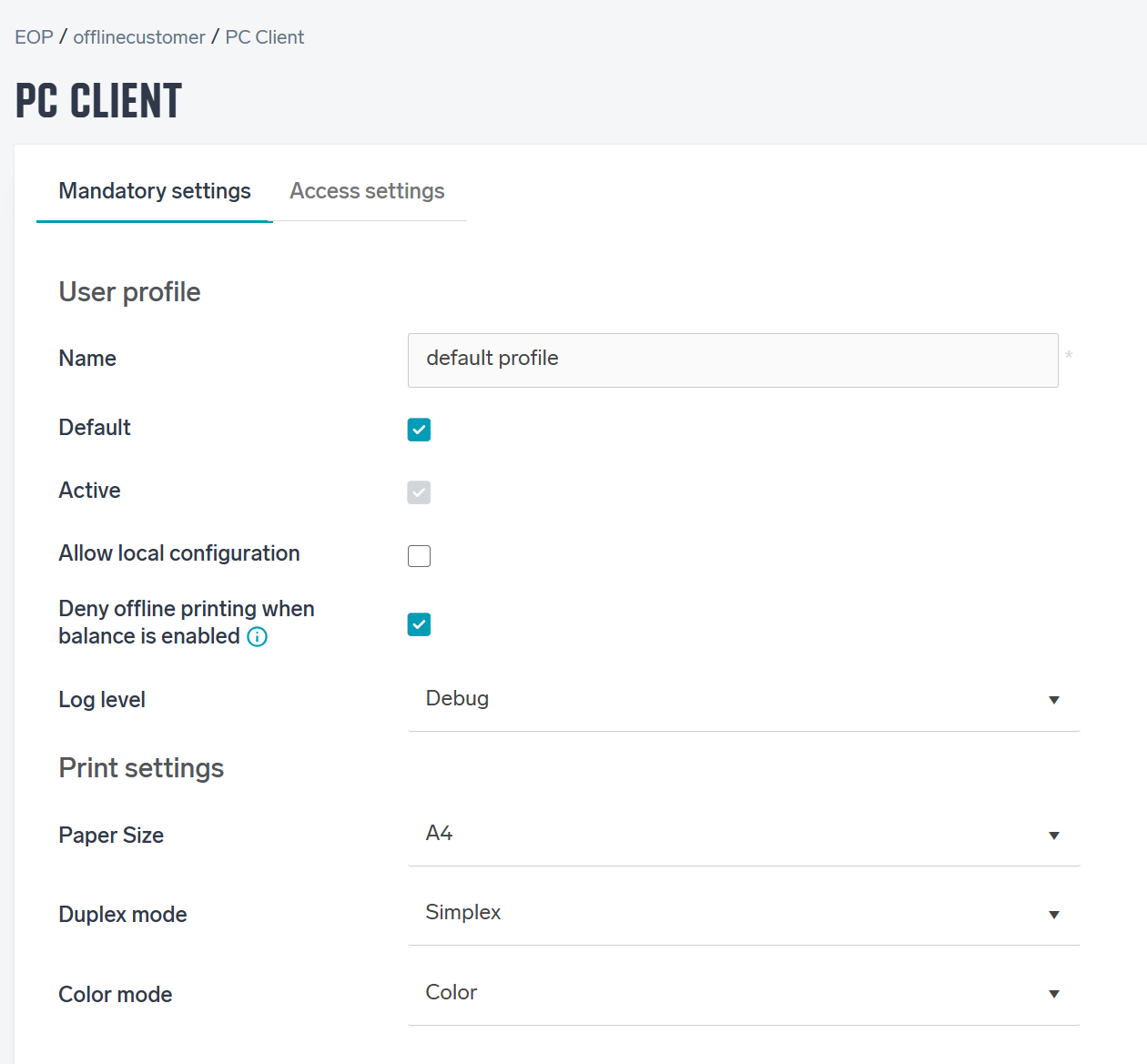
When you have balances enabled (for more information see Balances), your balance score does not update while a user prints offline, meaning, they can get into negative balance numbers once they return online. For this reason it is possible to deny offline printing. To do that, go to Configuration profiles and for each profile simply deny offline print by checking "Deny offline print when balance is enabled".
Good to know
-
Offline jobs print without authentication. The document comes out at the printer immediately.
-
Offline prints are currently not charged against your balance. If you use balance (credit) for printing, jobs printed while offline are not deducted from your balance. This will be fixed in upcoming releases.
-
Offline printing needs an online history. Only printers where you released jobs before while online are offered (up to five), and only for print queues the client has already synchronized. If you have never printed while online, offline printing is not available.
-
The dialog waits up to 10 minutes. If you do not respond in time - or the client restarts before you
confirm - the job is cancelled, unless it was saved locally. -
Your print history catches up automatically shortly after the connection is restored.