
Relevant Products: pro print pro mfd
Balance
The Balance feature lets you charge users for print and copy jobs. Every page costs credits according to a price list, and the cost is deducted from the user's balance. You manage user balances, the policies that decide how users are charged, and the prices.
Related pages
-
My Balance — what users see.
-
Balance limitations — which devices, job types and workflows are checked and charged.
-
PayPal payment gateway — online payments: connecting PayPal, pricing credits and what users see.
Balance is currently in beta. The Balance menu item carries a BETA badge. Until the beta notice is accepted for the account, the Balance page shows only the notice. Click Continue to accept it.
Requirements
-
The UserBalance feature must be enabled for the customer account. Contact Y Soft support to enable it.
-
Balance must be switched on in Balance › Settings (Enable balance). While it is off, nothing is checked or charged.
-
Online payments additionally need the PaymentGateway feature, see PayPal payment gateway.
-
You need these permissions:
|
Permission |
Allows |
|---|---|
|
ViewUserBalance |
Opening Balance, the list of users and their transactions. |
|
ModifyUserBalance |
Top up and withdraw credits, the Policies tab. |
|
ModifyBalancePricing |
The Settings and Payment gateways tabs. |
Balance tab
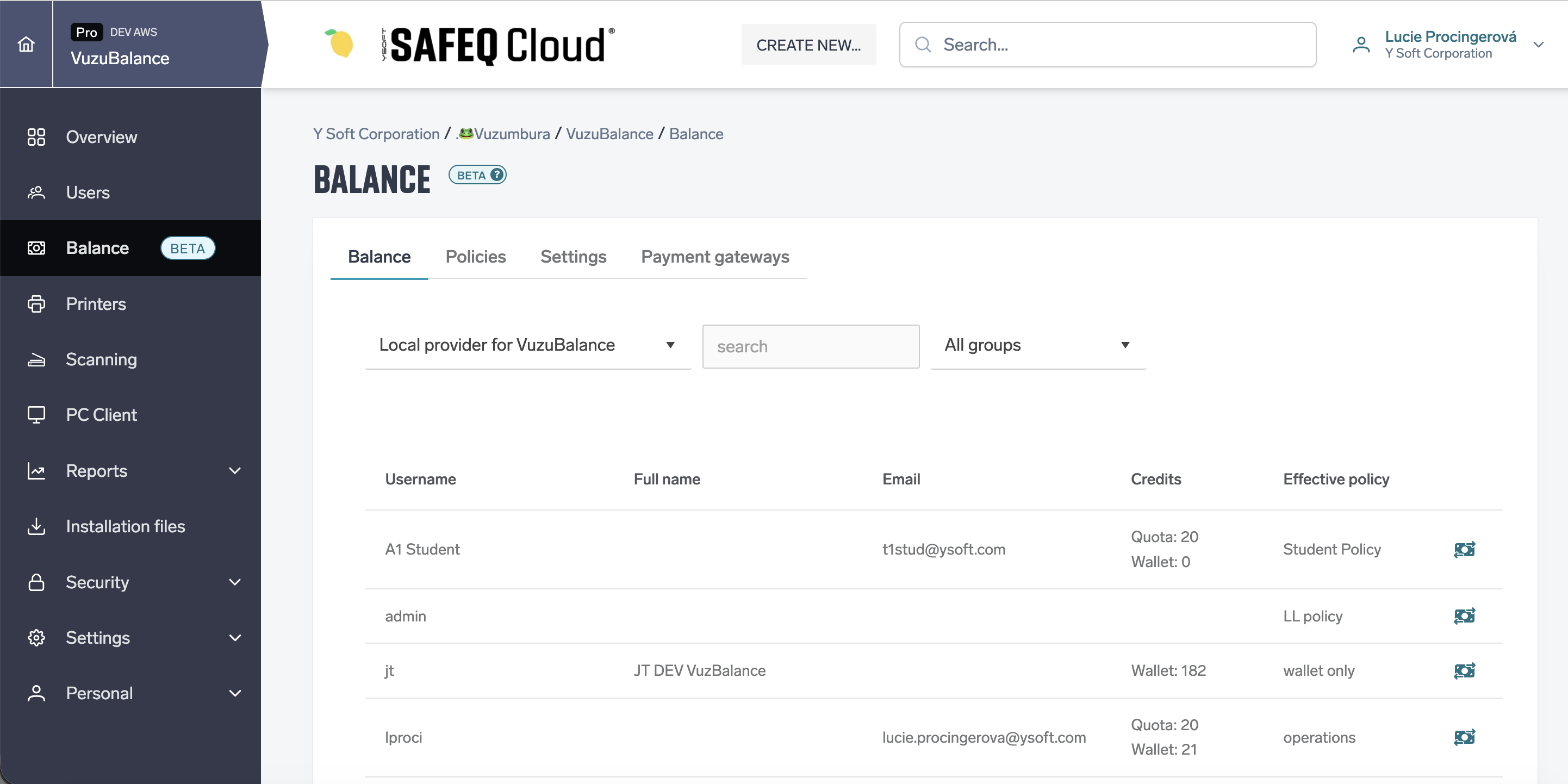
The Balance tab lists users and their balances. Above the table, choose the authentication provider and search by username or card ID. Depending on the provider, you can also filter by user group.
|
Column |
Description |
|---|---|
|
Username |
The user's login name. |
|
Full name |
The user's full name. |
|
|
The user's email address. |
|
Credits |
The balances the user's policy uses: Quota, Wallet or both. Free printing for a Free policy. Empty when the user has no balance yet. |
|
Effective policy |
The policy applied to the user. Default for the default policy. |
While balance is switched off, the tab shows: "Balance is not enabled. Enable it in Settings tab to start tracking user balance."
User balance detail
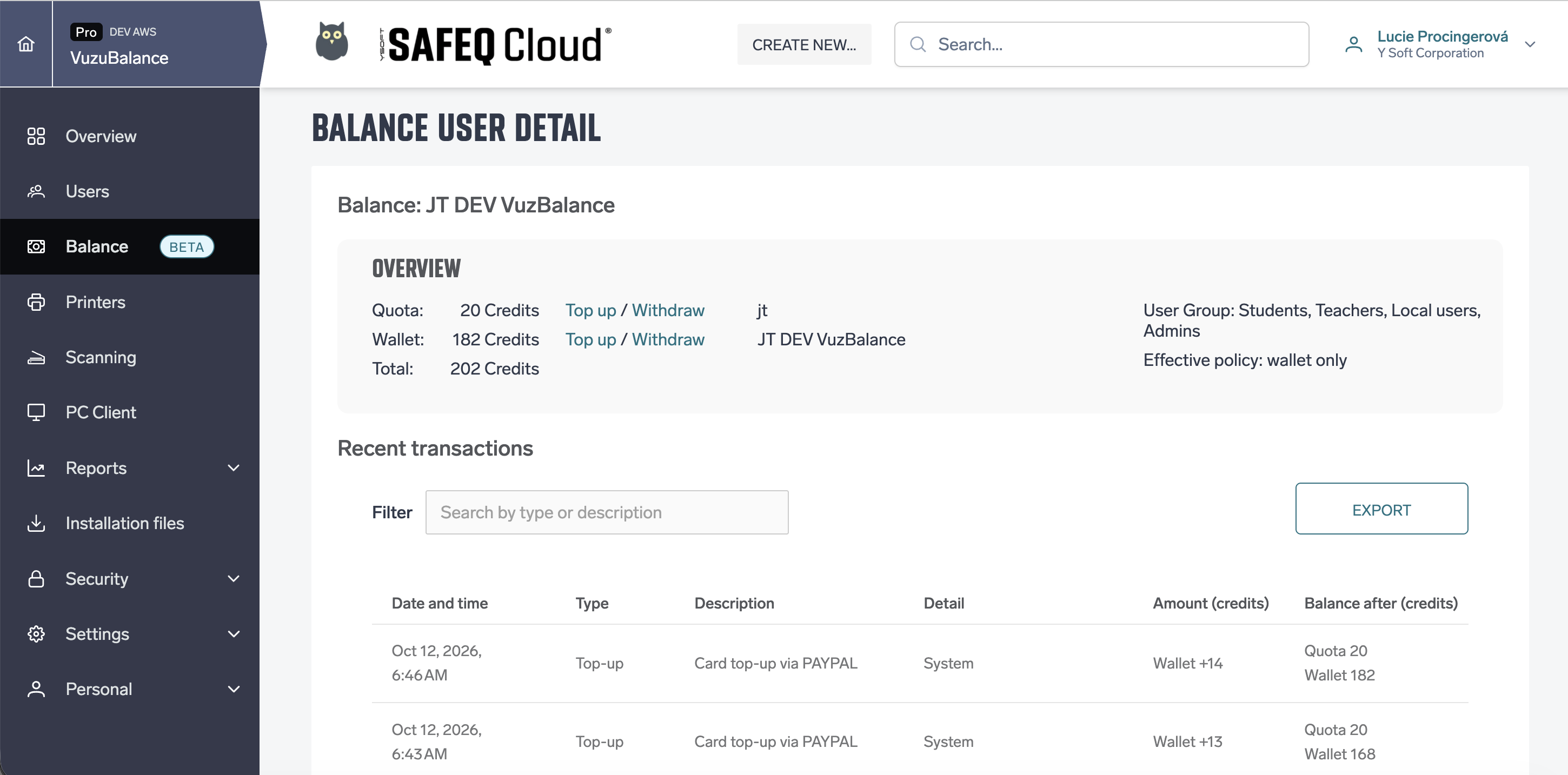
The Recent transactions icon in a user's row opens the Balance user detail page:
-
Overview — the user's Quota, Wallet and Total, the user's username, full name and email, user groups and effective policy.
-
Top up and Withdraw links next to Quota and Wallet.
-
Recent transactions — the same table as on My Balance › Recent transactions, with Filter and Export.
Top up and withdraw
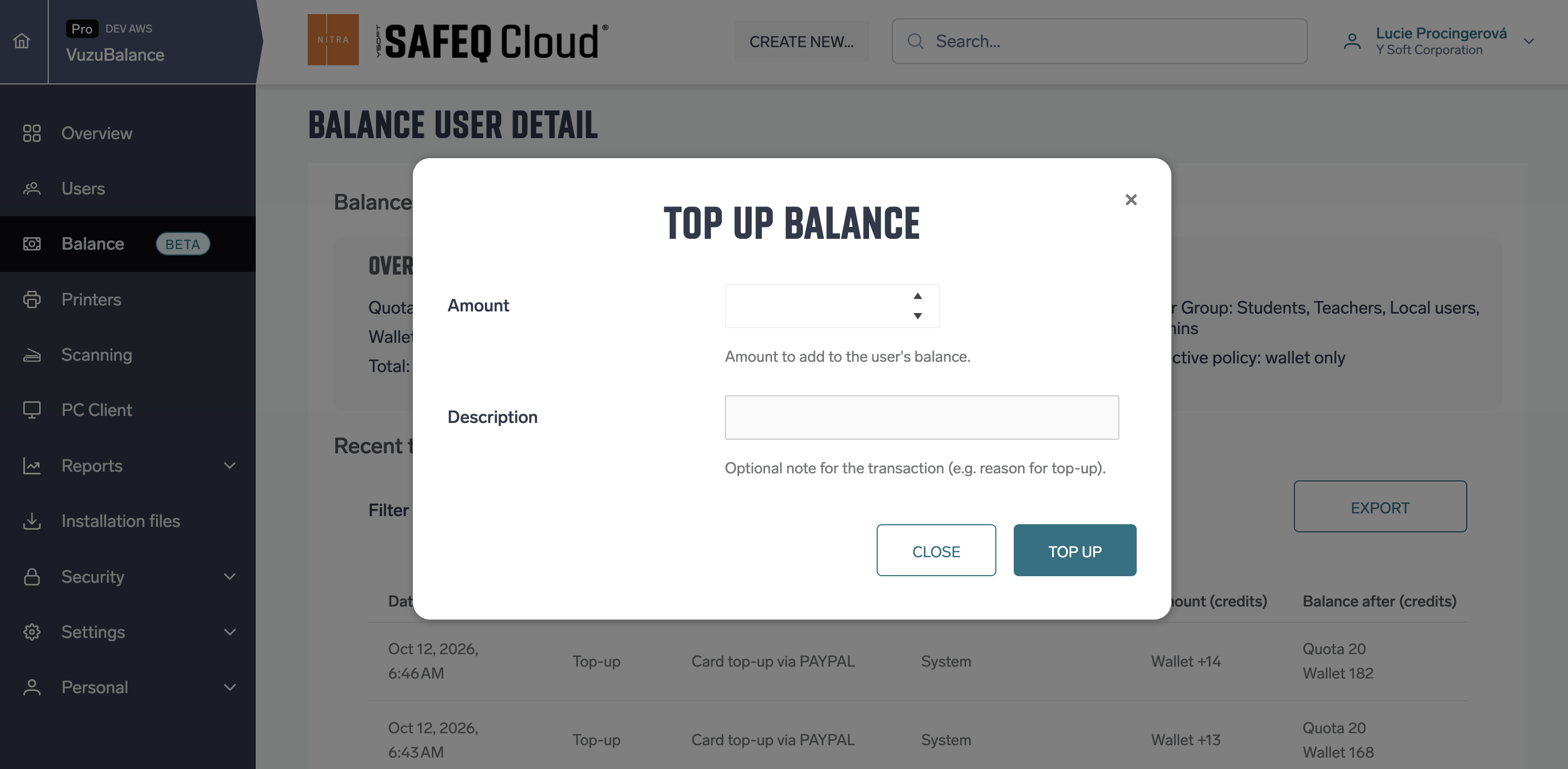
Click Top up or Withdraw next to Quota or Wallet. The row you click decides which balance changes.
|
Field |
Description |
|---|---|
|
Amount |
Credits to add or remove. Must be greater than zero, up to four decimal places. A withdrawal cannot be larger than the available balance. |
|
Description |
An optional note, shown in the transaction's Description. |
Click Top up or Withdraw to confirm, or Close to cancel. Users with a wallet can also buy credit themselves through a payment gateway, see PayPal payment gateway.
Transaction types
|
Type |
Description |
|---|---|
|
Top-up |
Credits added by an administrator, or bought by the user through a payment gateway. |
|
Withdraw |
Credits removed by an administrator. |
|
Deduction |
Credits charged for a print or copy job. |
|
Renew |
Quota set by a policy: by a scheduled reset, or when an administrator applies a policy immediately. |
|
Initial |
The starting quota a new user gets from their policy. |
Policies tab
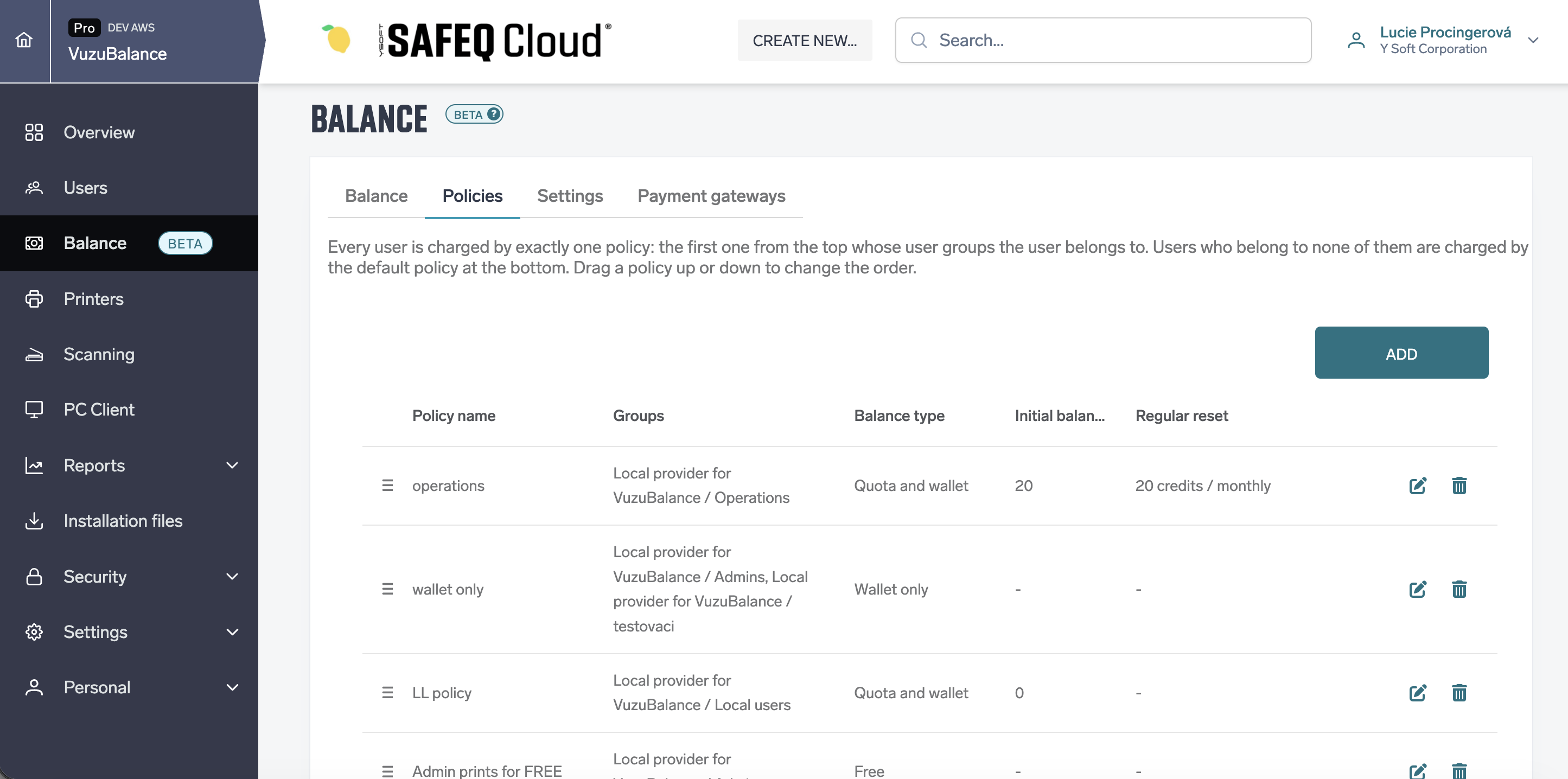
A policy decides how users are charged. Exactly one policy is applied to each user: the first one from the top whose user groups the user belongs to. The default policy at the bottom is applied to users who belong to none of them. Drag a policy up or down to change the order. The new order takes effect immediately.
|
Column |
Description |
|---|---|
|
Policy name |
The policy name. |
|
Groups |
The user groups the policy applies to, as provider / group. All users for the default policy. |
|
Balance type |
Free, Quota only, Wallet only or Quota and wallet. |
|
Initial balance |
The quota new users start with. |
|
Regular reset |
The reset amount and frequency, for example 20 credits / monthly. |
The default policy is always last. It cannot be moved or deleted. Deleting another policy also deletes its reset schedule.
Example: which policy is applied to a user
An account has these policies, from the top:
|
# |
Policy |
Groups |
Balance type |
Credits |
Reset schedule |
|---|---|---|---|---|---|
|
1 |
Admin policy |
Admins |
Free |
– |
– |
|
2 |
Teacher policy |
Teachers |
Quota only |
100 |
Monthly |
|
3 |
Student policy |
Students |
Quota only |
10 |
Monthly |
|
|
Default policy |
All users |
Quota and wallet |
10 |
No regular reset |
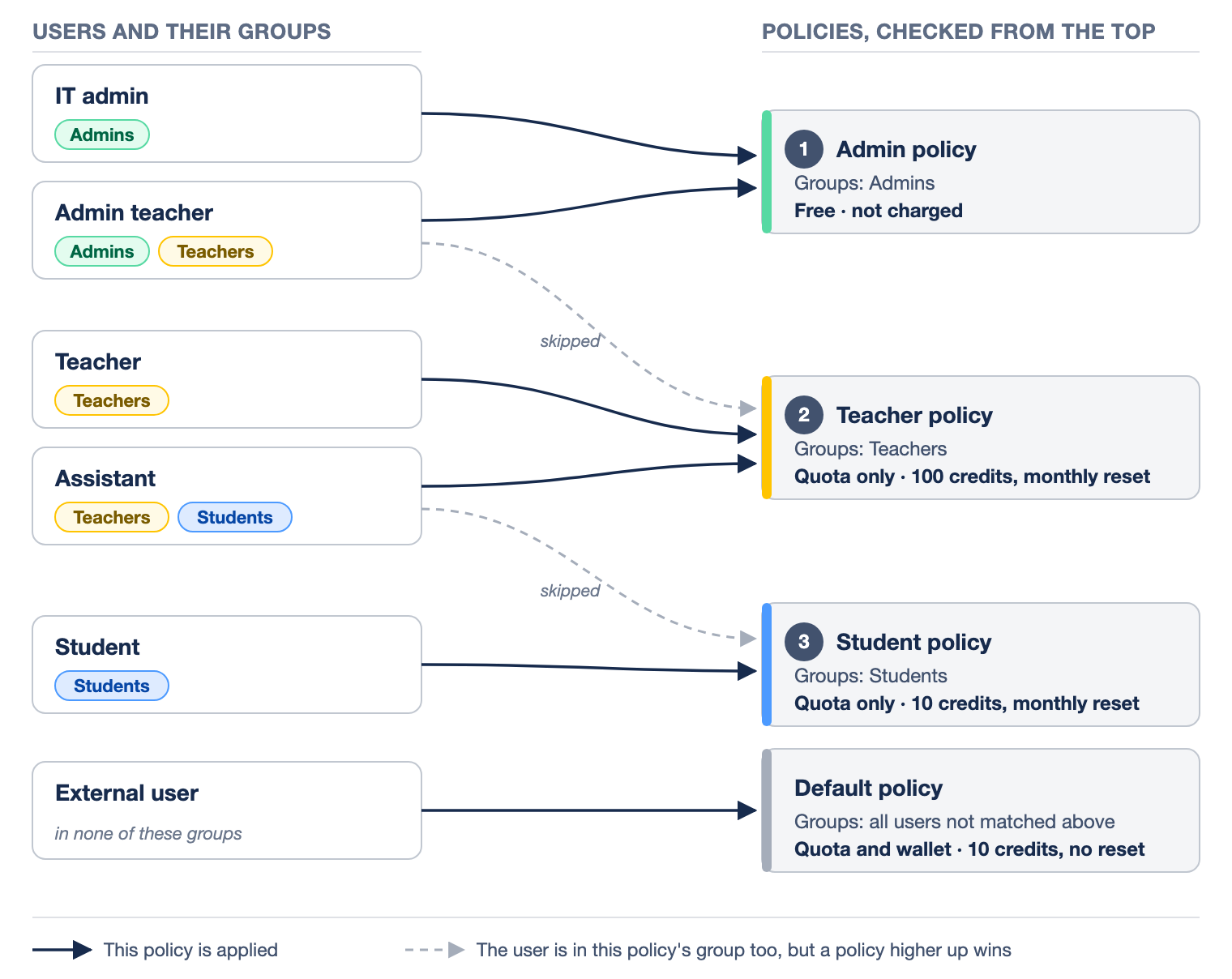
The policies are applied to the users as follows:
|
User |
User groups |
Applied policy |
Result |
|---|---|---|---|
|
IT admin |
Admins |
Admin policy |
Not charged. |
|
Admin teacher |
Admins, Teachers |
Admin policy |
Not charged. Admin policy is above Teacher policy, so Teacher policy is skipped and its monthly reset does not change this user's quota. |
|
Teacher |
Teachers |
Teacher policy |
A new teacher starts with 100 credits, and the quota is restored to 100 every month. |
|
Assistant |
Teachers, Students |
Teacher policy |
Teacher policy is above Student policy, so the assistant gets the teacher quota. |
|
Student |
Students |
Student policy |
A new student starts with 10 credits, and the quota is restored to 10 every month. |
|
External user |
none of these groups |
Default policy |
Gets 10 credits of quota once, when the user is created, and also has a wallet. |
If Teacher policy were moved above Admin policy, Teacher policy would be applied to the admin teacher instead.
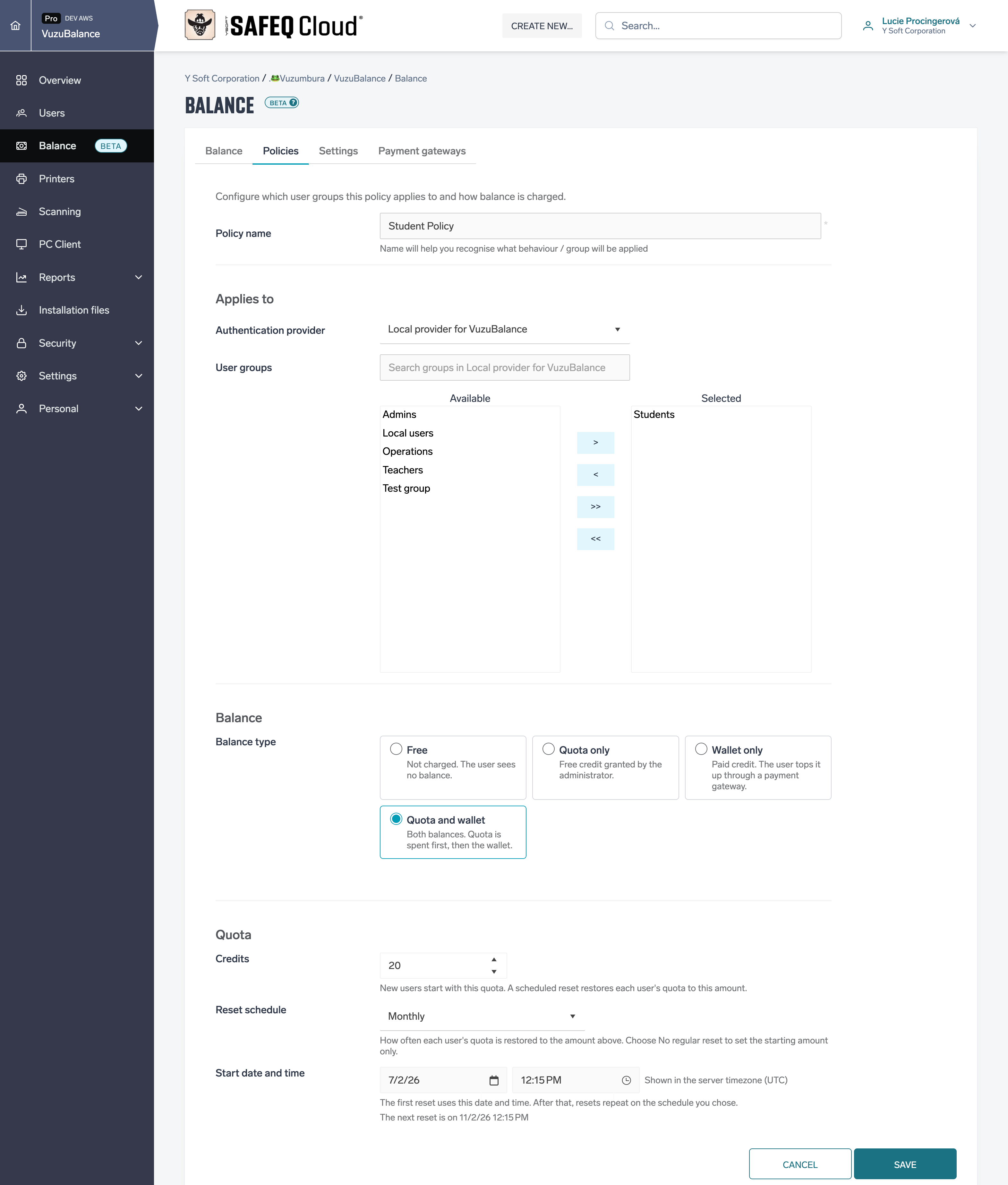
Creating or editing a policy
Click Add, or the edit icon of an existing policy.
|
Field |
Description |
|---|---|
|
Policy name |
Required. |
|
Authentication provider |
The provider of the user groups. Not shown for the default policy. |
|
User groups |
The groups the policy applies to. You can select several groups, all from one provider. |
|
Balance type |
|
|
Credits |
Quota-based types only. New users start with this quota, and a scheduled reset restores each user's quota to this amount. |
|
Reset schedule |
No regular reset, Weekly, Monthly, Quarterly or Yearly. |
|
Start date and time |
Shown when a reset schedule is chosen. The first reset runs at this time, shown in the server time zone. |
Applying a policy
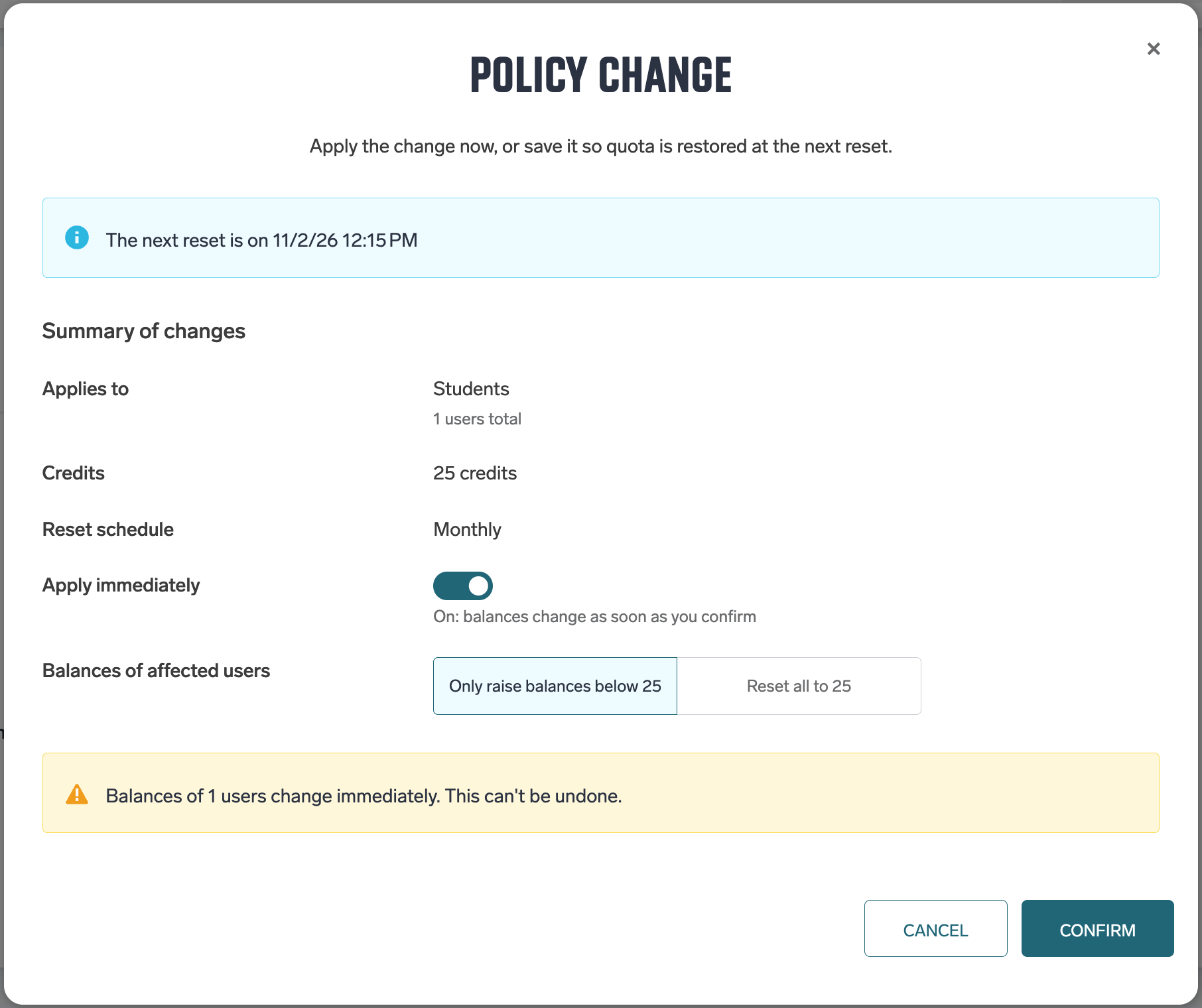
When you save a Quota only or Quota and wallet policy, a confirmation window shows a summary: the groups and number of users, the credits and the reset schedule.
-
With Apply immediately off, existing balances do not change. Quota is restored at the next scheduled reset.
-
With Apply immediately on, choose Only raise balances below N (users with more keep their quota) or Reset all to N (users with more lose the credits above N). This cannot be undone.
Click Confirm to save the policy, or Cancel to leave without saving. The change affects users whose effective policy is this one.
Scheduled reset
At each scheduled reset, users whose effective policy is this one get their quota restored to the Credits amount. Users who have more keep their quota, and the wallet is never changed. The reset appears in the transactions as Renew by System.
Initial balance for new users
When a new user is created and their effective policy is Quota only or Quota and wallet, their quota is set to the policy's Credits. This appears as an Initial transaction. A user who changes groups later gets no initial balance. Use Apply immediately or Top up instead.
Settings tab
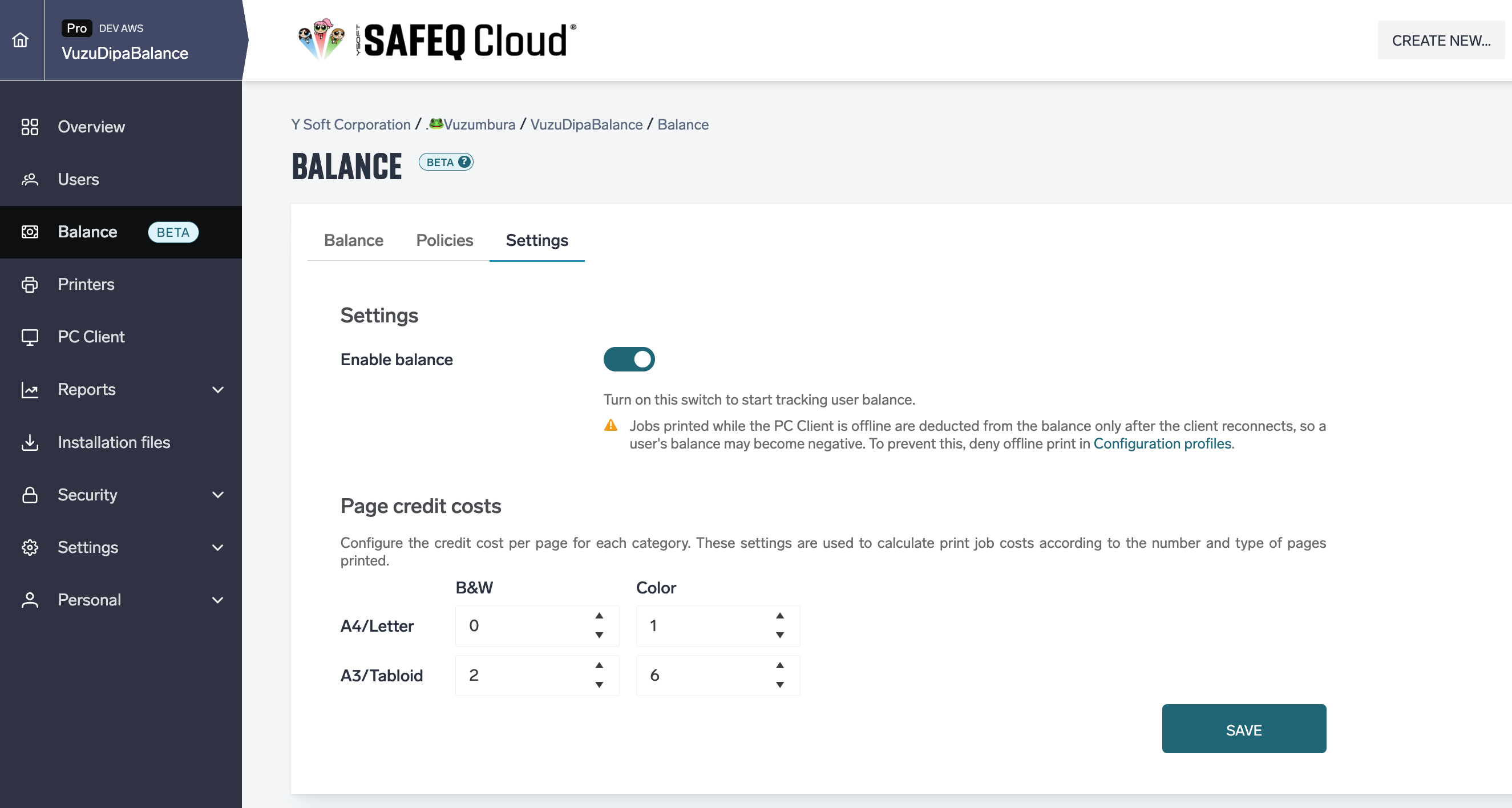
-
Enable balance turns balance on or off for the account. While it is off, no balance is checked or charged and new users get no initial balance.
-
Page credit costs — the credits charged per page for each category (B&W / Color × A4/Letter / A3/Tabloid). Shown only while balance is enabled.
-
Credit purchase — what a user gets when they buy credit (Purchase currency, Price of one credit, Smallest purchase, Largest purchase). Shown only with the PaymentGateway feature. See PayPal payment gateway.
Click Save to apply the changes.
Payment gateways tab
Lists the payment gateways through which users buy wallet credit themselves. Shown only with the PaymentGateway feature and the ModifyBalancePricing permission. For setup see PayPal payment gateway.
How credits are charged
-
Print and copy jobs are charged after they finish. Scan and fax jobs are not charged.
-
The cost is the number of pages multiplied by the price per page for its color and size. Duplex (2-sided) is charged as 2 pages.
-
With Quota only, credits are deducted from the quota, with Wallet only from the wallet, and with Quota and wallet from the quota first, then from the wallet. With Free, nothing is charged.
-
A print job released by someone other than its owner, for example a job shared through My profile › Sharing, is charged to the user who releases it, according to that user's policy. The balance check before the job is released also uses that user's balance.
-
Each charge appears as a Deduction transaction.
Insufficient balance
Before a print job is released at a device, its cost is compared with the user's balance (quota and wallet together). If the balance does not cover the cost, the job is not released.
The SAFEQ Cloud Client also checks the user's balance and informs the user when it does not cover a print job.
Which devices, job types and workflows are checked is listed in Balance limitations.