
Relevant Products: PRO PRINT, PRO MFD
PayPal payment gateway
A payment gateway lets users buy wallet credit themselves, paying by card or PayPal account. The money goes to your own PayPal Business account, not to Y Soft. SAFEQ Cloud starts the payment, hands the user over to PayPal, and adds the credits to the user's wallet once PayPal confirms the payment.
This page describes how to connect a PayPal account, how to price credits, and what users see when they top up. For the rest of the Balance feature see Balance and My Balance.
Requirements
-
The UserBalance and PaymentGateway features must be enabled for the customer account. Contact Y Soft support to enable them.
-
Balance must be switched on in Balance › Settings (Enable balance).
-
Users who should be able to buy credit need a credit policy with a wallet: Wallet only or Quota and Wallet. Only the wallet can be topped up by payment; quota is never charged for.
-
A PayPal Business account and a REST app created in the PayPal Developer Dashboard (see below).
-
The account must have a domain configured. PayPal sends payment confirmations to that domain.
-
Managing gateways requires the Modify balance pricing permission. Viewing them requires View user balance.
Getting PayPal credentials
SAFEQ Cloud talks to PayPal through a REST app that belongs to your PayPal Business account. Each app has a Client ID and a Secret, and each exists twice: once for the Sandbox (test money) and once for Live (real money). They are not interchangeable.
-
Sign in to the PayPal Developer Dashboard with the PayPal Business account that should receive the payments.
-
Open Apps & Credentials and choose Sandbox or Live at the top of the page.
-
Click Create App, give it a name such as SAFEQ Cloud, and keep the Merchant type.
-
Copy the Client ID and the Secret. You will paste them into SAFEQ Cloud.
-
For sandbox testing you also need a sandbox personal account to pay with. Find or create one under Testing Tools › Sandbox Accounts.
You do not need to configure a webhook in the PayPal dashboard. SAFEQ Cloud registers one in your app automatically when the gateway is saved.
Adding the gateway in SAFEQ Cloud
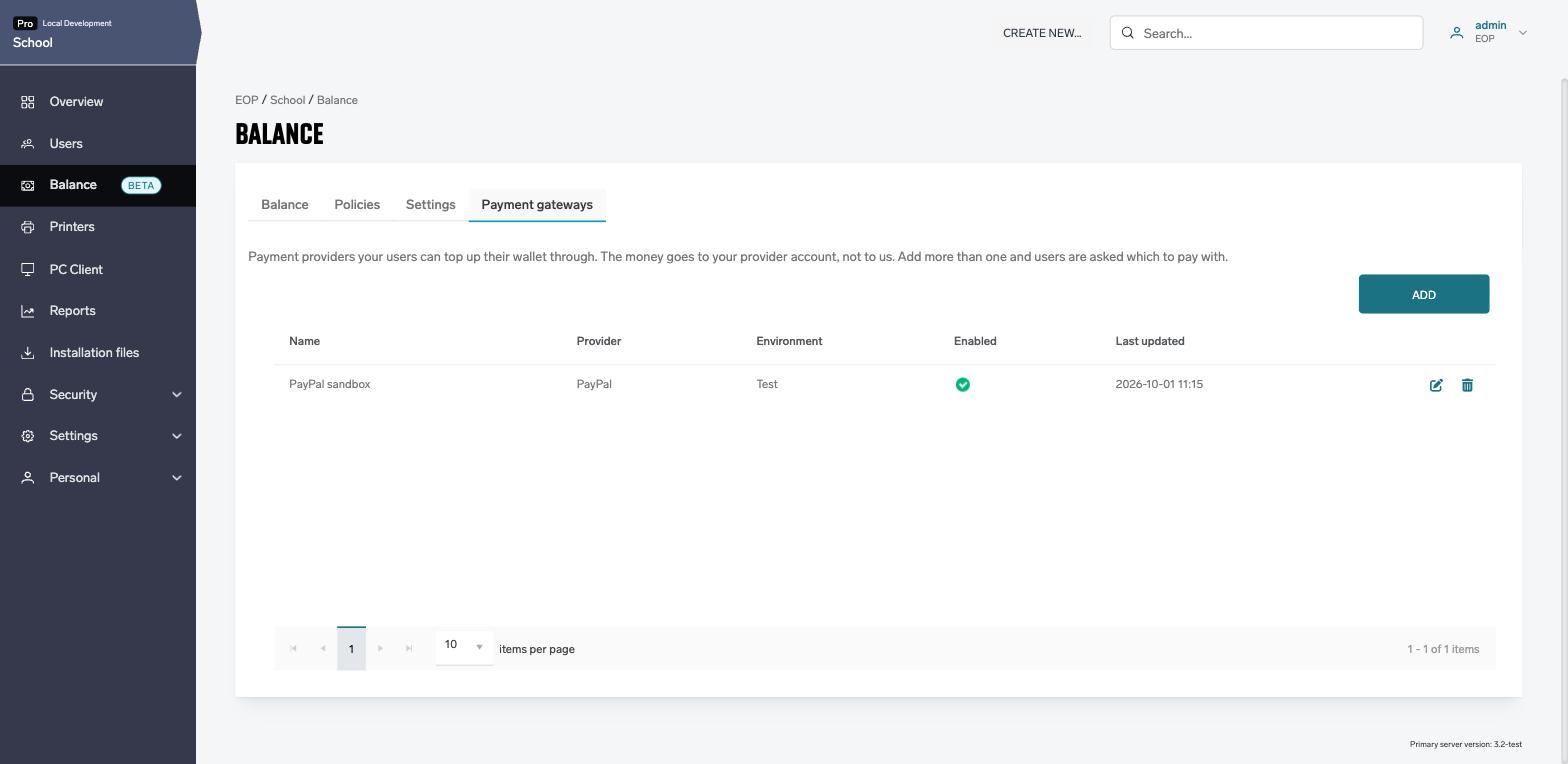
Open Balance in the left navigation and switch to the Payment gateways tab. The tab lists every gateway configured for the account.
|
Column |
Description |
|---|---|
|
Name |
The name you gave the gateway. |
|
Provider |
The payment provider. Currently always PayPal. |
|
Environment |
Test (PayPal sandbox) or Live. |
|
Enabled |
Whether users can currently pay through this gateway. |
|
Last updated |
When the configuration was last saved. |
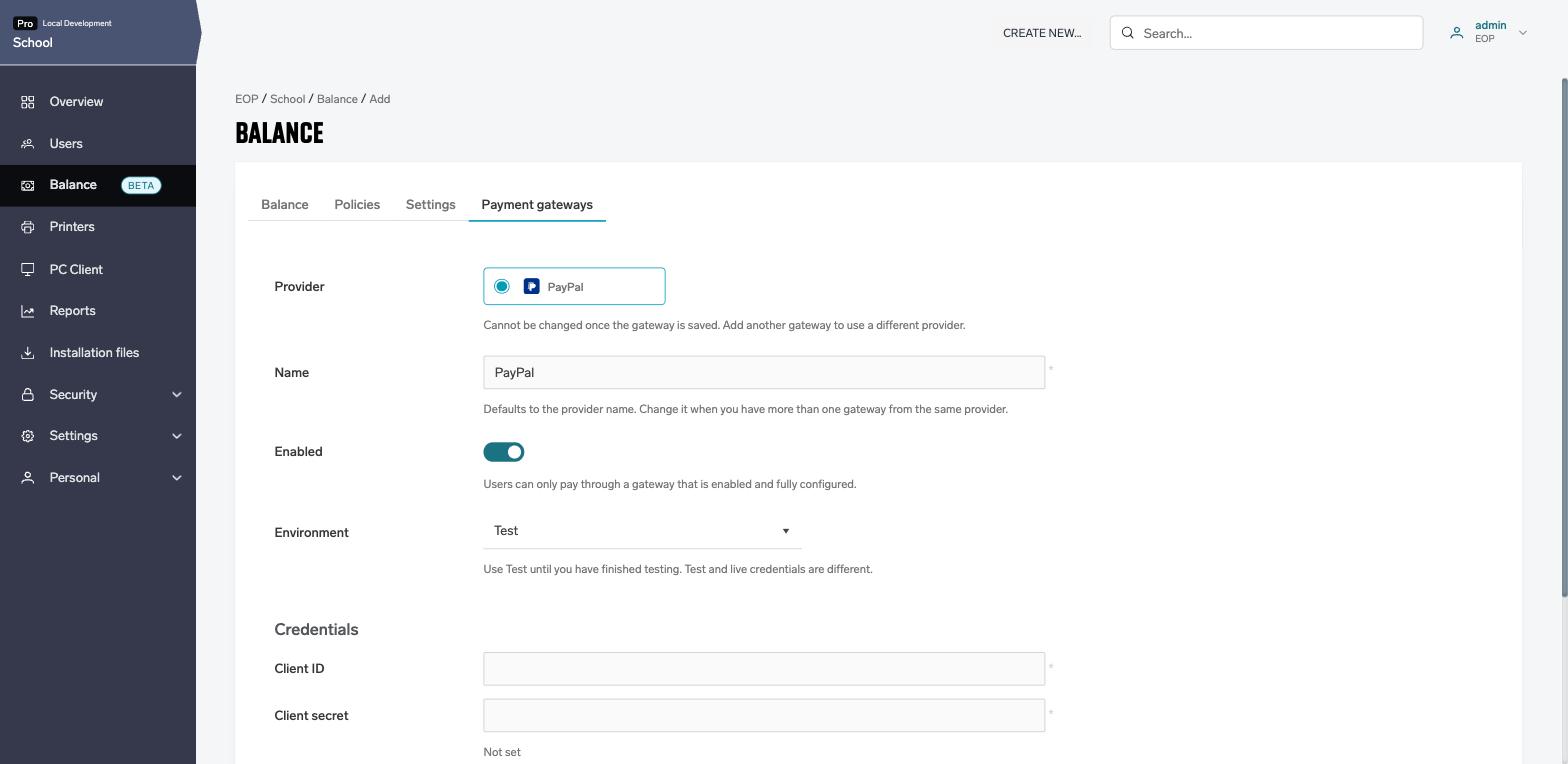
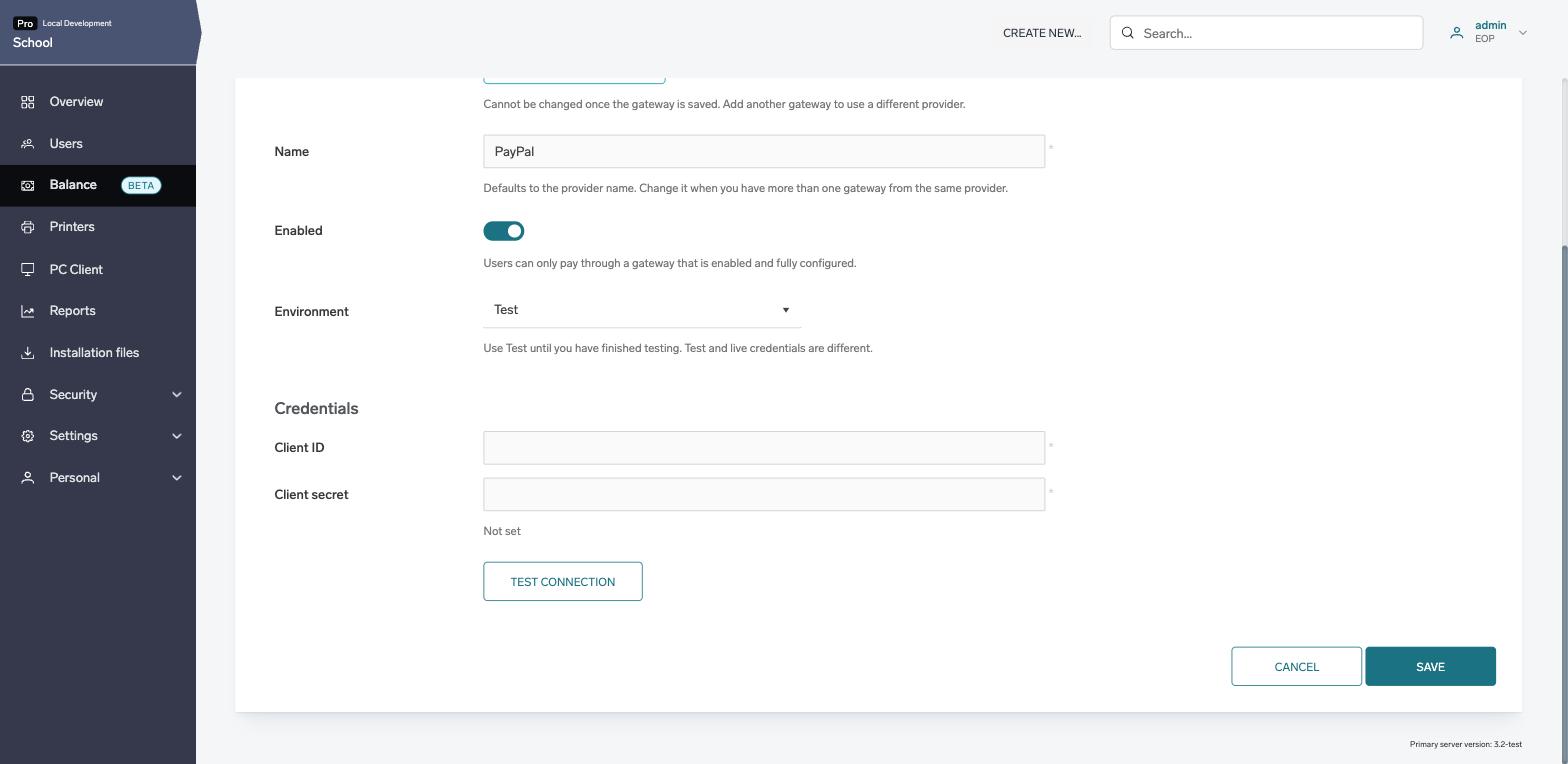
Click Add payment gateway, or the edit icon on an existing row, to open the form.
|
Field |
Description |
|---|---|
|
Provider |
The payment provider. Cannot be changed once the gateway is saved; add another gateway to use a different provider. |
|
Name |
Defaults to the provider name. Change it when you have more than one gateway from the same provider. Must be unique within the account. |
|
Enabled |
Users can only pay through a gateway that is enabled and fully configured. A disabled gateway stops new top-ups, but payments already started through it are still completed and credited. |
|
Environment |
Test uses the PayPal sandbox, Live takes real money. Use Test until you have finished testing. Test and live credentials are different. |
|
Client ID |
The Client ID of your PayPal REST app for the chosen environment. |
|
Client secret |
The Secret of the same app. It is stored encrypted and never shown again. When editing, leave the field blank to keep the stored secret. |
Test connection checks the Client ID and secret with PayPal without saving anything and without taking a payment. Use it after pasting new credentials or after switching the environment.
What happens when you save
The gateway is stored first. If it is enabled, has both credentials and the account has a domain, SAFEQ Cloud then registers a notification URL (webhook) in your PayPal app, so PayPal can report payment results the moment they happen. Three messages can follow the save:
|
Message |
Meaning and what to do |
|---|---|
|
The gateway was saved, but the payment provider rejected these credentials. |
PayPal did not accept the Client ID and secret. Check that they belong to the chosen environment and save again. |
|
The gateway was saved and the credentials are valid, but the payment provider would not accept the notification URL. |
Usually the account has no domain, or the domain is not reachable from the internet. Top-ups still work. The wallet is credited when the user returns from PayPal, or by the periodic check, instead of the moment PayPal confirms the payment. |
|
The gateway was saved, but N payment(s) started in the previous environment can no longer be checked with the payment provider. |
You changed the environment or the credentials while payments were still open. Look those payments up in your PayPal dashboard. If any was charged, add the credits by hand with Top up/Withdraw on the Balance tab. |
Deleting a gateway
Deleting a gateway also deletes all payment records taken through it. The deletion is refused while any payment through the gateway is still waiting for an outcome; try again once they have finished. The webhook registered in your PayPal app is not removed automatically. You can delete it in the PayPal Developer Dashboard.
Pricing credits
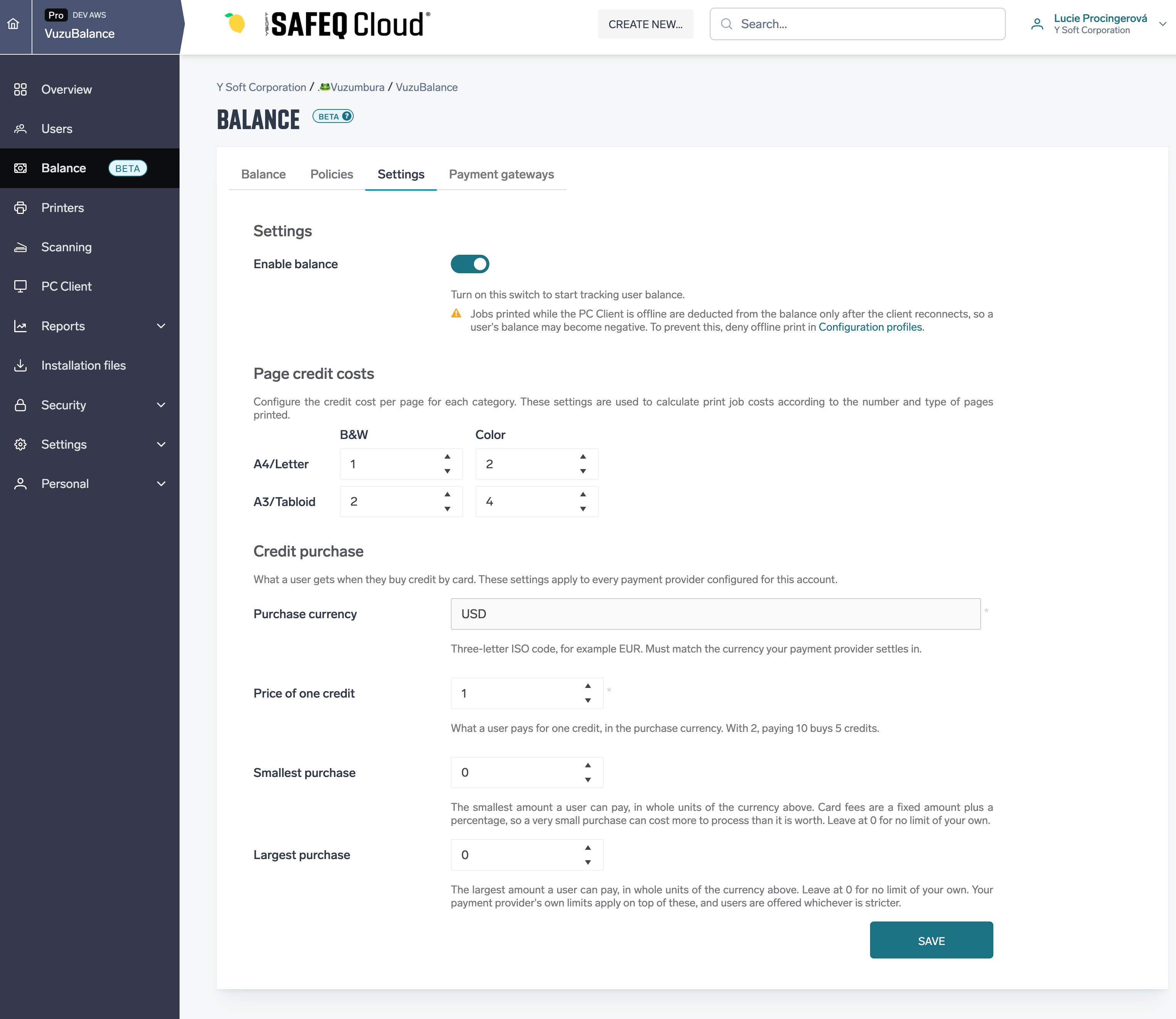
How much a credit costs is set once for the whole account, in Balance › Settings, section Credit purchase. The section appears only when balance is enabled and the PaymentGateway feature is on. The same price applies to every gateway of the account.
|
Field |
Description |
|---|---|
|
Purchase currency |
Three-letter ISO code, for example EUR. Must be a currency your PayPal account can receive, see the list below. Default USD. |
|
Price of one credit |
What a user pays for one credit, in the purchase currency. Up to four decimal places. With 2, paying 10 buys 5 credits. Default 1. |
|
Smallest purchase |
The smallest amount a user can pay, in whole units of the currency. Card fees are a fixed amount plus a percentage, so very small purchases can cost more to process than they are worth. 0 means no limit of your own. |
|
Largest purchase |
The largest amount a user can pay, in whole units of the currency. 0 means no limit of your own. PayPal's own limits apply on top, and users are offered whichever is stricter. |
Users always buy whole credits. The amount charged is rounded up to the smallest unit of the currency, so the user receives exactly the number of credits they asked for.
Currencies PayPal accepts: AUD, BRL, CAD, CHF, CNY, CZK, DKK, EUR, GBP, HKD, HUF, ILS, JPY, MXN, MYR, NOK, NZD, PHP, PLN, RUB, SEK, SGD, THB, TWD, USD. HUF, JPY and TWD are charged in whole units only. With any other currency the Buy credit button is not shown to users.
What users see
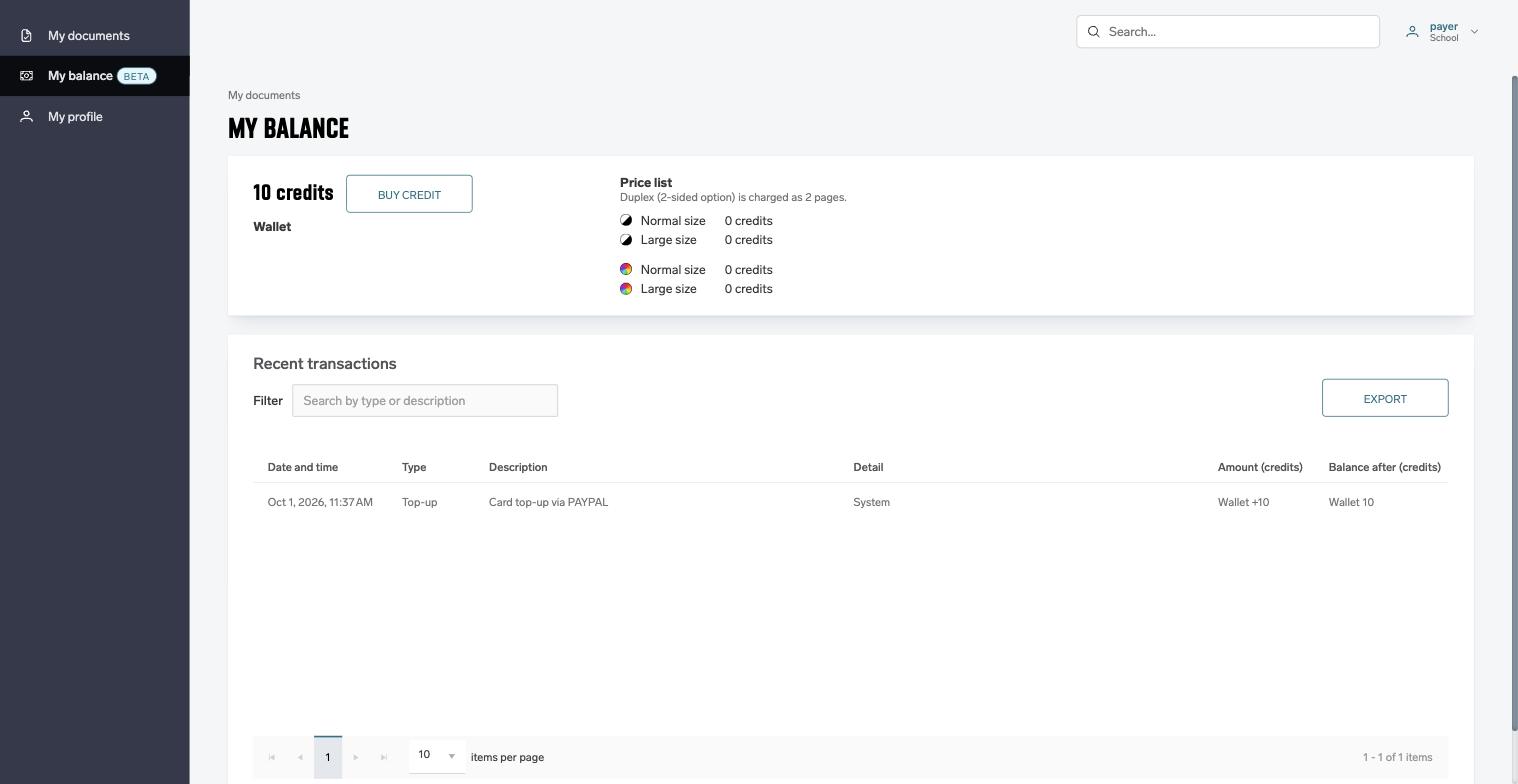
A user with a wallet opens My balance and clicks Buy credit. The button is shown only when a gateway is enabled and fully configured and the pricing allows at least one purchase. Otherwise the page says "Contact your administrator to top up your wallet."
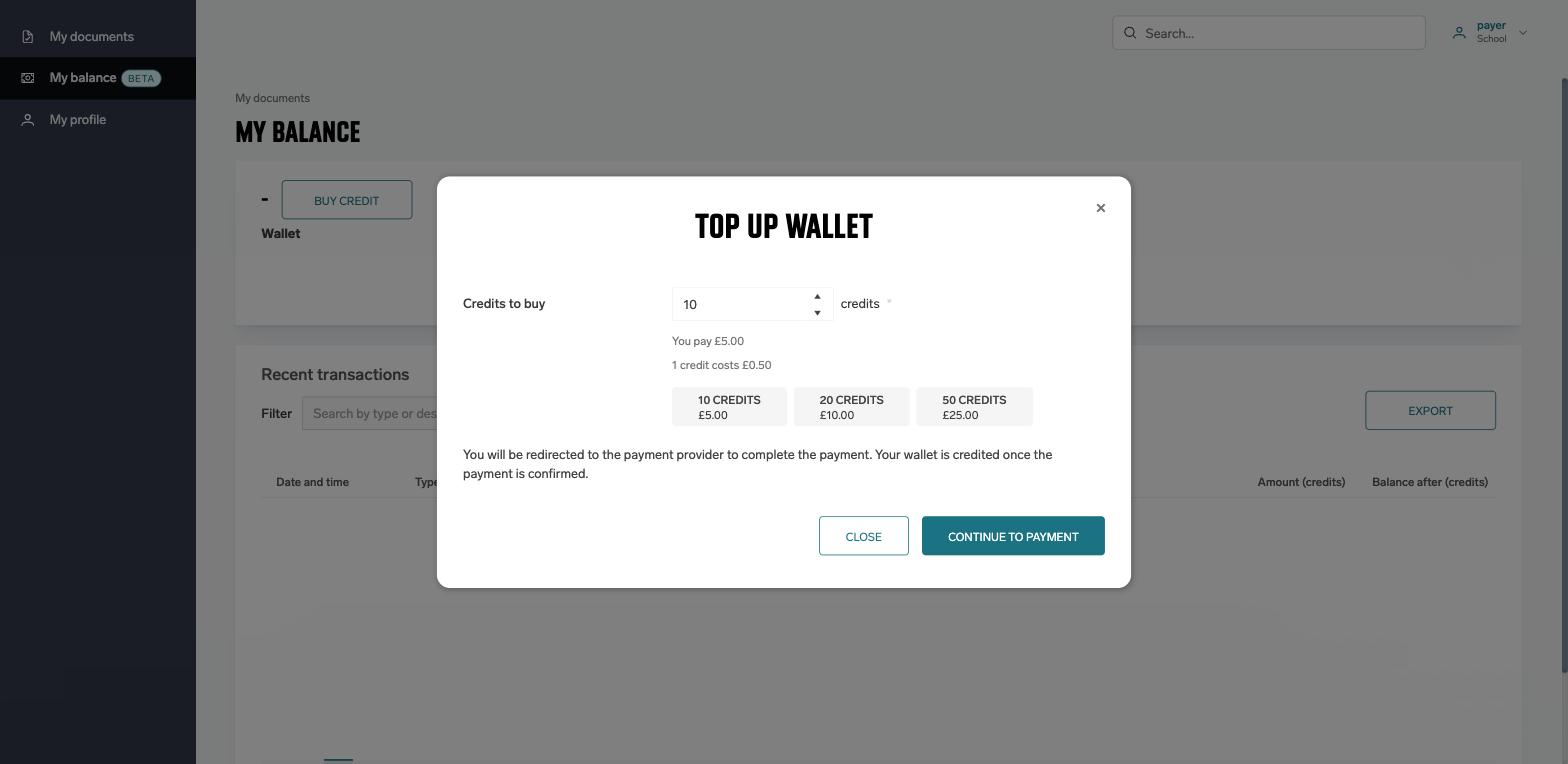
In the Top up wallet window the user enters the number of credits to buy, or picks one of the preset amounts. The window shows the price per credit and the total to pay. When the account has more than one gateway, a Pay with list lets the user choose. Continue to payment opens PayPal.
At PayPal the user signs in to a PayPal account or pays as a guest by card, confirms the amount and is sent back to SAFEQ Cloud. My balance then shows one of these messages:
|
Message |
When it appears |
|---|---|
|
Your wallet has been topped up. |
PayPal confirmed the payment and the credits are already in the wallet. |
|
Your payment has not been confirmed yet. Your wallet will be topped up as soon as it is. |
PayPal has not yet confirmed the payment, for example because the user paid by bank transfer (eCheck) which takes days to clear. The wallet is credited automatically when PayPal confirms. |
|
The top-up was cancelled. Your wallet has not changed. |
The user left PayPal without paying. |
|
The payment was refused. Your wallet has not changed — try another card or contact your bank. |
PayPal or the card issuer declined the payment. |
|
The payment expired before it was completed. Your wallet has not changed. |
The payment was not completed within three hours of starting it. |
|
We could not find that payment. If you were charged, contact your administrator. |
The return link did not match any payment of this user, for example after the browser session expired. |
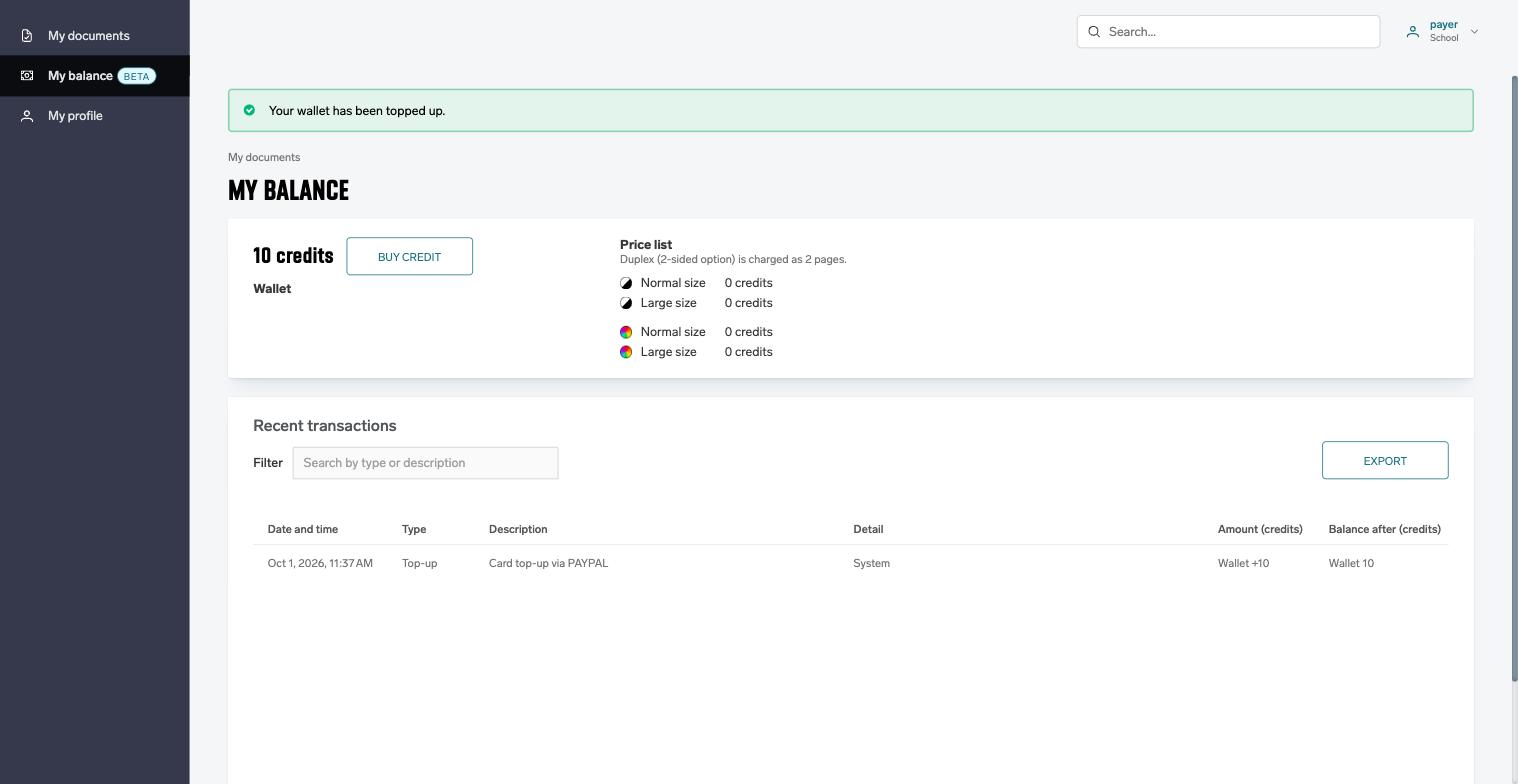
A completed top-up appears in the user's transactions as type Top-up with the description "Card top-up via PAYPAL", both on My balance and in the administrator's Recent transactions window.
How payments are confirmed
Only PayPal's answer decides whether a wallet is credited. The user coming back to SAFEQ Cloud is a hint, never a proof of payment. SAFEQ Cloud learns the outcome in three ways, and the first one to arrive wins:
-
Notification from PayPal to the URL registered at save time. This is the usual path and credits the wallet within seconds.
-
The user's return to SAFEQ Cloud, which triggers a check with PayPal.
-
A periodic check every two minutes, which asks PayPal about every payment that is still open. This also covers users who closed the browser at PayPal, and accounts whose notification URL could not be registered.
A payment that is still open three hours after it was started is marked as expired and the user is told so. If PayPal confirms such a payment later, for example an eCheck that clears after several days, the wallet is still credited.
Refunds and reversals made in your PayPal account are not reflected automatically. Remove the credits by hand with Top up/Withdraw on the Balance tab. The PayPal transaction ID is recorded with the payment to help you match them.
Testing with the sandbox
-
Create the gateway with Environment set to Test and the Sandbox Client ID and secret.
-
Log in to SAFEQ Cloud as a test user who has a wallet and buy a few credits. At PayPal, sign in with a sandbox personal account from the Developer Dashboard. Do not use PayPal's webhook simulator; it does not produce real payments.
-
Check that the wallet was credited and that the Top-up transaction appears.
-
Switch the gateway to Live, replace the credentials with the Live Client ID and secret, and save.
Credits bought through a Test gateway are real credits. They can be spent on real print and copy jobs exactly like paid ones. Test only with test users, and withdraw the credits afterwards.
Troubleshooting
|
Symptom |
Check |
|---|---|
|
Users do not see the Buy credit button. |
Balance is enabled in Settings; the user's effective policy includes a wallet; a gateway is enabled with both credentials saved; the purchase currency is one PayPal accepts; the smallest purchase is not larger than the largest one. |
|
Test connection fails. |
The Client ID and secret belong to the environment selected in the form. Sandbox credentials do not work with Live and vice versa. |
|
A user paid but the wallet was not credited. |
Wait a few minutes for the periodic check. Then look the payment up in your PayPal dashboard. If PayPal shows it as completed and the wallet is still unchanged after the three-hour deadline, add the credits with Top up/Withdraw and contact support. |
|
Saving warns that the notification URL was not accepted. |
The account needs a domain that PayPal can reach from the internet. Until then top-ups are confirmed on the user's return and by the periodic check. |
|
The gateway cannot be deleted. |
Payments through it are still open. Try again after they have been completed or have expired, at most three hours later. |
Limitations
-
PayPal is currently the only supported payment provider.
-
Only the wallet can be bought. Quota is never charged for.
-
Refunds, chargebacks and reversals are not reflected in the wallet automatically.
-
Payments through a Test gateway add real credits.
-
Pricing is per account. All gateways of an account share the same currency and credit price.