
Relevant Products
Authentication profiles are available in BREEZE MFD pro mfp
Use authentication profiles to store the credentials a scan connector needs when it delivers documents to an external system. A profile is configured once and can then be selected by any number of connectors, so the same credentials do not have to be repeated on each connector.
Currently, authentication profiles are supported only by the Generic HTTPS connector and hold OAuth 2.0 credentials for the client credentials grant.
Creating an authentication profile
To create or edit an authentication profile, log in to Cloud Portal Web UI and go to Scanning > Authentication. Click Add to create a profile, or click an existing profile to edit it.
A profile can also be created while a Generic HTTPS connector is being configured: click Add new next to the connector's Authentication list. The new profile is then selected on that connector and is listed under Scanning > Authentication like any other profile.
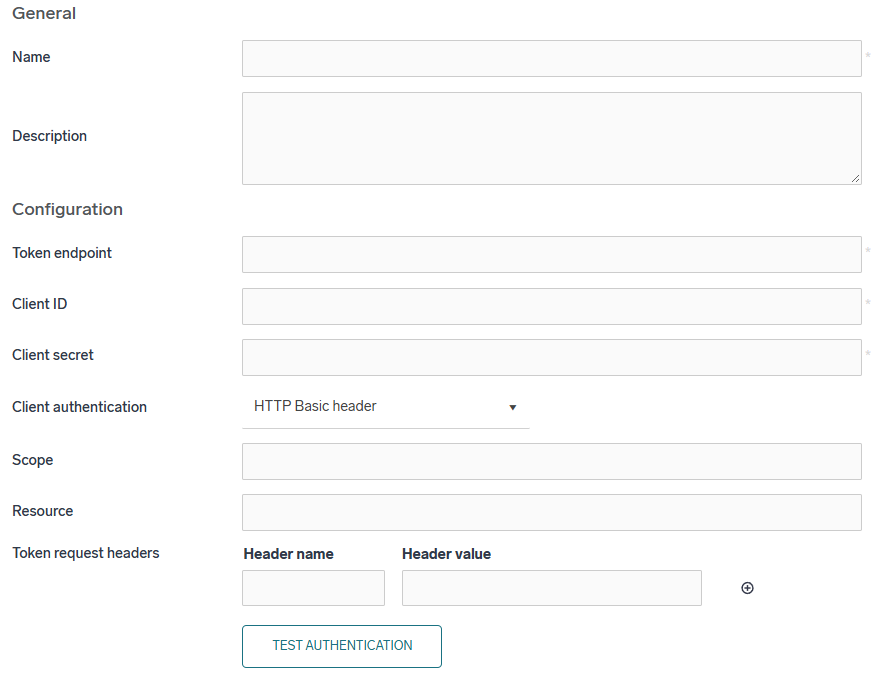
General
-
Name – the name of the profile. It is displayed in the profile list and in the Authentication list of a Generic HTTPS connector. Maximum 100 characters.
-
Description (optional) – additional information about the profile. Maximum 300 characters.
Configuration
The profile requests an access token using the OAuth 2.0 client credentials grant (grant_type=client_credentials).
-
Token endpoint – URL of the identity provider's token endpoint. HTTPS is required; an
http://URL is rejected. Maximum 500 characters. -
Client ID – the client identifier registered with the identity provider. Maximum 300 characters.
-
Client secret – the secret belonging to the client identifier. The value is never displayed again after it is saved; leave the field empty when editing a profile to keep the stored secret.
-
Client authentication – how the client ID and secret are sent to the token endpoint:
-
HTTP Basic header (default) – sent in the
Authorization: Basicheader. Every token endpoint is required to support this method. -
Request body – sent as
client_idandclient_secretform fields. Use this for identity providers that read the credentials only from the request body.
-
-
Scope (optional) – space-delimited scopes requested with the token. Sent as the
scopeparameter; left out when empty. Maximum 2000 characters. -
Resource (optional) – the audience or resource the token is requested for. Sent as the
resourceparameter; left out when empty. Maximum 500 characters. -
Token request headers (optional) – headers in the name-value pair added to the request sent to the Token endpoint. Use them when the token endpoint is published behind an API gateway that requires a header of its own, for example
Api-Key.
Token request headers are sent only with the request for the access token. Headers sent together with the scanned documents are configured on the connector – see Request headers on the Generic HTTPS connector page.
Testing the profile
Click Test authentication to request an access token with the configuration currently in the form. This is the same request that is made when a scan job is delivered, so a profile that tests successfully will also authenticate at delivery time. The token itself is discarded – only the result is displayed.
The test can be run on an unsaved profile. When editing a saved profile, the stored client secret is used if the Client secret field is left empty.
The test requires outbound HTTPS connectivity from the server to the token endpoint.
Deleting an authentication profile
A profile that is still selected on a Generic HTTPS connector cannot be deleted. The connectors that use it are listed so the profile can be removed from them first.