
Relevant Products
Generic HTTPS connector is available in BREEZE MFD pro mfp
Use the Generic HTTPS connector to deliver scanned files to a specific HTTPS endpoint for custom post-processing. The endpoint must be able to handle the predefined request format.
Limitations
-
The connection accepts only certificates issued by publicly trusted Certificate Authorities (CAs).
-
Custom or self-signed Trusted CA certificates are not supported.
Connector configuration
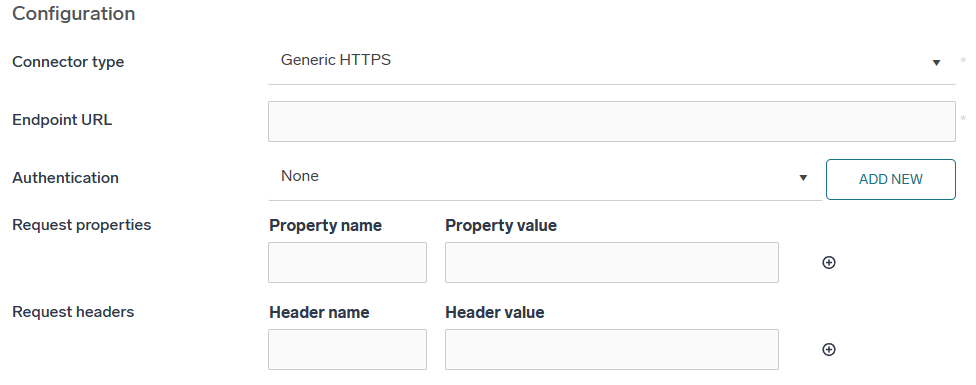
-
Endpoint URL – HTTPS endpoint URL where the scanned documents should be sent (for example, Azure function URL).
-
Authentication (optional) – the authentication profile whose credentials are used when documents are delivered to the endpoint. Select None if the endpoint requires no authentication. You can select a profile configured in Scanning > Authentication, or click Add new to create one without leaving the connector; see Authentication.
-
Request properties (optional) – properties in the name-value pair propagated to the Endpoint URL.
-
Request headers (optional) – headers in the name-value pair added to the request sent to the Endpoint URL. Unlike request properties, header names are not prefixed. Headers for the token request of an authentication profile are configured on the profile instead.
Each custom request property will be sent to the endpoint URL as a separate part in a single multipart/form-data request. The property name is automatically prepended with "custom_" prefix to avoid collisions with existing properties. For example, "MyProperty=1234" will be sent as "custom_MyProperty=1234" parameter.
Request
The scanned job files are sent all together in a single multipart/form-data request. The request also includes all scan parameters, which are added dynamically.
When an authentication profile is selected, the access token obtained from the profile's token endpoint is sent with the request as an Authorization: Bearer <token> header. A token is requested for each scan job, so the profile's credentials must stay valid for as long as the connector is in use.
The token of the selected authentication profile always takes precedence over a request header named Authorization. If both are configured, the manually configured header is replaced.
API documentation that your endpoint should implement
openapi: 3.0.0
info:
description: This is an API for uploading scan jobs
version: "1.0.0"
title: API scan connector

paths:
  /api/scan:
    post:
      summary: Uploads and process scan job
      description: |
        Upload scan job (both data and metadata),
      responses:
        '200':
          description: scan job processed successfully
        '400':
          description: 'error'
      requestBody:
        content:
          multipart/form-data:
            schema:
              type: object
              properties:
                username:
                  type: string
                  # all other connector-specified and user-defined variables goes here
                  # in the same way as username
                  # e.g:
                  # mailTo:
                  # type: string
                  # mailFrom:
                  # type: string
               filename:
                  # default is application/octet-stream, need to declare the type
                  # e.g. application/pdf or image/jpg
                  type: array
                  items:
                    type: string
                    format: binary
             encoding:
               filename:
                  contentType: image/jpeg, image/tiff, applicaton/pdf
                  style: form
                  explode: true
Example request
A request with one variable %userEmail% and one document. In a production environment, the request would contain all the scan metadata, all available user inputs, and all files. The boundary is randomly generated with each request.
POST / HTTP/1.1
Connection: keep-alive
Content-Type: multipart/form-data; boundary=---------------------------123456789
Content-Length: 554

-----------------------------123456789
Content-Disposition: form-data; name="userEmail"

john.doe@company.com
-----------------------------123456789
Content-Disposition: form-data; name="file1"; filename="document.pdf"
Content-Type: text/plain

Content of document.pdf.

-----------------------------123456789
Example parameters that are added to the multipart/form-data request
Example of paramaters sent in the request
scanTime: 15-57-20-003,
workflowID: 3,
scanJobID: 89905361-d77c-45ae-a2d1-6179283dddb5,
userDepartment: ,
scanDate: 2023-10-17,
deviceDescription: Printer,
safeqHome: \opt,
userEmail: user@mail.com,
deviceID: 1,
userHome: ,
workflowName: My workflow,
userUsername: user@2,
userFullName:
In addition, any custom input variables set in the workflow, such as %faxNumber%, will be included in the request too.