
Before you start
-
Your administrator must set up Balance, see Balance.
-
Only some cloud terminals support Balance. Supported terminals, their versions and the differences between them are listed in Balance limitations.
If the balance type of your policy is Free, the terminal shows no balance and no prices.
Your balance after you log in
After you log in, your balance is shown under your user name. It is the total of your quota and wallet.
On some terminals the balance is refreshed only after you log in again, see Balance limitations.
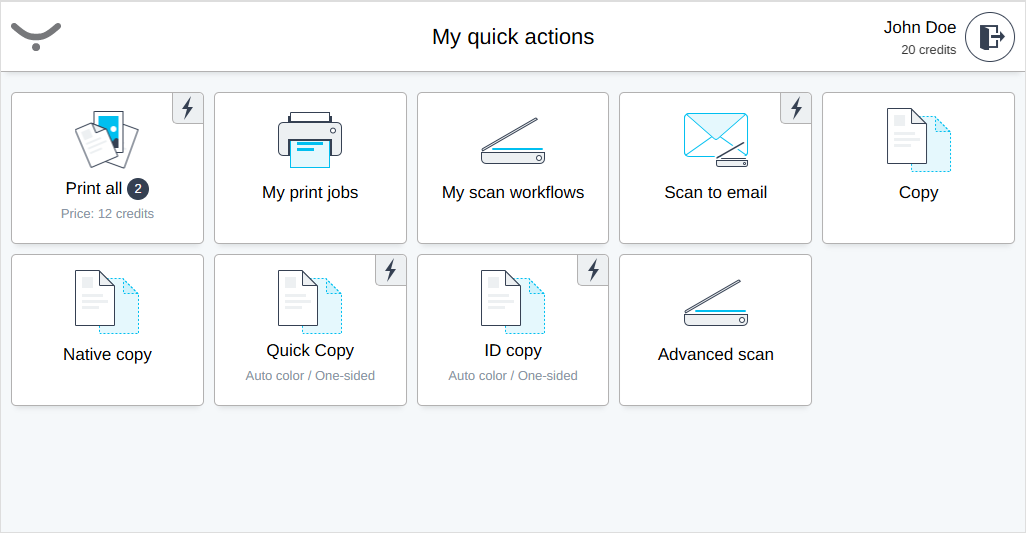
Job prices
The job list shows the price of each job in credits, and Print all shows the price of all your jobs together. The price counts the pages, the number of copies and whether the job is printed in color or black and white.
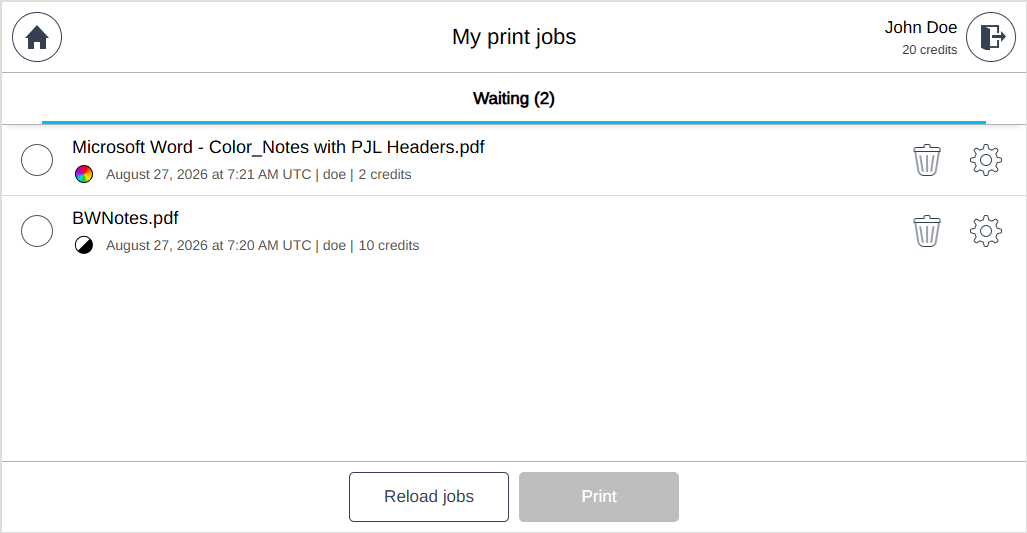
Printing
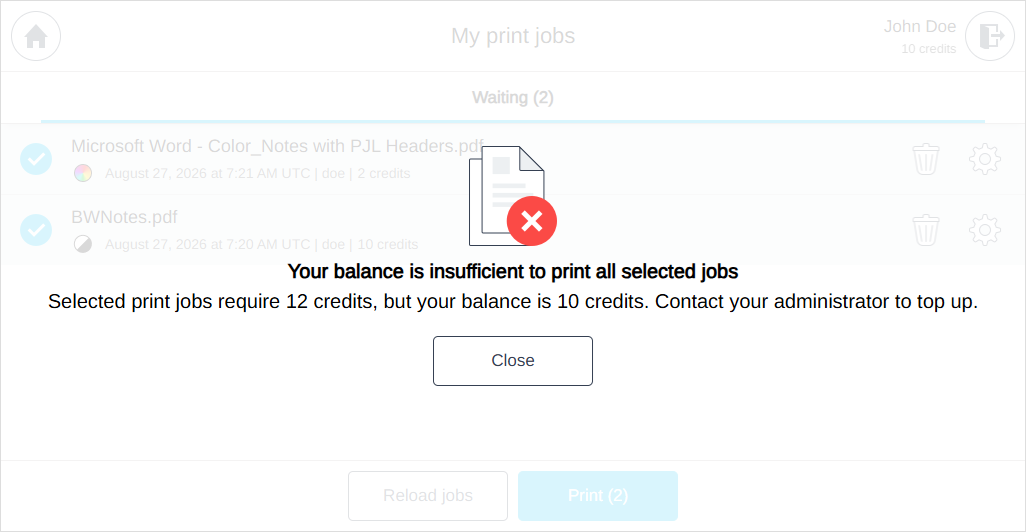
Before jobs are printed, the terminal checks that your balance covers them. This applies to a single job, to selected jobs and to Print all.
If your balance is not sufficient, the jobs are not printed and an error message is shown.
After a job is printed, its price is deducted from your balance.
If accurate accounting is enabled, the balance deduction may be delayed, so the displayed balance may not be up to date immediately after printing.
Copying
If your balance is not sufficient, you cannot copy through the terminal's copy application. Copying with the device's own copy function is checked only on some terminals, see Balance limitations.
Related pages
-
My Balance — your balance, prices and recent transactions in the Cloud Portal Web UI.
-
Balance limitations — which devices, job types and workflows are checked and charged.