
Relevant Products
Mobile Connect is available in BREEZE PRINT BREEZE MFD PRO PRINT PRO MFD
What is Mobile Connect
Mobile Connect is a feature that enables management of credential-based authentication using a smartphone application. Instead of using a card or PIN, users authenticate with their phone using a one-time activation code that is delivered by email. The activation code can be used via a deep link, a QR code scanned in the YSoft Mobile Connect™ smartphone app, or as a text code entered manually.
Prerequisites and licensing
Before using Mobile Connect, make sure that Mobile Connect is active in your SAFEQ Cloud instance. If Mobile Connect is not available in the administration UI, contact your Y Soft representative or support.
Import and synchronize credentials
Before credentials can be imported, you must obtain a Mobile Connect credential package. Credential packages are ordered through your Y Soft representative or support. Each package comes with a serial number and verification code, which are used together to import the whole package into SAFEQ Cloud.
Credentials must be imported before they can be assigned to users. Each credential package is identified by a serial number and a verification code.
To import a credential package:
-
Navigate to the Credentials page in Mobile Connect.
-
Enter the serial number of the package.
-
Enter the verification code of the package.
-
Click IMPORT CREDENTIALS.
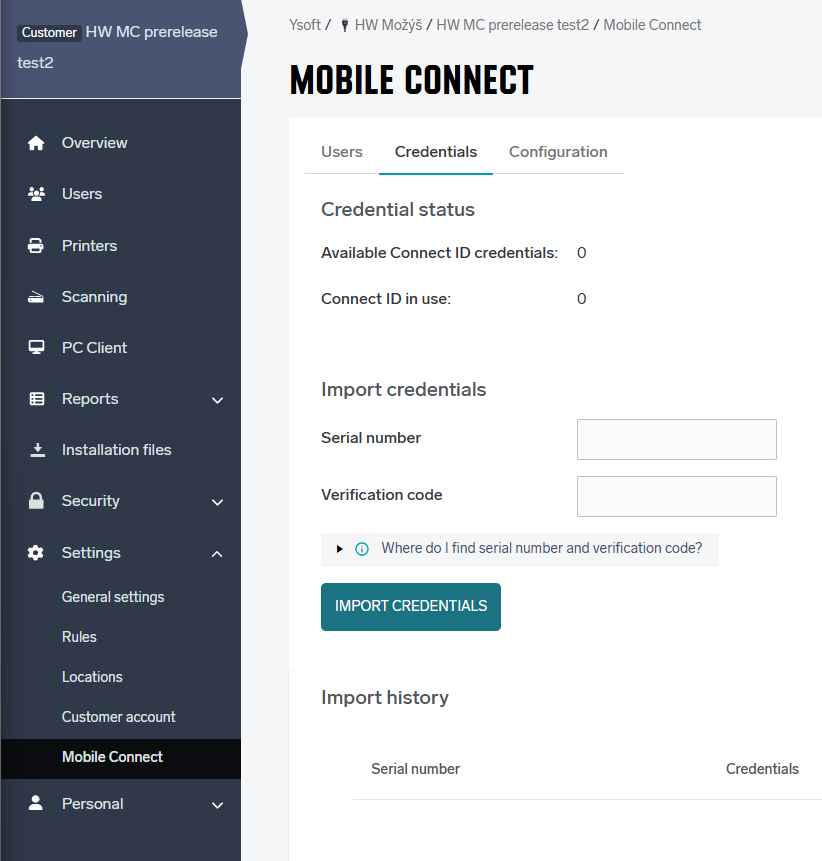
After import, the credentials in the package are available for assignment to users.
Credential synchronization
Synchronization keeps the credential status in SAFEQ Cloud up to date with the external Mobile Connect service.
There are two ways to trigger synchronization:
-
Automatic: SAFEQ Cloud runs a background synchronization task periodically. No administrator action is required.
-
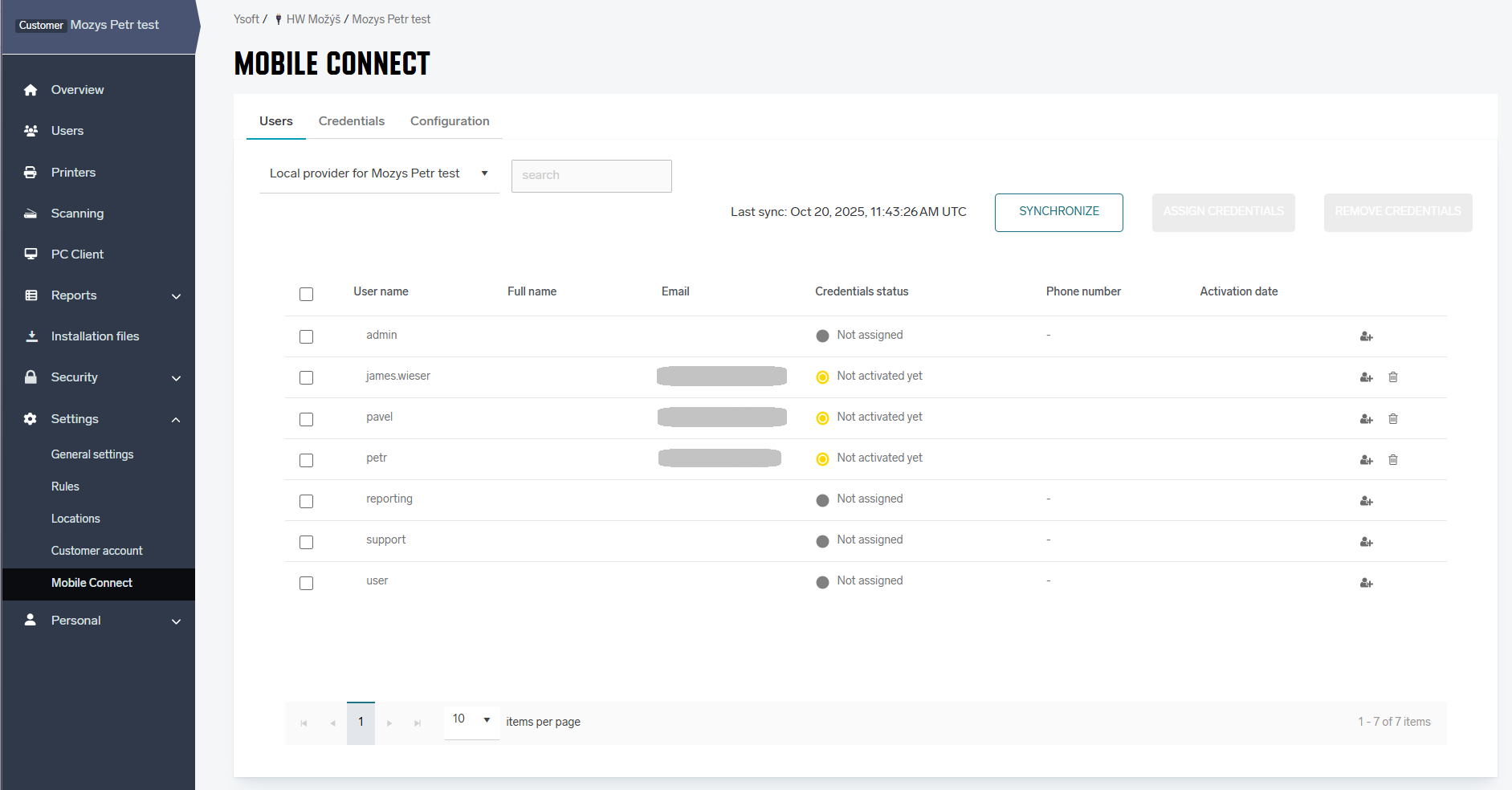
Manual: You can trigger synchronization at any time by clicking the SYNCHRONIZE button on the Users page.
Manual synchronization checks the current status of imported credentials. It is useful before assigning credentials, but it cannot guarantee or restore consistency if any individual credential has been distributed outside the SAFEQ Cloud workflow.
Assigning credentials to users
Once credential packages have been imported, you can assign credentials to individual users.
To assign credentials to a user:
-
Navigate to the Users page in Mobile Connect.
-
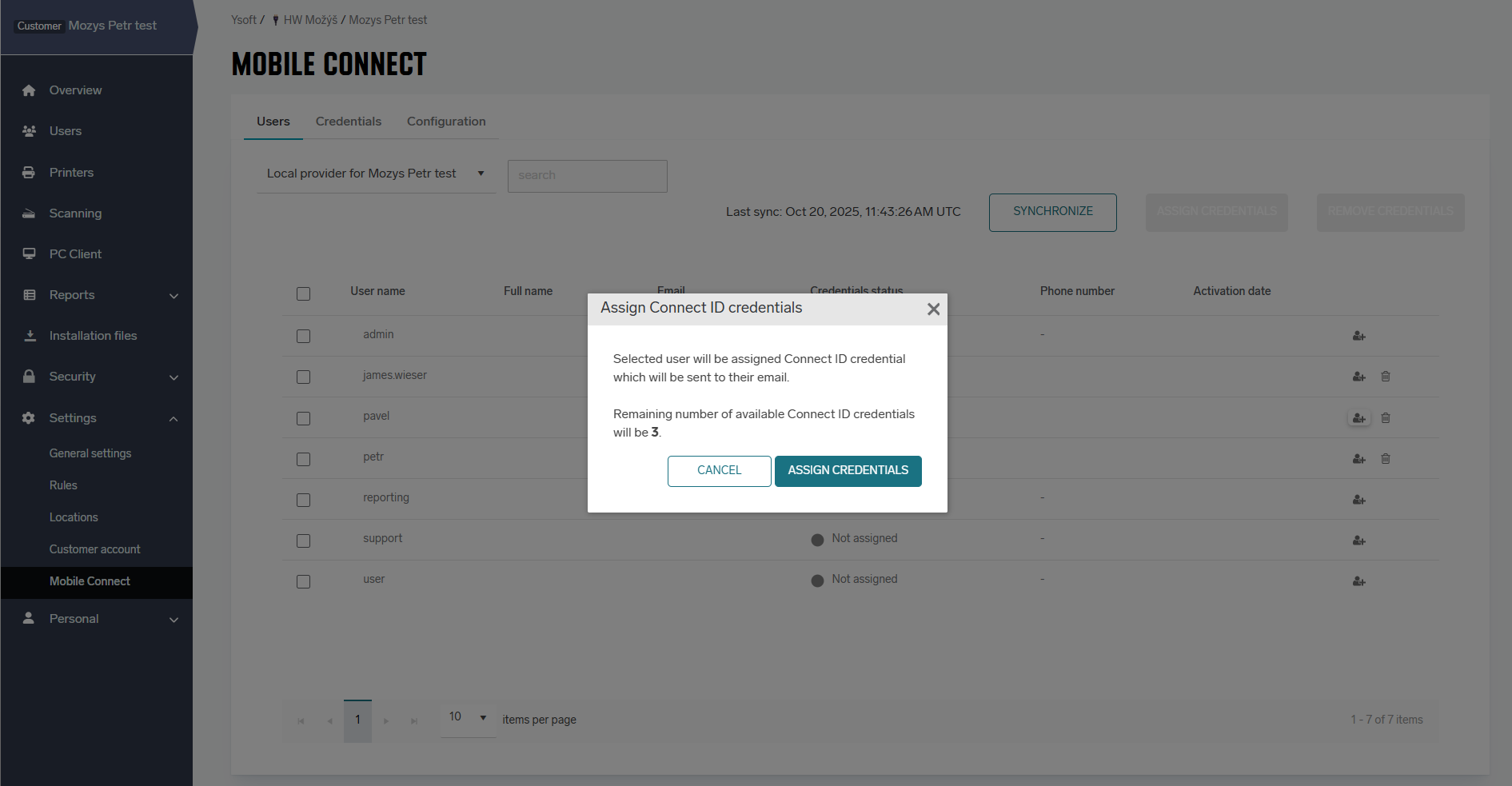
Click the assign icon

The system automatically selects random credentials from the available imported packages and assigns them to the user. An activation email containing the authentication code is sent to the user.
Each user can be assigned only up to a configured maximum number of credentials at a time. The default maximum is 3 credentials per user. The effective number can also be limited by the general maximum number of card IDs allowed for a user, because each Mobile Connect credential counts as a card ID.
After a credential is activated in the YSoft Mobile Connect™ app, the phone number used during device registration can be displayed with the credential status. This value is provided by the external Mobile Connect service as part of the credential metadata.
Removing credentials from users
Credentials can be removed from a user one at a time or all at once.
To remove a single credential:
-
Navigate to the Users page in Mobile Connect.
-
In the user's credential list, click the bin icon

To remove all credentials from a user:
-
Navigate to the Users page in Mobile Connect.
-
Click the bin icon
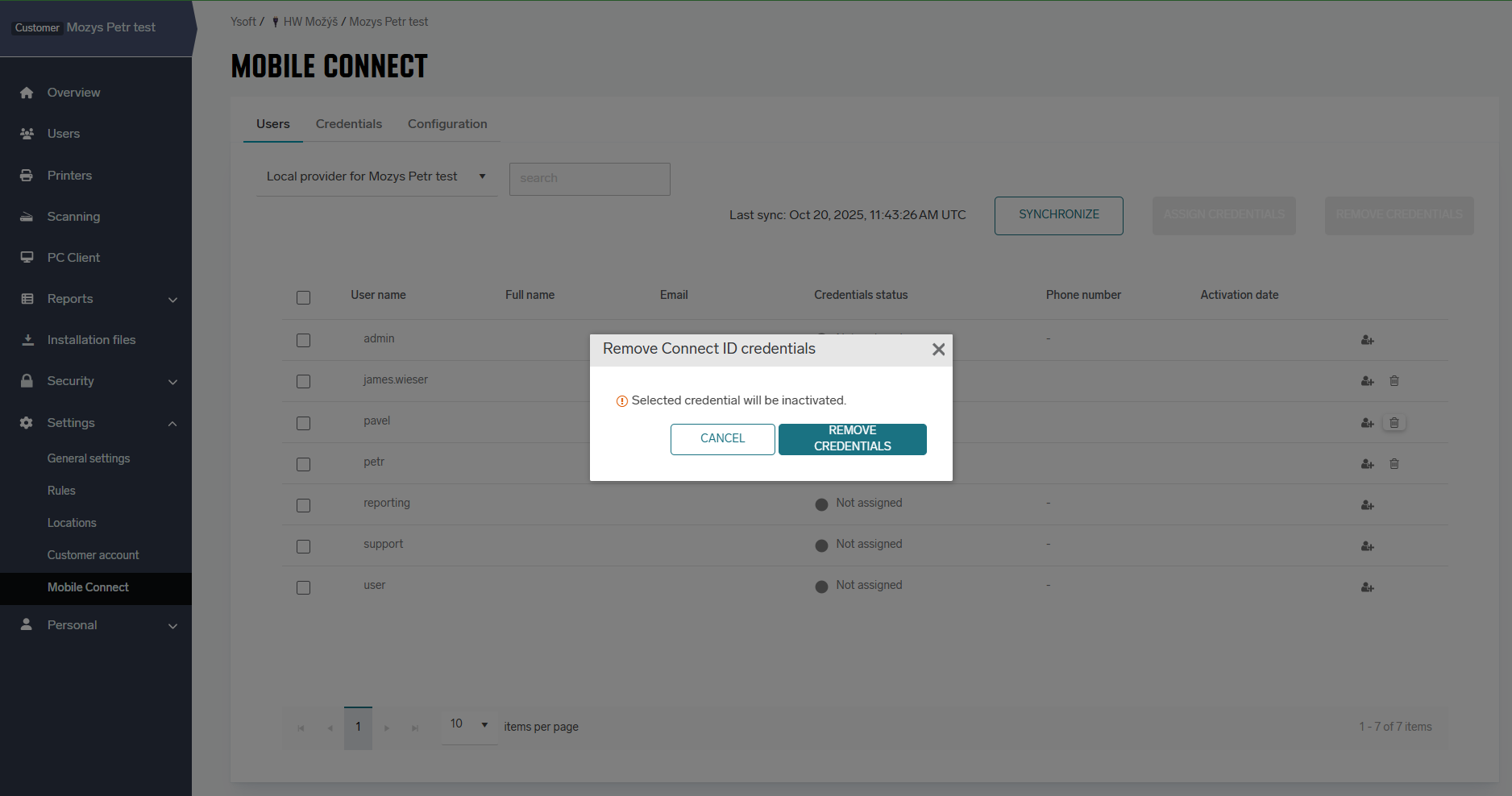
Removing a credential deactivates it permanently. Removed credentials are not returned to the pool of available credentials and cannot be assigned or activated again. If there are no available credentials left, you must obtain an additional Mobile Connect credential package through your Y Soft representative or support.
Each Mobile Connect credential package must be used through only one distribution method: physical paper vouchers, YSoft SafeQ 6, or SAFEQ Cloud. The distribution method depends on your Mobile Connect order. Do not import or assign a package in SAFEQ Cloud if it was already distributed through physical paper vouchers or YSoft SafeQ 6, for example during migration to SAFEQ Cloud. This may cause inconsistent credential states. If unsure, contact your Y Soft representative or support.
Resend email with authentication data
The resend action is available only for credentials that are assigned but have not been activated yet.
To resend an activation email for a credential:
-
Go to Mobile Connect > Users.
-
Find the user and the credential whose activation email should be resent.
-
Click the resend icon

-
In the confirmation dialog, click Resend email.
If the resend fails, the UI reports one of the following errors: no Mobile Connect email template found, no email address set for the user, email sending failed, credential not found, or user not found.
Bulk operations
Bulk operations allow you to assign or remove credentials for multiple users in a single action.
To perform a bulk operation:
-
Navigate to the Users tab in the Mobile Connect menu.
-
Select the users you want to apply the operation to using the checkboxes.
-
Open the ACTIONS select box.
-
Choose the desired action: assign credentials or remove credentials.
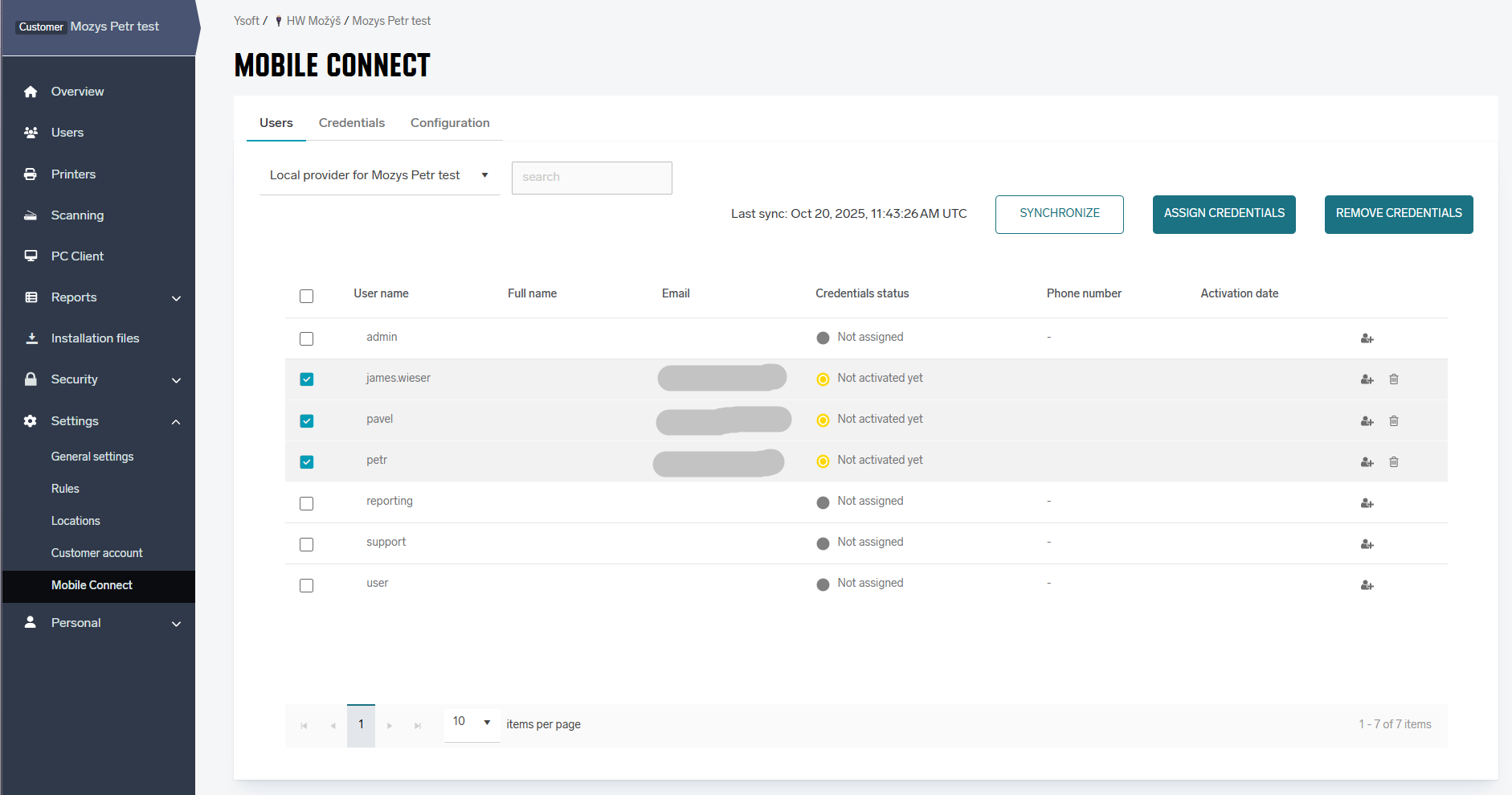
Bulk operations are limited to credential assignment and removal. Bulk assignment requires enough available credentials and respects both the Mobile Connect credential limit and the general card ID limit for each user. Bulk removal deactivates the selected credentials permanently; removed credentials cannot be assigned or activated again.
Configuration
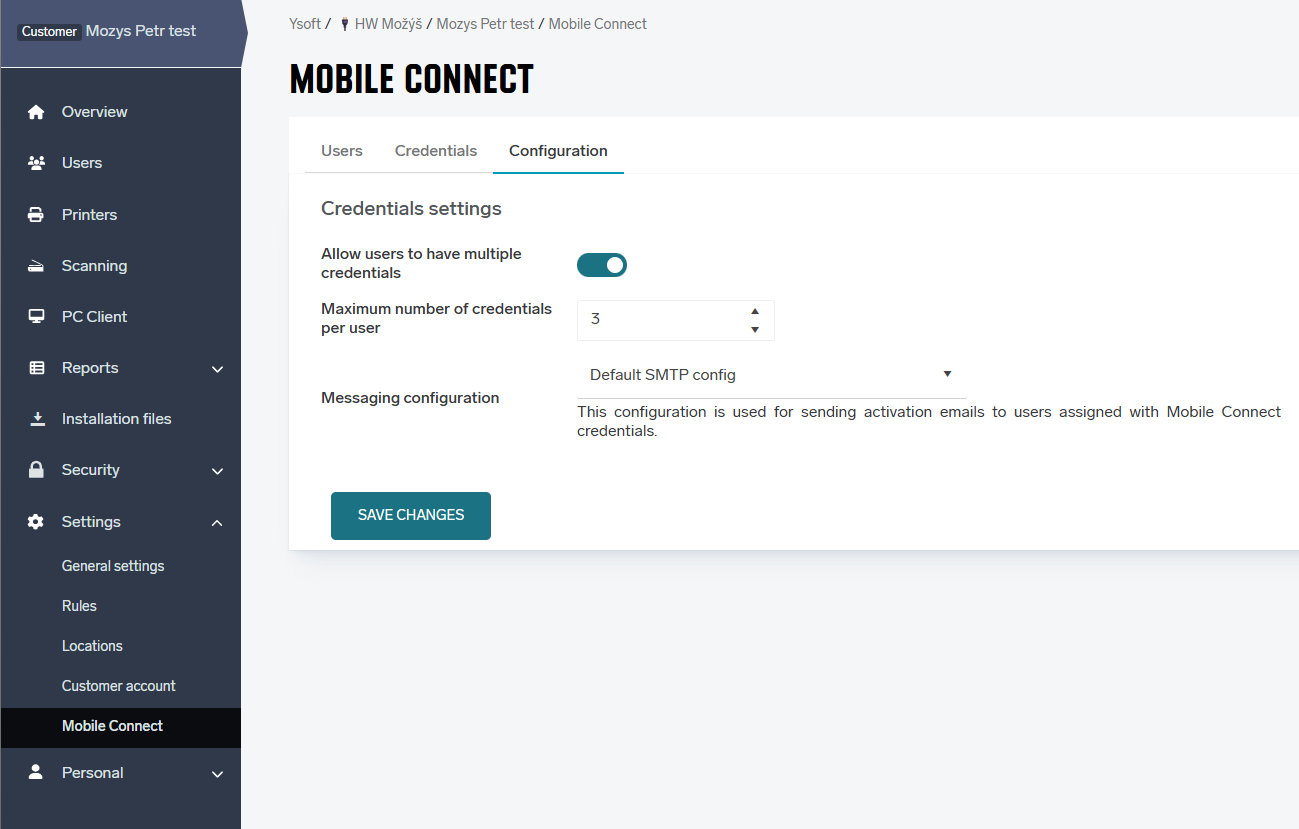
Maximum number of credentials per user
The maximum number of credentials that can be assigned to a single user is configurable. The default value is 3 credentials.
To change this limit, update the credential limit setting in the Mobile Connect configuration.
Activation email template
You can customize the subject and body of the activation email sent to users.
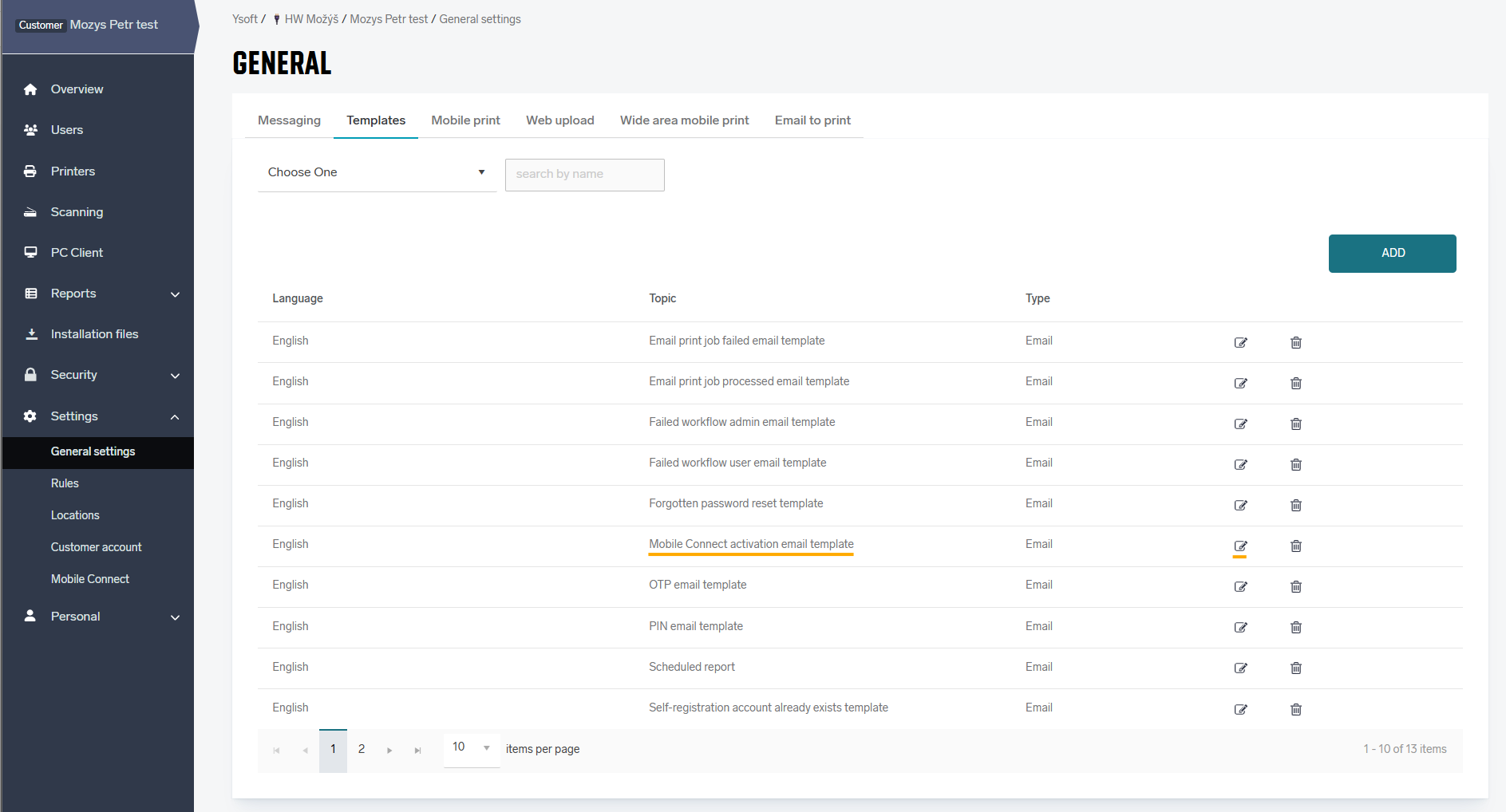
To edit the email template:
-
Go to General Settings.
-
Open the Templates tab.
-
Find the topic Mobile Connect activation email template.
-
Click the detail icon

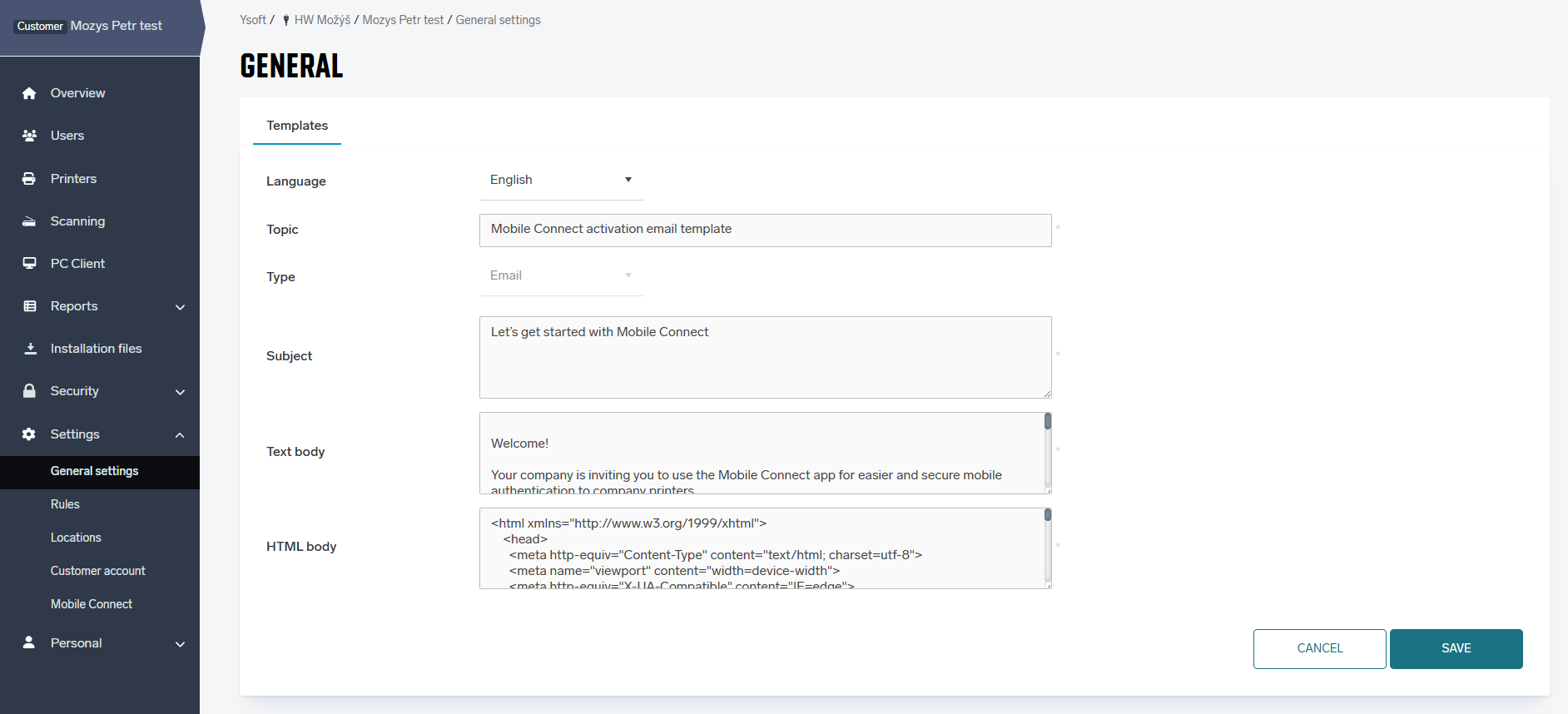
When customizing the activation email template, preserve the placeholders for the activation code, QR code, and Mobile Connect server URL. If these placeholders are removed, users may receive an email that does not contain the data required to activate the YSoft Mobile Connect™ app.
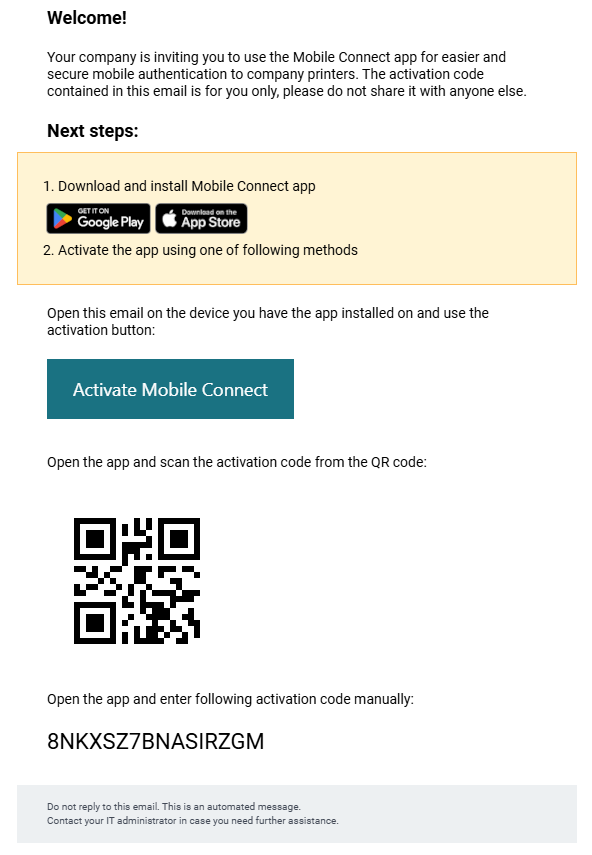
The default email template includes the deep link, QR code image, and text code. An example of the default email is shown below.
Required permissions
The administrator role must include the required Mobile Connect permissions: ViewMobileConnectUsers, ModifyMobileConnectUsers, and ModifyMobileConnectConfiguration.
Activation code methods
After credentials are assigned to a user, an activation email is sent containing the authentication code in three forms.
Deep link
The email contains a clickable deep link. Clicking the link behaves as follows:
-
Android or iOS: The device either opens the YSoft Mobile Connect™ app directly with the authentication code preloaded, or opens the app store to install the app.
-
Other platforms: The link opens a YSoft product information web page.
Some email clients, including Outlook, may not support deep links. Users on those clients should use the QR code or text code instead.
QR code
The email contains a QR code that encodes the authentication code. The user scans the QR code using the YSoft Mobile Connect™ smartphone application during the authentication step.
Text code
The email contains the authentication code as plain text. The user can manually enter this code as the authentication key during the authentication step.
Known limitations
-
Deep links may not function in Outlook and some other email clients. Direct users to use the QR code or text code in that case.
-
Removed credentials can never be returned to the available pool and cannot be reused. Once removed, a credential is permanently decommissioned regardless of whether it was activated.
-
Each user is limited to a configurable maximum number of simultaneously assigned credentials (default: 3).
-
If even one individual credential is distributed outside the SAFEQ Cloud workflow (for example, as a paper voucher or via a historical distribution process), SAFEQ Cloud can no longer guarantee consistent credential state for the affected workflow. Manual synchronization can help update credential statuses but cannot guarantee or restore consistency in this case.
-
Manual synchronization can reduce stale credential status risk before assignment but cannot resolve every mismatch caused by external distribution.