Scanning at a Konica Minolta Device - 1st Gen.

Quick Scan Workflows

Scan workflows can be defined in a simple way for the user to tap and start the scan workflow immediately. These are the quick scan workflows.

  1. Log into the embedded terminal.

  2. Enter the SafeQ Scan application.
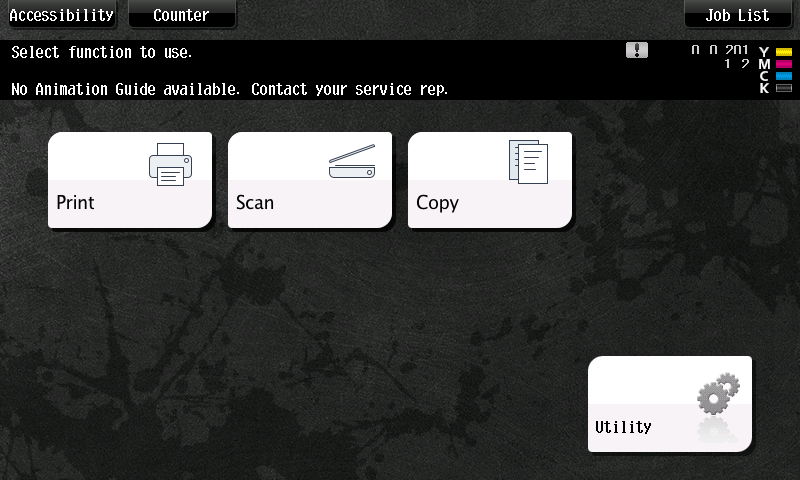
    main_menu.png

    Your main menu screen may not look exactly like the one shown here.


    You may be asked to select a Billing Code first.


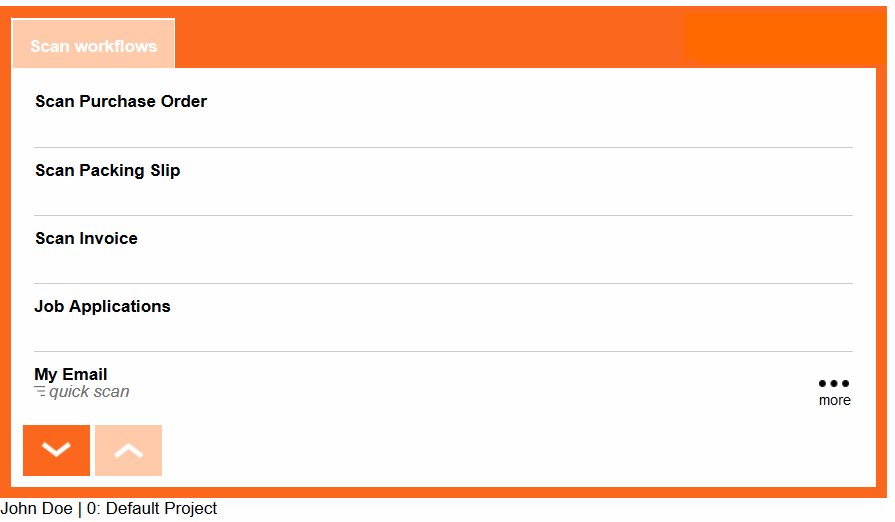
  3. Available scan workflows vary based on your permissions and YSoft SafeQ's configuration. To learn more, please contact your system administrator. Quick scan workflows enable you to start a specific workflow without any additional input. These are marked with a quick scan label under the name. To start scanning, tap one of the quick scan workflows. Scanning starts immediately with the selected workflow.
    scan km.png


    SafeQ6XeroxQuickScanMoreButton.PNG Tap to change the predefined scan options.

    SafeQ6XeroxButtonsPaging.png  Display more pages of the scan workflows list.

Scan Workflows with User Input

User input may be required with some scan workflows. This guide will show you how to use them.

  1. Workflows not marked with a quick scan label require additional input from users. Tap one of the listed scan workflows and you will proceed to the Workflow detail screen.
    scan km.png
    SafeQ6XeroxButtonsPaging.png  Display more pages of the scan workflows list.

  2. The Workflow detail screen displays. If a workflow is not marked with a quick scan label, it is a regular workflow with user input. Selecting such a workflow on the Scan workflows screen always opens the Workflow detail screen.

    km params.JPG


    Tap an input field or its icon to set the value of a workflow user input. Required user inputs are marked with a red asterisk (*).

    SafeQ6XeroxScanListParameter.PNG  Tap to open the List selection screen.

    SafeQ6XeroxScanBrowseParameter.PNG  Tap to select the target folder.

    scan button.png  After placing a paper document on the glass or in the feeder, start scanning using the Scan button. If any required user input is not completed, the Scan button is disabled. If user inputs are invalid, a Validation screen is displayed and scanning does not start. When scanning starts, the Scan in progress screen displays.

    SafeQ6XeroxCancelButton.png  Tap to leave the screen and display the Scan workflows screen.

    SafeQ6XeroxButtonsPaging.png  Go to the next/previous page to view and edit user input fields not displayed on the current page.

    SafeQ6XeroxScanOptionsTab.PNG  Tap to change the predefined scan options for the workflow.

    SafeQ6XeroxScanDescriptionTab.PNG  Tap to display the workflow's description.

    1. On the List selection screen, select one of the options by tapping it.
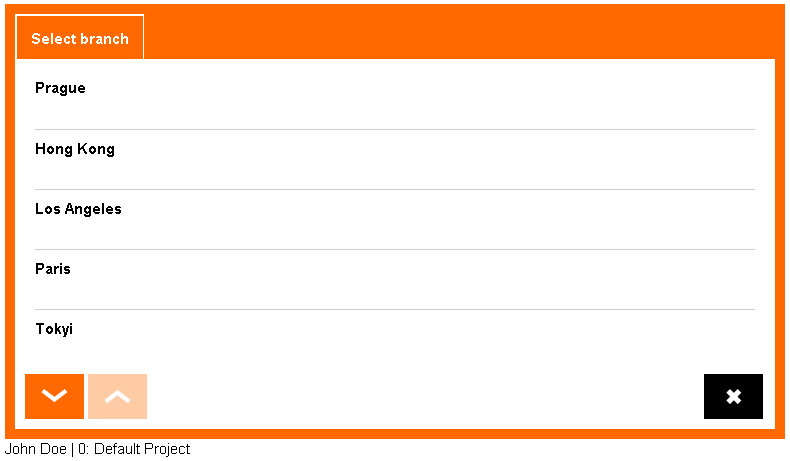
      image2016-6-8 15_48_57.png


      SafeQ6XeroxButtonsPaging.png  Go to the next/previous page to view other options from the list.

      SafeQ6XeroxCancelButton.png  Tap to leave the screen without a selection change. The Workflow detail screen displays with the original choice set in the list input field.

    2. On the Folder browsing screen, you can browse a folder's structure. The folders are listed in alphabetical order. The label of the tab at the top of the screen initially contains the same label as the related workflow user input field. After accessing a folder, the label contains the current folder path.
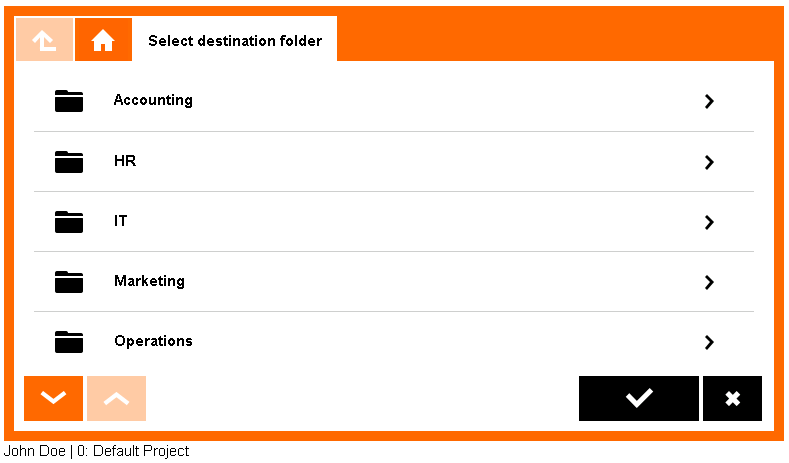
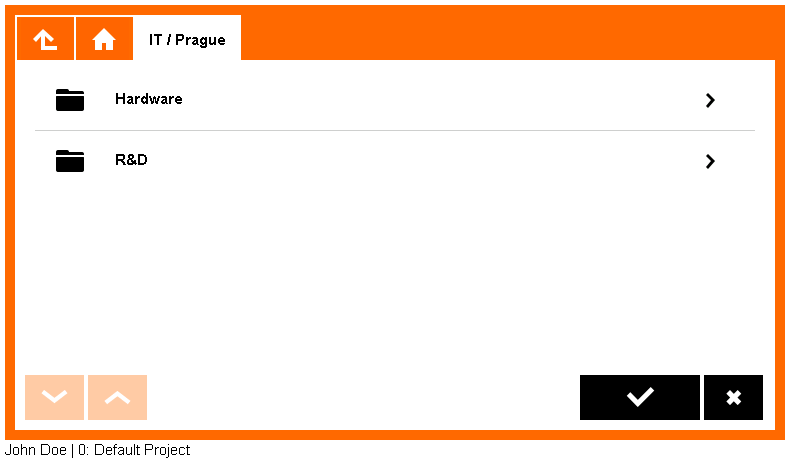
      image2016-6-8 15_50_2.png
      image2016-6-8 15_50_35.png


       Tap a folder item to browse its contents.

      SafeQ6XeroxScanBrowseRoot.png  Tap to return to the root folder.

      SafeQ6XeroxScanBrowseUp.png  Tap to return to the parent folder.

      SafeQ6XeroxButtonsPaging.png  Go to the next/previous page to view the other subfolders of the current folder.

      SafeQ6XeroxButtonSelect.png  Tap to select the current folder as the target folder. (The currently selected folder is the one noted on the label of the tab.)

      SafeQ6XeroxCancelButton.png  Tap to leave the Folder browsing screen without a selection change.

Additional Scan Options

Additional scan screens are displayed after tapping their tabs on the detail workflow screen or tapping the quick scan More button.

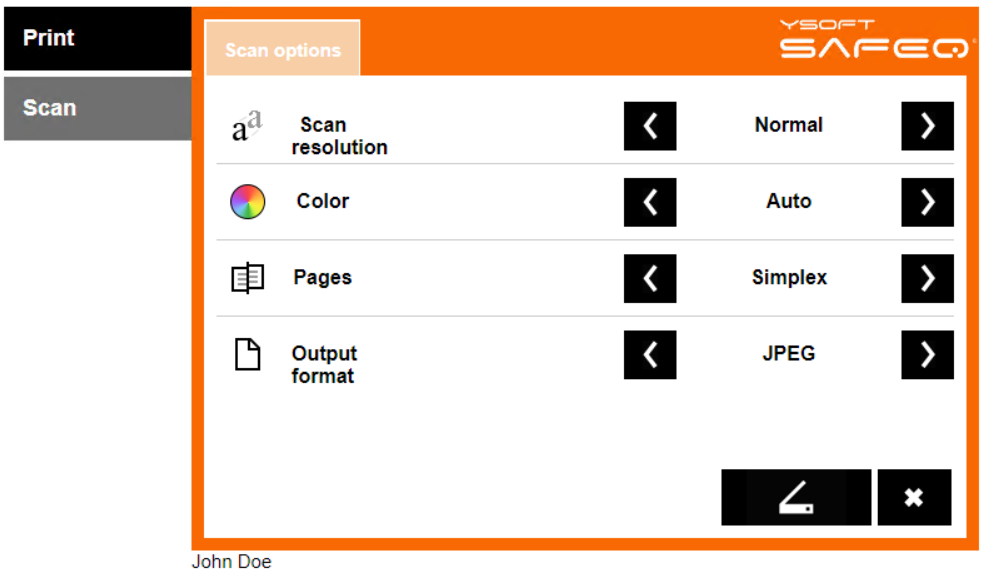
  1. The Scan options screen is displayed after pressing the More button in the quick scan workflow or pressing the Scan options tab regular workflow detail.

    The Scan options screen is displayed only if any of the options are modifiable (set by an administrator).


  2. The Scan options screen contains at least one of following options:
    gen1.png


    scan-resolution-gen1.png  Set the desired scan quality.

    SafeQ6XeroxScanOptionColor.PNG  Select from the available color options.

    SafeQ6XeroxScanOptionPages.PNG  Select simplex or duplex scanning.
    output-format-gen1.png Select the desired file format.

    arrows-scan.png  Use the selection buttons to scroll between available options.

    scan button.png  After placing a paper document on the glass or in the feeder, start scanning using the Scan button. If any required user input is not completed, the Scan button is disabled. If user inputs are invalid, a Validation screen is displayed and scanning does not start. When scanning starts, the Scan in progress screen displays.

    SafeQ6XeroxCancelButton.png  Tap to leave the screen and display the main scan workflows screen.

Scan Description

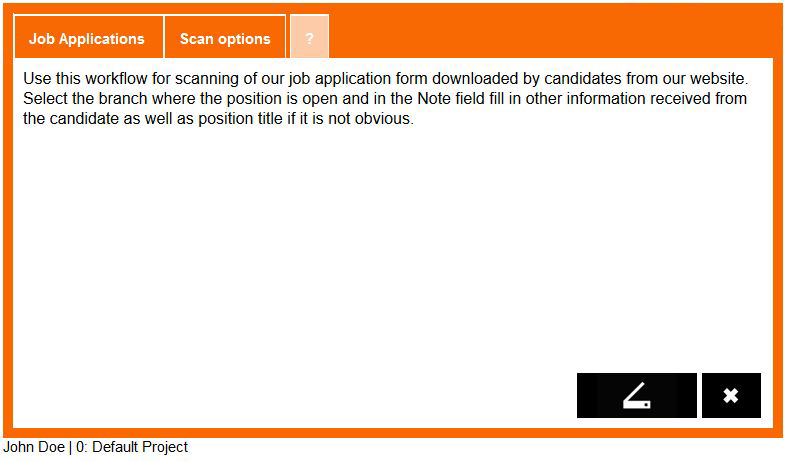
  1. The Scan description screen describes the workflow and how to use it.
    km description.JPG


    scan button.png  After placing a paper document on the glass or in the feeder, start scanning using the Scan button. If any required user input is not completed, the Scan button is disabled. If user inputs are invalid, a Validation screen is displayed and scanning does not start. When scanning starts, the Scan in progress screen is displayed.

    SafeQ6XeroxCancelButton.png  Tap to leave the screen and display the main scan workflows screen.