
Online accounting over IPP is available on a limited set of all the IPP-enabled printers due to the variance in IPP implementation for different vendors, or model groups. We have created the IPP Testing Tool to verify whether a device conforms to our interpretation of the IPP data sent by a device.
Partners and customer admins will be able to use this tool to verify if printers in a customer's environment are supported by our IPP accounting implementation. This can be done even without YSoft SafeQ installation. Currently, every printer model has to be tested separately.
We ask everyone who performs such a test to send all testing logs and data, along with the test results, to our CSS. All the data gathered will help us with further development and may reduce or eliminate the necessity of the IPP Testing Tool in the future.
Prerequisites
-
Windows operating system with Microsoft .NET Framework 4.8
-
Device matching PCL and Postcript printer drivers for each different model to be tested
-
Disable user authentication for print on the tested printer
-
The tested printer and its web interface are not in use
-
Create a print queue on the Windows machine
-
-
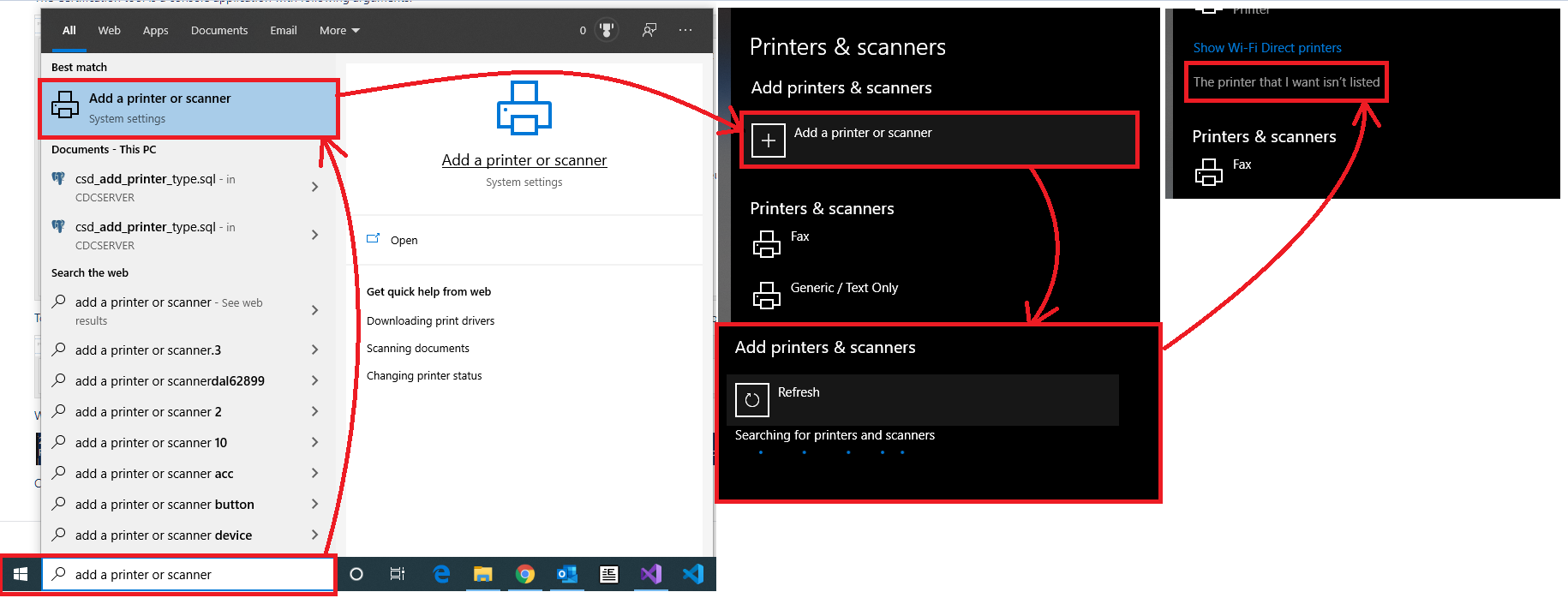
Add a new Windows printer :
-
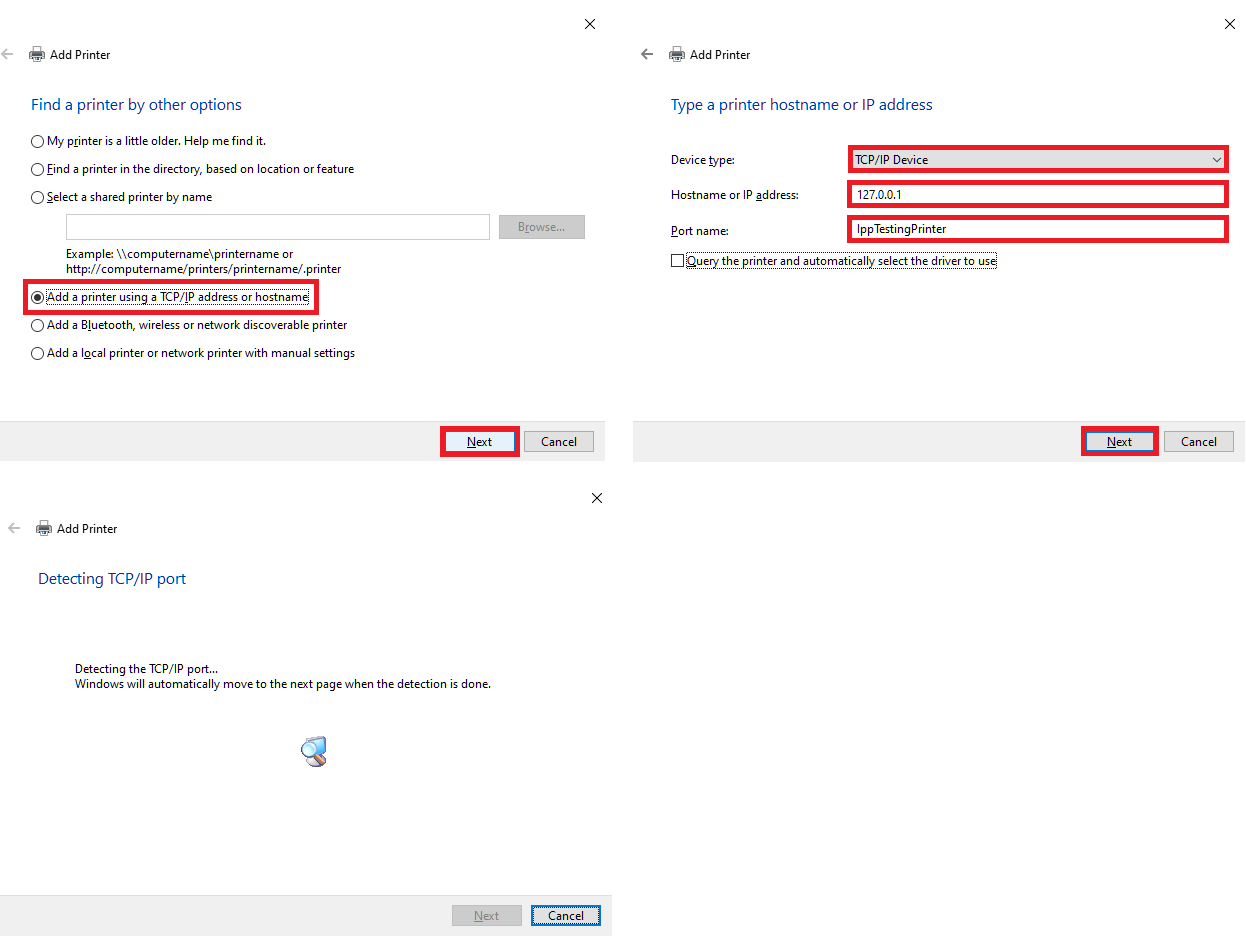
Add a TCP/IP printer with 127.0.0.1 as an Hostname or IP address.
-
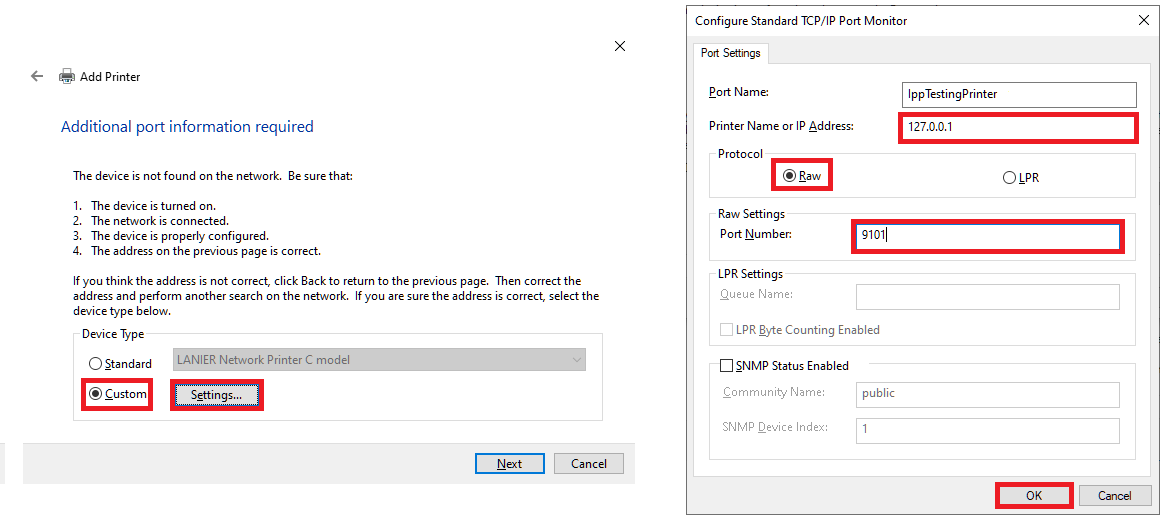
Select a Custom device type and select Raw protocol, with Port Number 9101 (the default value of the IPP Testing Tool TCP port)
-
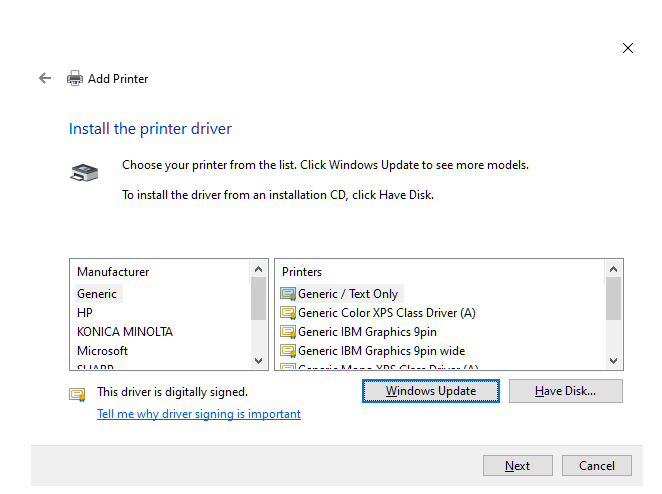
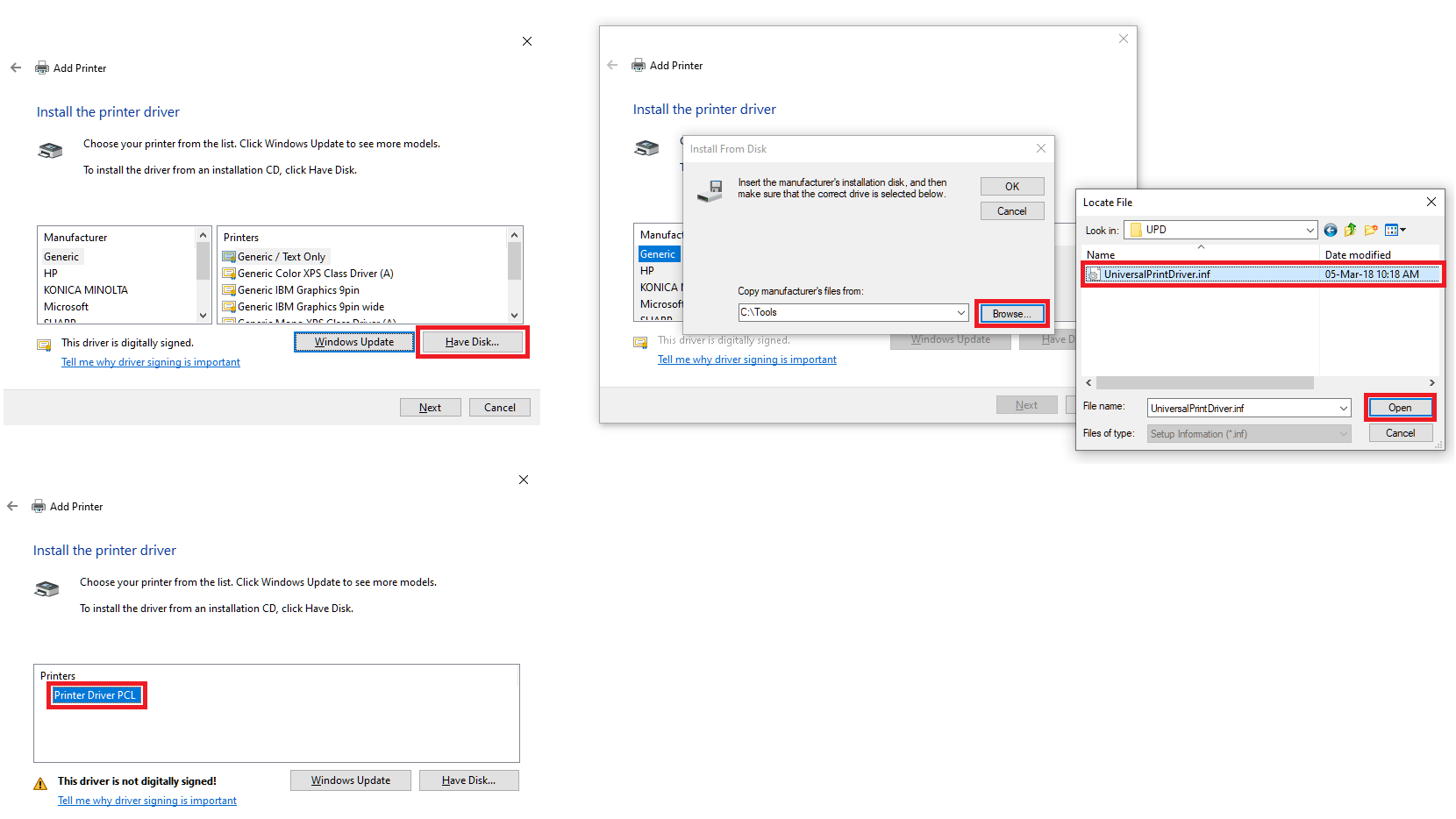
Select a Printer Driver you would like to use for the test. The IPP Testing Tool supports only device compatible PCL and Postcript printer drivers.
-
If the desired print driver is missing from the list, but you have a Printer Driver file, you can load this Driver file from the Hard Disk
-
-
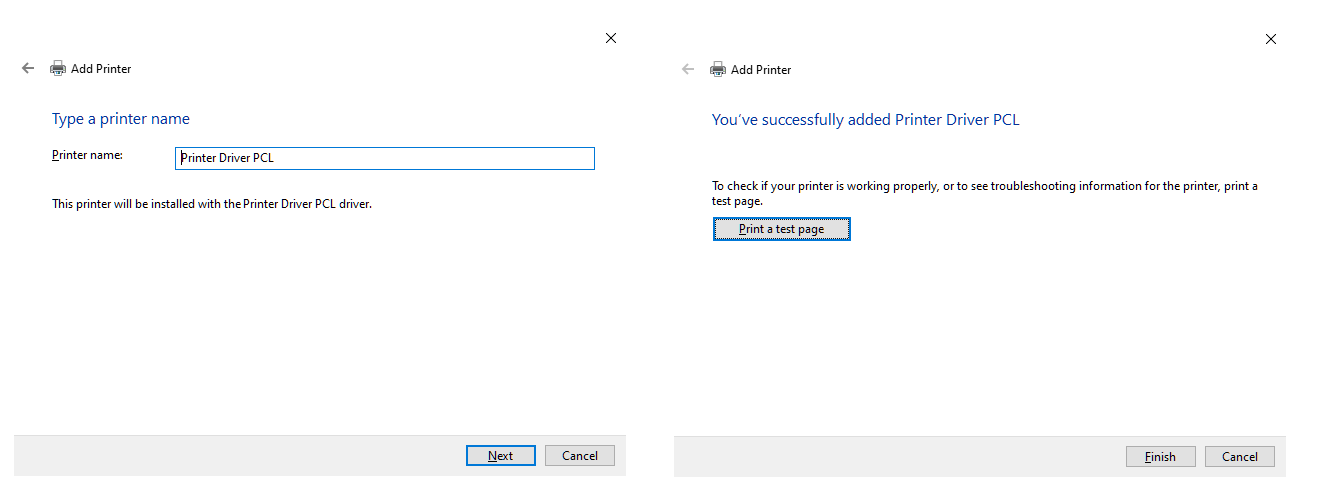
Choose a Printer name. The installed printer will be identified by this name in the list of printers.
-
How to get the IPP Testing Tool
The IPP Testing Tool is available in the Partner Portal's Download section among our other tools.
Testing your fleet of printers
This section will help you choose the right test scenarios for your test and will describe how testing of a printer fleet could appear.
Testing scenarios are divided by page format. We support testing Standard A formats (A4, A3) and American formats (Letter, Ledger/Tabloid). In practice, a test scenario is defined by the test document that you will use during your tests.
Based on the market, you will choose either A4 and A3 or Letter and Ledge/Tabloid. You will use the large formats (A3 or Ledger/Tabloid) only if your printer supports it.
Each scenario requires its own run of the IPP Testing Tool and that must be repeated for each different printer model you want to use with IPP accounting.
Some printers account larger formats as double the amount of normal formats. In such a case, the printer will return a figure twice as large as expected. This is correct printer behaviour but it is not yet implemented in our IPP accounting. It is a limitation.
Example:
-
You want to test the printers of your American customer. You will therefore be using Letter and Tabloid test documents.
-
The customer has three types of printer model in his environment - Models A, B, and C. Both models A and B support large page formats, model C doesn't support large page formats.
-
You download the IPP Testing Tool to the Windows machine that meets the prerequisites.
-
You have created a print queue according to this guide with a specific printer driver that the printer manufacturer has designated for model A.
-
You start up the IPP Testing Tool with the correct parameters. You wait for a request for your input.
-
The Tool requests that you print a document to the created print queue. You print a document called "Letter_ ... .docx" in duplex, along with two copies.
-
You wait for the test results. Once the test has been concluded you end its run by pressing any key.
-
Model A supports even large formats. You therefore start the Tool again. This time you print a large format document called "Ledge_Tabloid_ ... .docx" in duplex, along with two copies.
-
You wait again and once the test has finished, you end its run by pressing any key. Model A testing is completed.
-
You continue with model B. This may require a change of print driver in your printer queue. In such a case, you can change it or create another queue.
-
You repeat steps 5-9 for model B. Model B testing is complete.
-
You continue with model C. This may again require a change of print driver in your print queue.
-
Model C doesn't support large page formats. You need to repeat steps 4-7 only.
-
Testing is complete. You send a zipped "logs" folder to the Y Soft CSS Service desk, along with information about the printer firmware versions and the printer driver versions you used in the print queues.
Running the IPP Testing Tool
The IPP Testing Tool is a console application with the following arguments:
  -i, --ipaddress    Required. IP address of the tested printer.

  -t, --tcpport      (Default: 9101) Raw port number where this tool will receive jobs. Windows printer must be created
                     that will send print jobs to this port on localhost.

  -p, --port         (Default: 631) Ipp port of the tested printer.

  -q, --queue        (Default: ipp/print) IPP queue name of the tested printer.

  -v, --verbose      (Default: false) Enables the debug print output in console.

  -s, --secure       (Default: false) Connect to the printer via secure channel (HTTPS/IPPS).

  --help             Display this help screen.

  --version          Display version information
-
To run this Tool, execute the following command in Command line or PowerShell at the IPP Testing Tool root folder. The pieces in square brackets are optional, their explanation is above:
PowerShell.\IppTestingTool.exe -i 10.1.2.103 [-t 9101] [-p 631] [-q ipp] [-v] [-s]
-
Wait until a similar entry is shown in the console:

-
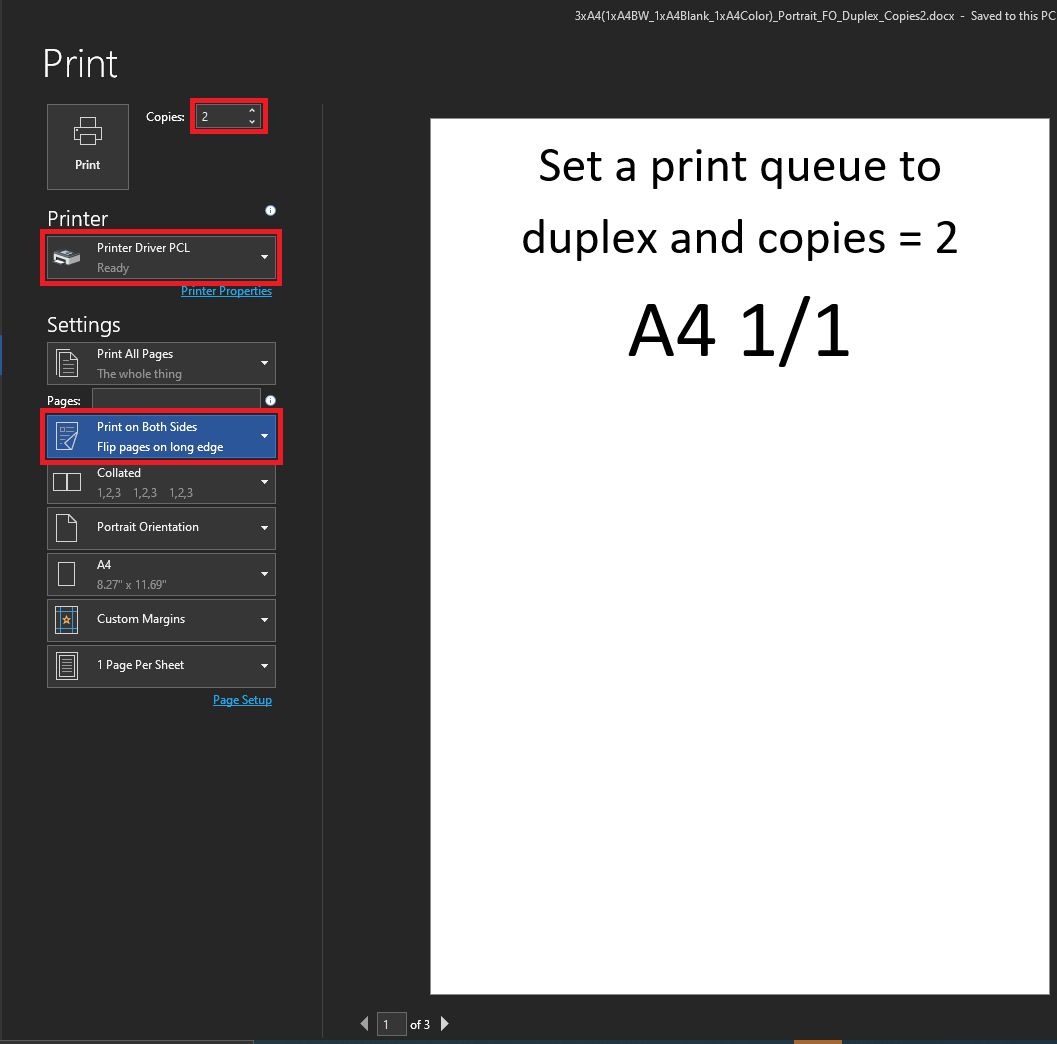
Open the chosen test document from the TestDocuments folder.
-
Select 2 copies, the Printer you just created, Print on Both Sides, and hit the Print button. The tool will execute the test afterwards. The average test run finishes under a minute.
-
The test takes some time while the document is being printed, please wait. (If you enable --verbose mode, you will see some debug messages in the meantime. If the result is successful, the tested printer supports Online accounting over IPP.

-
If the status number of printed pages reported by printer is different than expected, the result will be unsuccessful. In this case, you can try using a different Printer Driver and try it again, sometimes an incorrect driver can be the cause of a different page interpretation by the printer.

-
The result of the test may also be limited success, if you test a printer with following limitation: https://ysoft.atlassian.net/browse/LIMIT-177.

-
Gathering test results
Once you have finished testing all the different printer models in your environment, it is time to send all the test results to Y Soft Customer Support Service through our Service desk.
Please use the following template to fill in the form.
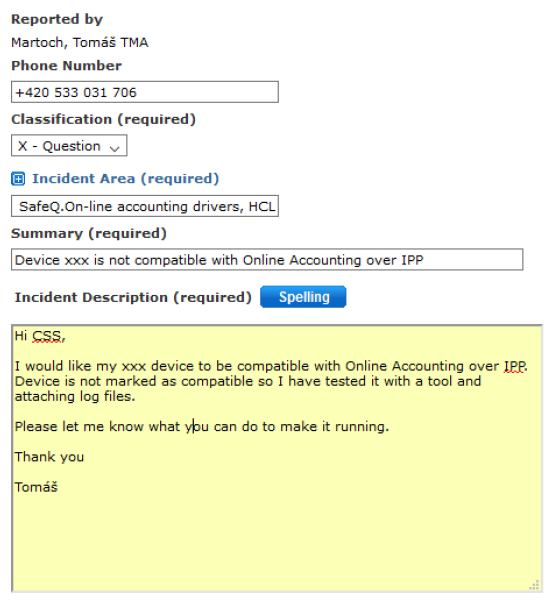
The data you should send are:
-
the "logs" folder of the IPP Testing Tool. It contains all test results
-
print drivers' names and versions that were used in print queue during testing
-
printer firmware versions
When a printer is eligible for IPP accounting
The device is suitable for IPP accounting when there are two following attributes:
Name: job-state-reasons
Values: job-completed-successfully
and
Name: job-impressions-completed
Values: 10
If the value for "job-impressions-completed" is not 10, but 5 there could be errors during accounting copies or duplex pages but we are able to correct them in some cases. If there is 0, 1 or it is missing, the printer is not suitable for IPP accounting.
Troubleshooting
You might encounter various exceptions if the printer is misconfigured, or the wrong IPP Testing Tool attributes have been used.
We currently have a limitation LIMIT-177 - Online accounting via IPP may incorrectly account jobs with duplex and blank pages.
Printer state could not be parsed

Such an error could be because of a wrong IPP queue on the printer. Try using "ipp/print", "ipp", "print" or "" as a value of -q parameter, e.g. running
.\IppTestingTool.exe -i 10.1.2.103 -q ipp
or
.\IppTestingTool.exe -i 10.1.2.103 -q ipp/print
or
.\IppTestingTool.exe -i 10.1.2.103 -q print
or
.\IppTestingTool.exe -i 10.1.2.103 -q ""
Printer <ip_address> unavailable
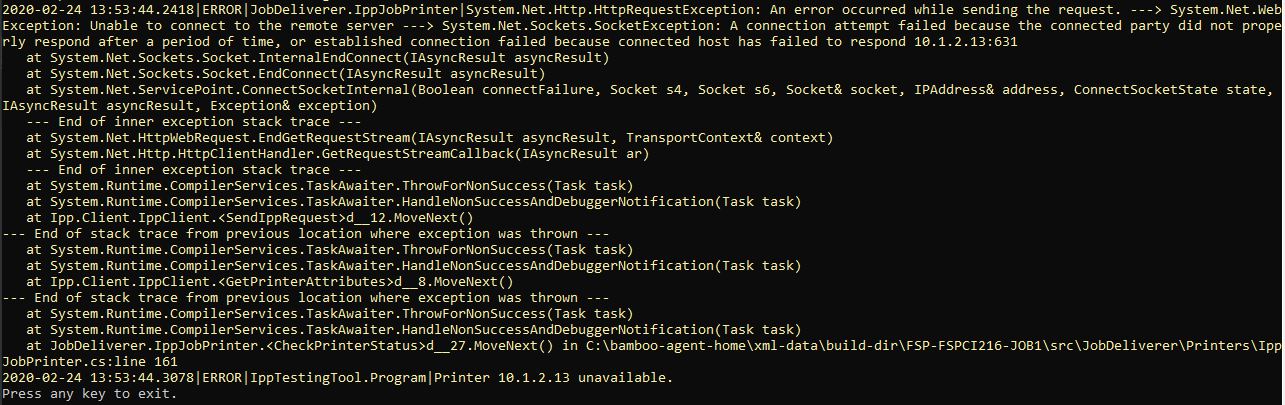
This error means the IPP Testing Tool can't send an IPP message to a device at all. This might be caused by a printer having a different IP address, or being unavailable at the moment. Try to reach out to the printer using a ping command:
ping 10.1.2.103
If there's an error, like Destination host unreachable, verify that the printer's network connection is working, and that its IP address is right. If ping is working fine, the port a printer is using for IPP connection might be different from the default 631. In that case, run the IPP Testing Tool again using the correct IPP port. The other most common ports are 80 for IPP, and 443 for IPPS (IPP over HTTPS).
.\IppTestingTool.exe -i 10.1.2.103 -p 80
or
.\IppTestingTool.exe -i 10.1.2.103 -p 443
This error may also happen when using parameter -s while the printer supports only IPP and not IPPS.
IPP message is shorter than 8 bytes

This error may happen when a printer tries to upgrade its connection from IPP protocol to secure IPPS protocol. Run the test again with the -s parameter.
.\IppTestingTool.exe -i 10.1.2.103 -s
Printer returns value 0 ergo print was aborted
This error may happen when user authentication for print is enabled on the printer. Disable it and try again.