
This page describes how to use the interactive installer to perform payment gateway plugins installation, which are additional components for YSoft SafeQ Payment System. We use installation of PayPal plugin as an example. DIBS plugin installation is very similar, main difference is in its configuration (step 6).
Payment System supports two main plugin installers and many more can be ordered as an extension. For more detail about connection of payment gateways to payment system, see YSoft Payment System Administration web interface.
New installation or update of payment gateway plugins for PayPal and DIBS
-
Run the installation file on the target computer. This usually means YSoft SafeQ Payment System server, but in general payment gateway plugins can be installed on any server. Plugin installers are named as following:
-
ysf-ps-paypal.exe for PayPal payment plugin
-
ysf-ps-dibs.exe for DIBS payment plugin
-
-
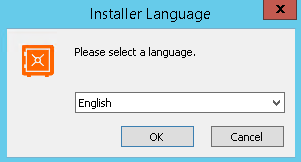
Select a language that will be used for the installation process.
-
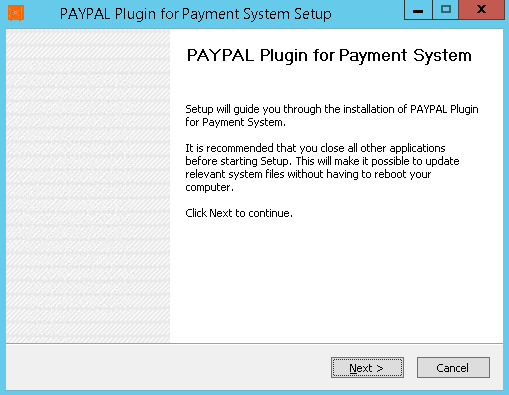
It is recommended to close all other running applications in order to avoid any issues during the installation. Click Next to proceed through welcome screen.
-
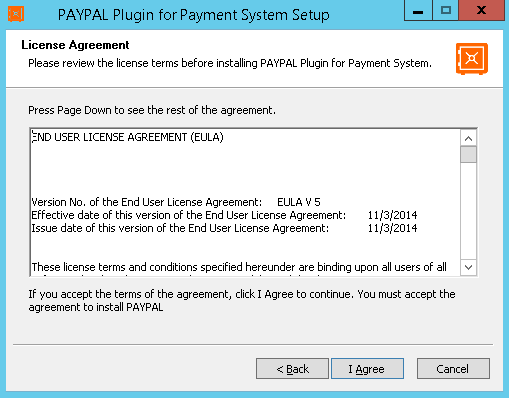
Click I Agree to accept the license agreement. Clicking on Cancel will decline the license agreement and stop the installation.
-
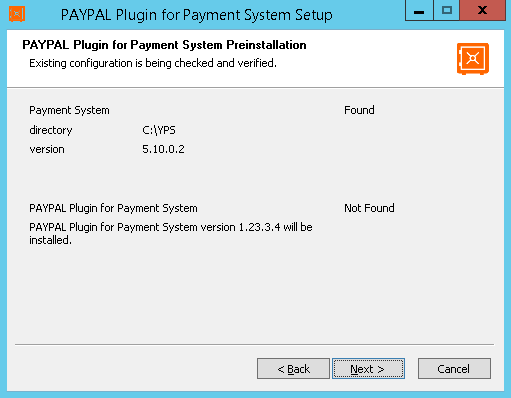
Installer runs a pre-installation check, to ensure YSoft SafeQ Payment System is installed on the local computer. Previous version of this plugin installed on the local computer will be updated.
-
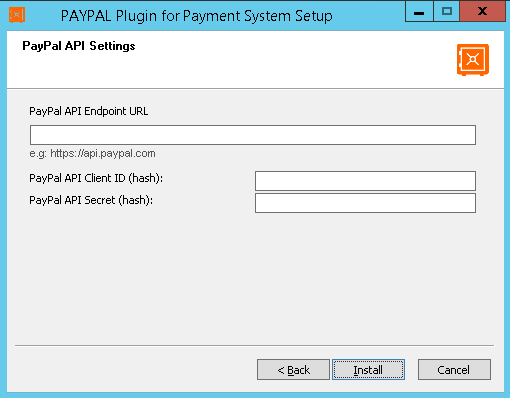
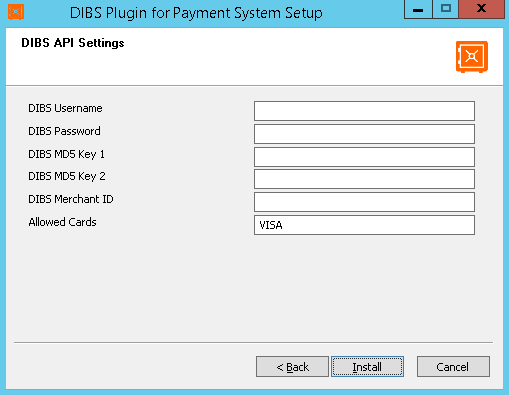
Fill in required settings for connection to payment gateway according payment gateway provider.
-
PayPal API Endpoint URL - Use PayPal's service URL (usually https://api.paypal.com/)
-
PayPal API Client ID (hash) - Hashed username of your PayPal signature.
-
PayPal API Secret (hash) - Hashed password of your PayPal signature.
-
ℹ️ For instructions on retrieving the Client ID and Secret for your PayPal business account, see Obtaining PayPal API credentials.
-
-
DIBS Username - Username of DIBS merchant's account.
-
DIBS Password - Password of DIBS merchant's account.
-
DIBS MD5 Key 1 - Merchant key for payments
-
DIBS MD5 Key 2 - Merchant key for payments
-
DIBS Merchant ID - ID of merchant's account
-
Allowed Cards - Card, that will be accepted by the DIBS gateway. See link http://tech.dibspayment.com/toolbox/paytypes for possible values
-
ℹ️ Below are examples of PayPal and DIBS configuration
-
-
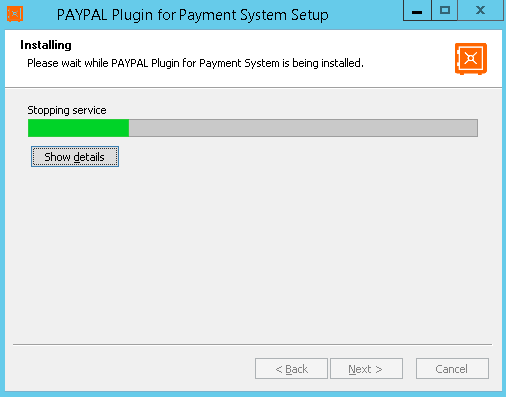
The installer begins to copy all the required files into destination folder defined by the location of the payment system on the local machine. In case you wish to see detailed installation progress, press Show details button (or D key).
-
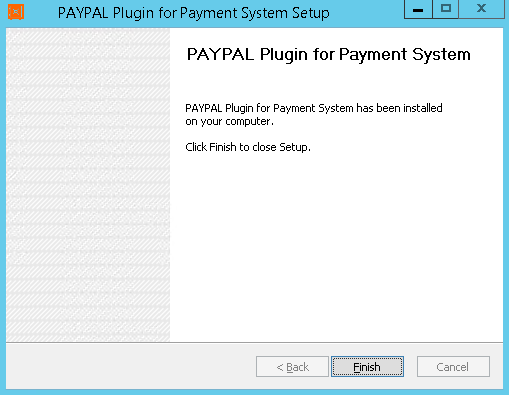
Once installation is complete, click Finish when you are ready to close the installation wizard. Installation is now complete and you can continue by connecting payment system to installed payment gateway plugin by following chapter YSoft Payment System Administration web interface.
Connecting YSoft SafeQ Payment System to payment gateway plugin
-
Login into YSoft SafeQ Payment System Administration web interface.
-
In menu Payment gateways click Create connection to plug-in and fill it in according to description of attributes in YSoft Payment System Administration web interface, section Payment Gateways. Use related URL for PayPal or DIBS.
-
Save the connection by clicking on Connect button.
Plug-in for payment gateway could not be reached. can occur while creating the plug-in, when:
-
YSoft SafeQ server cannot connect to DIBS or PayPal
-
this can be verified e.g. by PowerShell command:
Test-NetConnection -ComputerName api.paypal.com -Port 443
-
-
Custom certificate of Payment System web interface is not present in truststore of YPS:
-
default target file <YPS>\ps-conf\truststore.jks
-
import done by:
keytool.exe -import -alias <YOUR_CERTIFICATE_ALIAS> -file <PATH_TO_NAME.crt> -keystore "<PAYMENT_HOME>\ps-conf\truststore.jks" -
file .crt must be in PEM format prior import
-
default password and more details available at:
Configuring SSL/TLS for YSoft SafeQ Payment System
-
-
Debug logging in Payment System may provide additional details in paypal-integration.log if necessary:
Troubleshooting Payment System