Relevant Products
Scan workflows are available in BREEZE MFD pro mfp
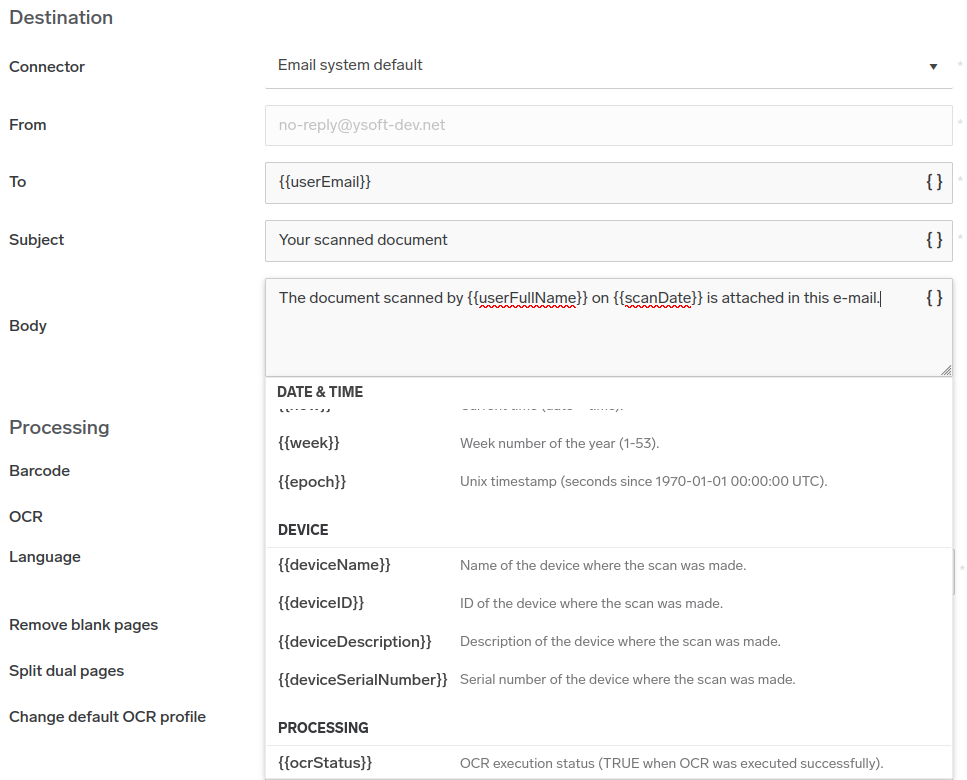
Use variables to customize your workflows further by allowing dynamic information to be included in the workflow process. For example, if a workflow involves scanning documents and sending them via email, you can use variables such as {{userEmail}} and {{userFullName}} to automatically populate the recipient fields with the email and name of the user who initiated the scan. Similarly, you can use variables such as {{deviceName}} and {{deviceID}} to identify the device where the scan was made, which can be useful for tracking purposes.
In addition, you can use variables such as {{scanDate}} and {{scanTime}} to include the date and time of the scan in the file name or metadata of the scanned document. This can help with the organization and retrieval of scanned documents.
Variables start with the '{{' characters followed by a variable name (no spaces allowed) and end with the '}}' characters, e.g. {{userEmail}}, {{userFullName}}, etc.
For compatibility purposes, variables can be also enclosed in the '%' characters, for example %userEmail%.
Variables are case-sensitive. If the variable name does not match, the variable is not replaced by its value.
Date & Time variables
All date and time variables are resolved using the local system date and time of the SAFEQ Cloud server when the scan job is processed.
|
Name |
Usage |
|---|---|
|
{{scanDate}} |
The local date in the format yyyy-MM-dd, e.g., '2022-12-21' for December 21, 2022. |
|
{{scanTime}} |
The local time in format HH-mm-ss-fff, e.g., '12-15-00-000' for quarter past twelve. |
|
{{d}} |
Day of month without leading zero e.g. 1. |
|
{{dd}} |
Day of month with leading zero e.g. 01. |
|
{{ddd}} |
Abbreviated day of week e.g. Mon. |
|
{{dddd}} |
Full day of week e.g. Monday. |
|
{{M}} |
Month without leading zero e.g. 7. |
|
{{MM}} |
Month with leading zero e.g. 07. |
|
{{MMM}} |
Abbreviated month e.g. Aug. |
|
{{MMMM}} |
Full month name e.g. August. |
|
{{y}} |
Short year without leading zero e.g. 1. |
|
{{yy}} |
Short year with leading zero e.g. 01. |
|
{{yyyy}} |
Full year e.g. 2001. |
|
{{h}} |
Hour 12-hour clock, single digit without leading zero e.g. 7. |
|
{{hh}} |
Hour 12-hour clock, two digits with leading zero e.g. 07. |
|
{{H}} |
Hour 24-hour clock, single digit without leading zero e.g. 7. |
|
{{HH}} |
Hour 24-hour clock, two digits with leading zero e.g. 07. |
|
{{m}} |
Minutes, single digit without leading zero e.g. 7. |
|
{{mm}} |
Minutes, two digits with leading zero e.g. 07. |
|
{{s}} |
Seconds, single digit without leading zero e.g. 7. |
|
{{ss}} |
Seconds, two digits with leading zero e.g. 07. |
|
{{t}} |
First character of AM/PM e.g. A or P. |
|
{{tt}} |
AM/PM designator e.g. AM or PM. |
|
{{f}} |
Tenths of second, one digit 0-9. |
|
{{ff}} |
Hundredths of second, two digits e.g. 07. |
|
{{fff}} |
Milliseconds, three digits e.g. 007. |
|
{{Q}} |
Quarter of the year e.g. 1-4. |
|
{{now}} |
Current time date + time. |
|
{{week}} |
Week number of the year e.g. 1-53. |
|
{{epoch}} |
Unix timestamp seconds since 1970-01-01 00:00:00 UTC. |
|
{{timezoneAbbreviation}} |
Time zone abbreviation e.g. AST. |
|
{{timezoneIanaId}} |
IANA time zone ID e.g. America/Halifax. |
|
{{timezoneWindowsName}} |
Windows time zone name e.g. Atlantic Standard Time. |
|
{{timezoneOffset}} |
Time zone offset e.g. -04:00 |
Device variables
|
Name |
Usage |
|---|---|
|
{{deviceName}} |
The name of the device where a scan was made. |
|
{{deviceID}} |
The ID of the device where a scan was made. |
|
{{deviceDescription}} |
The description of the device where a scan was made. |
|
{{deviceSerialNumber}} |
The serial number of he device where a scan was made. |
Processing variables
|
Name |
Usage |
|---|---|
|
{{barcode}} |
Contains the value extracted from the upper-left most barcode. |
|
{{barcodeType}} |
Contains the barcode type extracted from the upper-left most barcode. |
|
{{separationBarcode}} |
Barcode value from the barcode separation processing step. |
|
{{separationBarcodeType}} |
Contains the barcode type extracted from the upper-left most barcode. |
|
{{ocrStatus}} |
OCR execution status (TRUE when OCR was executed successfully). |
|
{{pdfAType}} |
PDF/A compliance type. |
|
{{pdfPassword}} |
The password being used to encrypt a PDF document. |
|
{{fileType}} |
Output file type of the workflow. |
|
{{fileLocations}} |
The comma-separated file paths of all scanned files in the destination. |
User variables
|
Name |
Usage |
|---|---|
|
{{userUsername}} |
The username of the user who made a scan at the terminal. |
|
{{userProviderID}} |
The authentication provider ID of the user who made a scan at the terminal. |
|
{{userEmail}} |
The email of the terminal user who made a scan. |
|
{{userFullName}} |
The full name of the terminal user who made a scan. |
|
{{userDepartment}} |
The department of the terminal user who made a scan. |
|
{{userHome}} |
The home folder of the terminal user who made a scan. |
Workflow variables
|
Name |
Usage |
|---|---|
|
{{connectorType}} |
Connector type used by the workflow. |
|
{{workflowID}} |
The ID of the workflow used to make the scan. |
|
{{workflowName}} |
The name of the workflow used to make the scan. |
|
{{workflowDescription}} |
Description of the workflow used for the scan. |
|
{{scanJobID}} |
(available only during scan workflow execution) The unique ID of the scan job instance. This identifier of the scan job is visible also in the log files. |
If the information which should be replaced in the variable is not configured, it will use an empty value instead. For example, if {{userFullName}} is not set, the result of the string "User full name is {{userFullName}}" will be "User full name is ".
In general, you can use workflow variables anywhere within the workflows and connectors configuration, except for the Workflow name. For example:
-
In the filename of the delivered document. Example: "scan-{{userEmail}}-{{scanDate}}" would result in "john.doe@example.com-2012-12-21")
-
In the root or target paths where the document will be delivered. Example: "acme/{{userDepartment}}/{{workflowName}}" would result in "acme/Human Resources/Scan a CV")
-
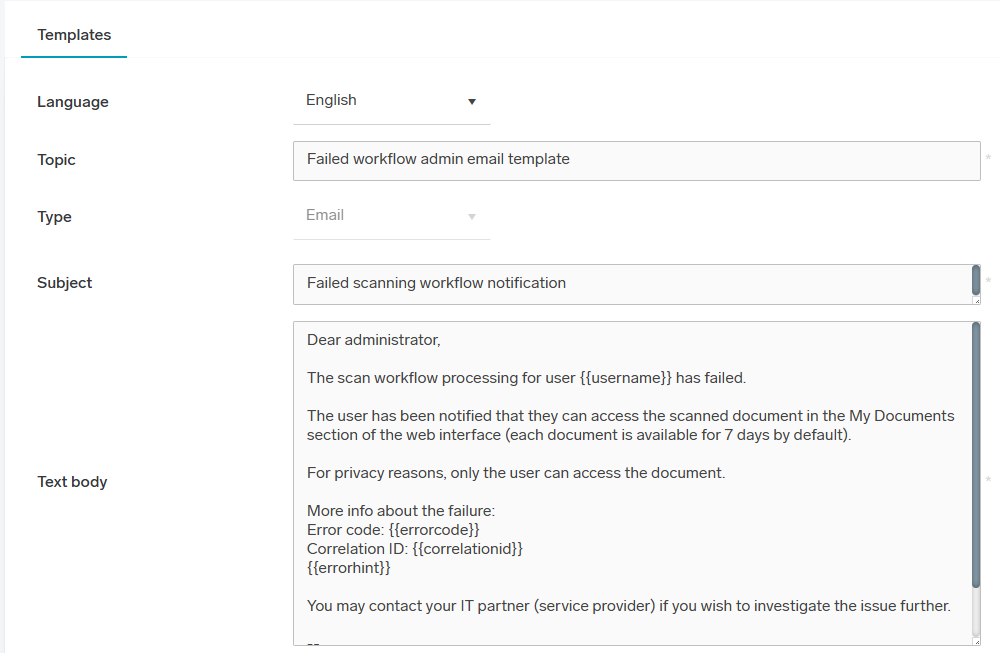
In the notifications sent to the admin or user when there is a status change in the workflow processing. Example: if the workflow fails, you can configure the following body in the notification:
Variable selector
The Variable selector is an autocomplete feature that simplifies inserting workflow variables into supported configuration fields.
It helps administrators insert variables quickly and correctly while keeping full support for manual typing.
-
Typing
{automatically opens the Variable selector. -
A toggle button allows manually opening or closing the Variable selector.
-
Variables are grouped by categories.
-
Search supports matching by variable name.
-
Selecting a variable replaces the currently typed part of variable with full variable name.
-
An existing variable can be replaced by placing the cursor inside the variable and selecting a new one.