
Samsung Embedded Terminal retirement and optional continued use
Retirement notice (Build 118)
With Build 118 of YSoft SafeQ 6, the Samsung Embedded Terminal (Samsung Smart UX SDK) has been retired. Upgrading to Build 118 or later removes the deprecated Samsung Embedded Terminal package from the Apps folder.
Retirement reasons:
-
Security concerns about the Samsung Embedded Terminal platform, which we can no longer guarantee.
-
Known vulnerabilities that have been reported.
Existing installations will continue to work after Build 118.
Important: After upgrading to Build 118 or later, this file is no longer present in Apps by default and must be added manually before Samsung ET installation or update.
Optional continued use (unsupported)
If you need to install the Samsung Embedded Terminal on an MFD after Build 118, you can do so by manually installing the terminal package. This option is not supported and is provided for exceptional cases only.
Installation steps
-
Download the terminal package
-
File:
com.ysoft.safeq.samsung-et-6.0.56.1.par -
Download link (Y Soft Partner Portal): YSoft SAFEQ 6 Embedded Terminal for Samsung
-
-
Copy the file to the Terminal Server applications folder
-
Target folder:
SafeQ6\SPOC\terminalserver\Apps -
Use this path relative to your SafeQ 6 installation (for example, the SPOC installation directory).
-
No restart is required; the Terminal Server uses the package as long as the file is present in the Apps folder.
When the Samsung ET package is missing
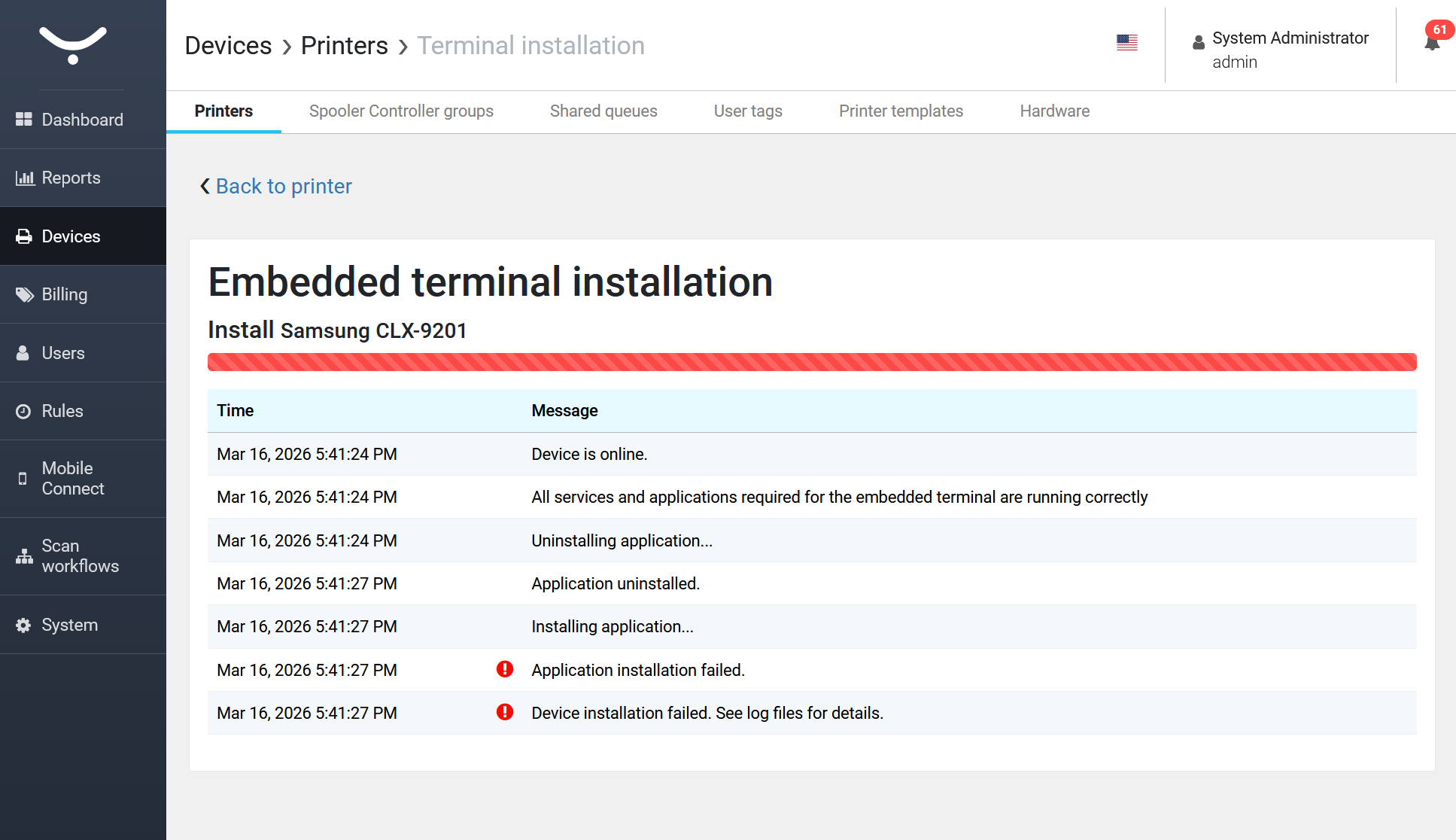
If the Samsung Embedded Terminal package is not present in the Apps folder, installation or update of the Embedded Terminal on Samsung devices will fail.
Configuring Samsung devices
Limitations can be found on page Requirements and Known Limitations of YSoft SafeQ Embedded Terminal for Samsung.
Devices based on XOA-E / Android platform are supported so far. No special settings are required for using with YSoft SafeQ Embedded Terminal.
Apply home screen settings to all users
This section applies only to the devices with Android OS.
-
Log into the device as administrator (you need to use YSoft SafeQ admin account).
-
Configure the home screen (e.g.: Add the YSoft SafeQ application to the home screen)
The YSoft SafeQ application can be found in a XOA Apps menu.
-
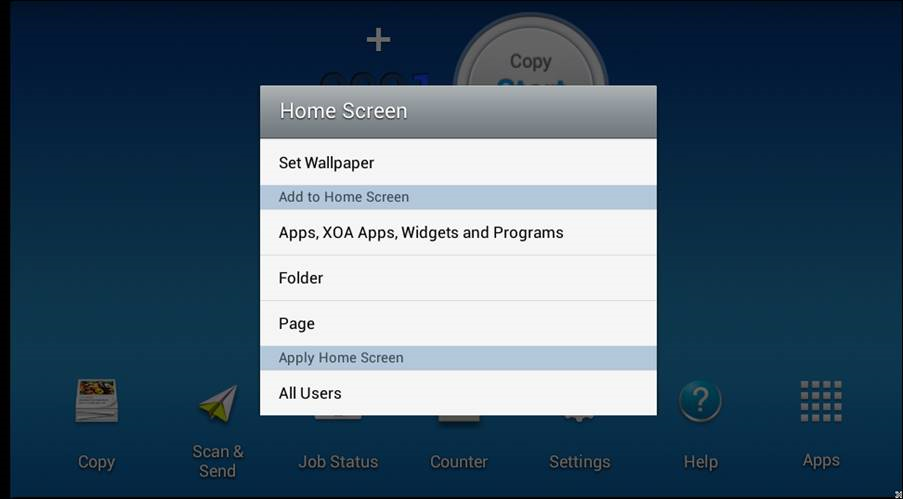
Press and hold background on the home screen until the following window appears.
-
Select the bottom option to apply the home screen to all users.
The YSoft SafeQ application icon may occasionally disappear from the the home screen and needs to be placed there manually again. It is a limitation on the Samsung side.