
The timeout is set directly on the machine.
YSoft SafeQ Embedded Terminal for Konica Minolta – 2nd Gen supports also the terminal inactivity timeout setting in the user's additional configuration. The priorities between MFD and YSoft SafeQ timeouts are as follows:
-
SafeQ Print - both timeouts are applied
-
SafeQ Scan - only YSoft SafeQ timeout is applied
-
other screens (i.e. native Copy) - only device timeout is applied
Follow these steps to set the terminal inactivity timeout:
- Press the hardware Home button on the MFD.
-
Tap Utility.
Scroll conditional content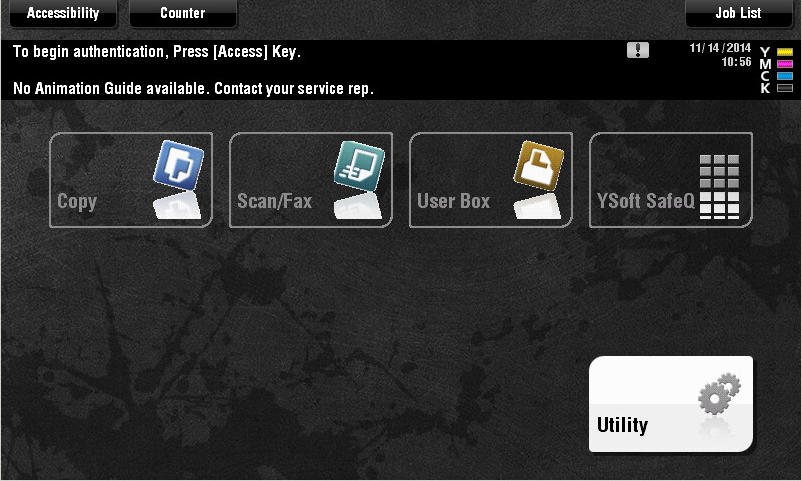 ysoft_safeqScroll conditional content
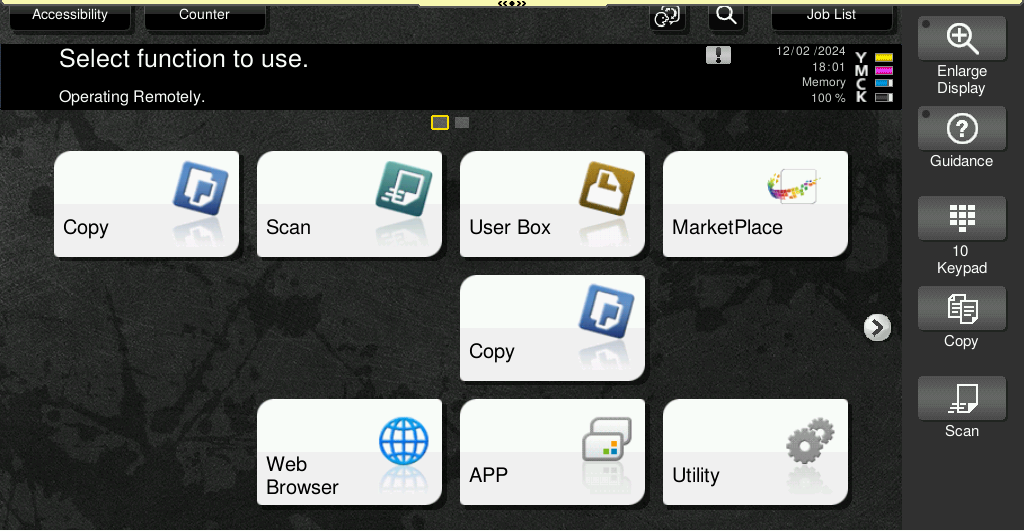 ipm
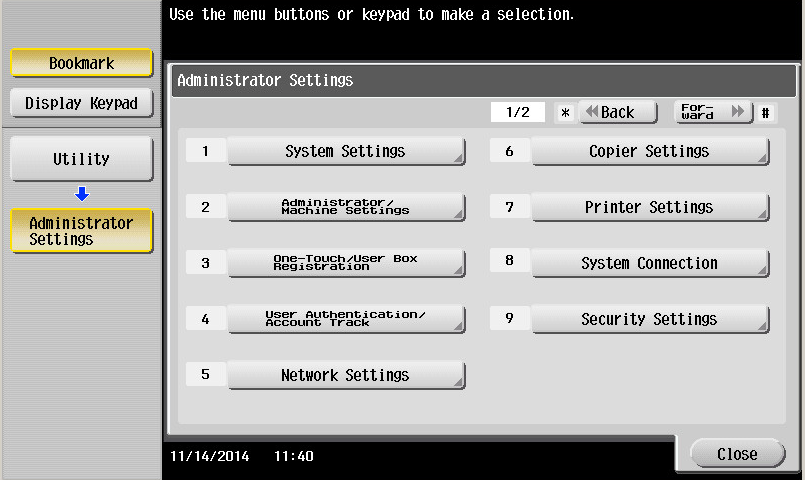
ipm - Tap Administrator Settings.
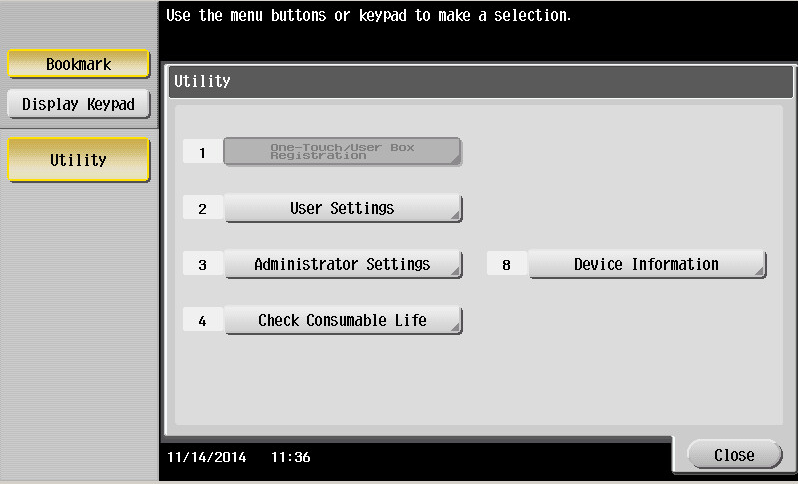
-
Enter the Administrator password for the MFD, and then tap OK.
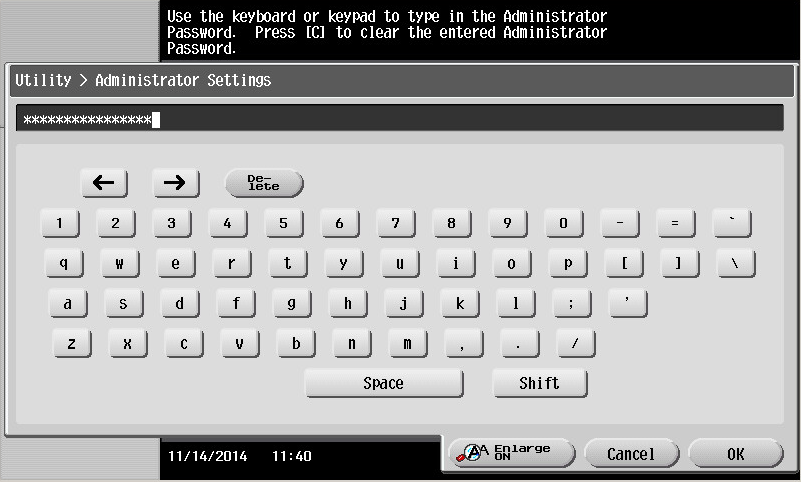
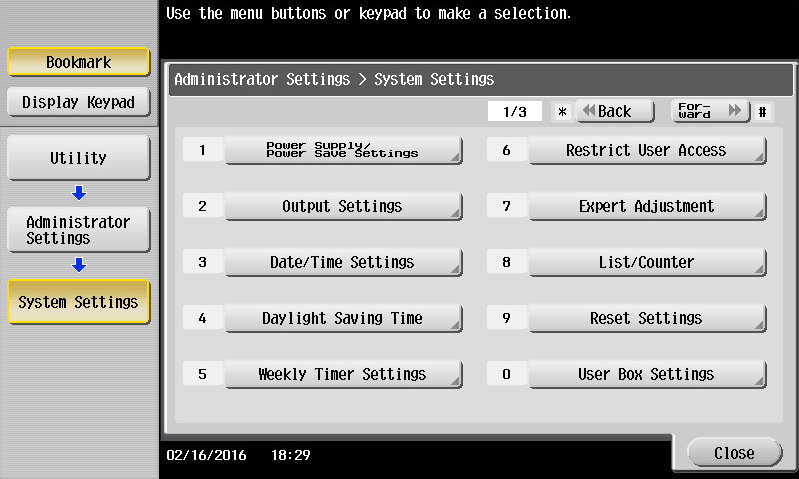
- Tap System Settings.
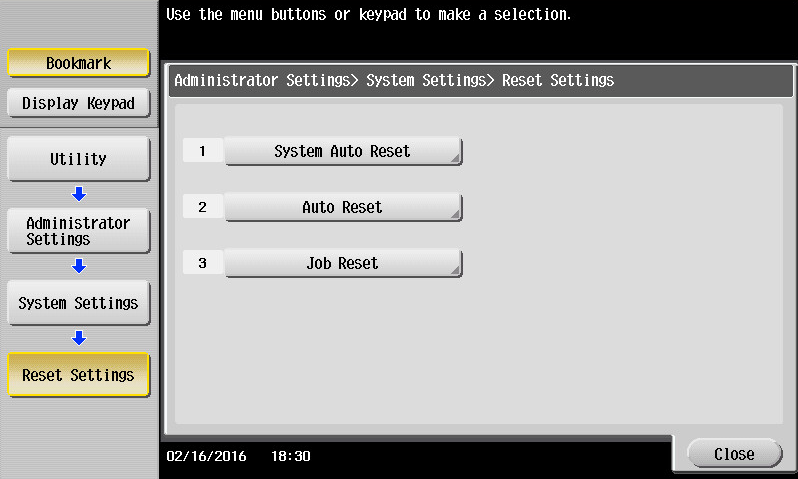
- Tap Reset settings.
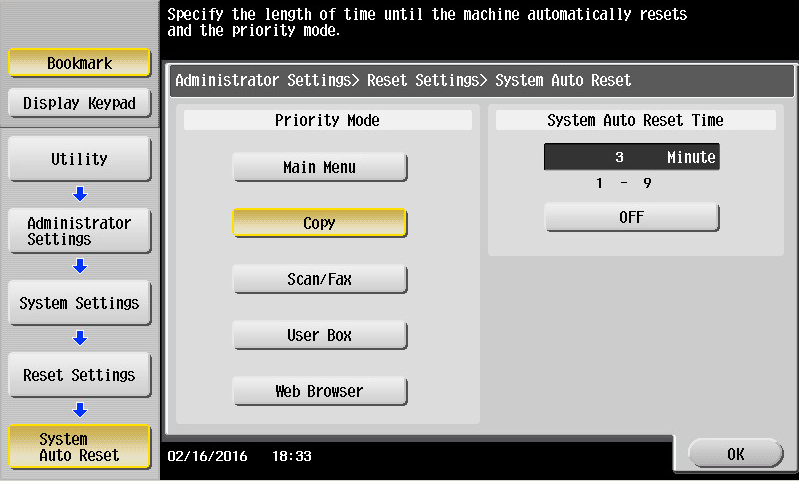
- Tap System Auto Reset.
- Press C on the keyboard and then press the number according to your preferred timeout in minutes. Confirm changes by tapping OK.
- Change timeouts in Auto Reset screen (see point 7) in a similar way.