This document describes YSoft SafeQ Embedded Terminal for Konica Minolta - 2nd Gen. for the print application. It is an alternative to YSoft SafeQ Embedded Terminal for Konica Minolta - 1st Gen.
Printing and Managing Jobs
-
Log into the embedded terminal.
-
On the Main Menu screen, tap SafeQ Print.
You may be redirected automatically to the SafeQ Print application. In that case, skip this step.
-
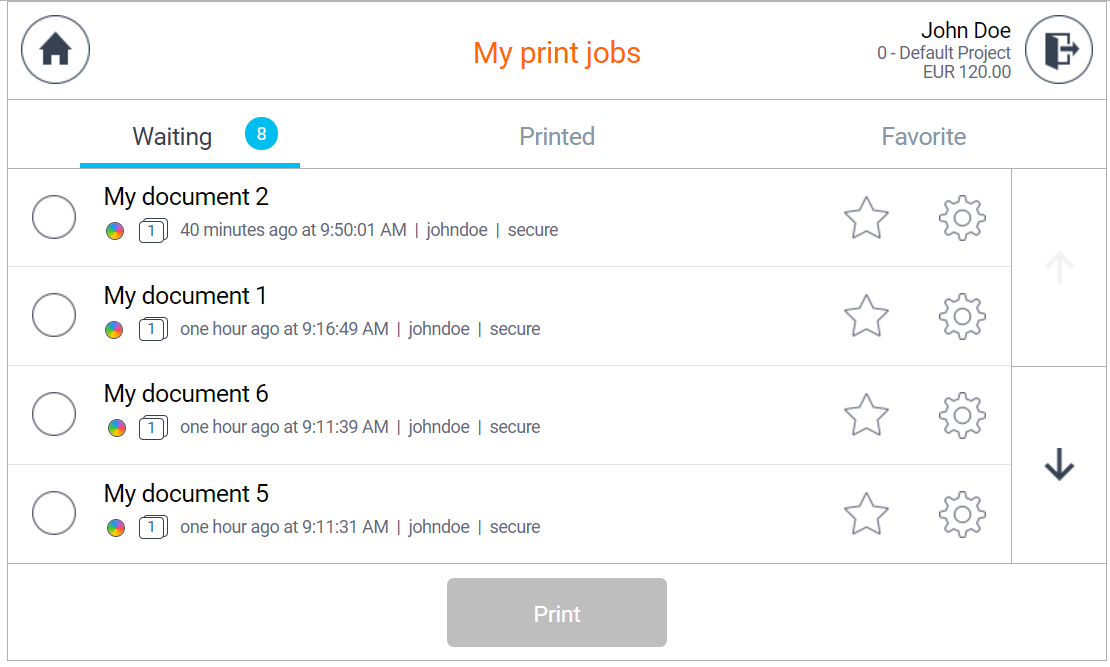
The print application is displayed.

-
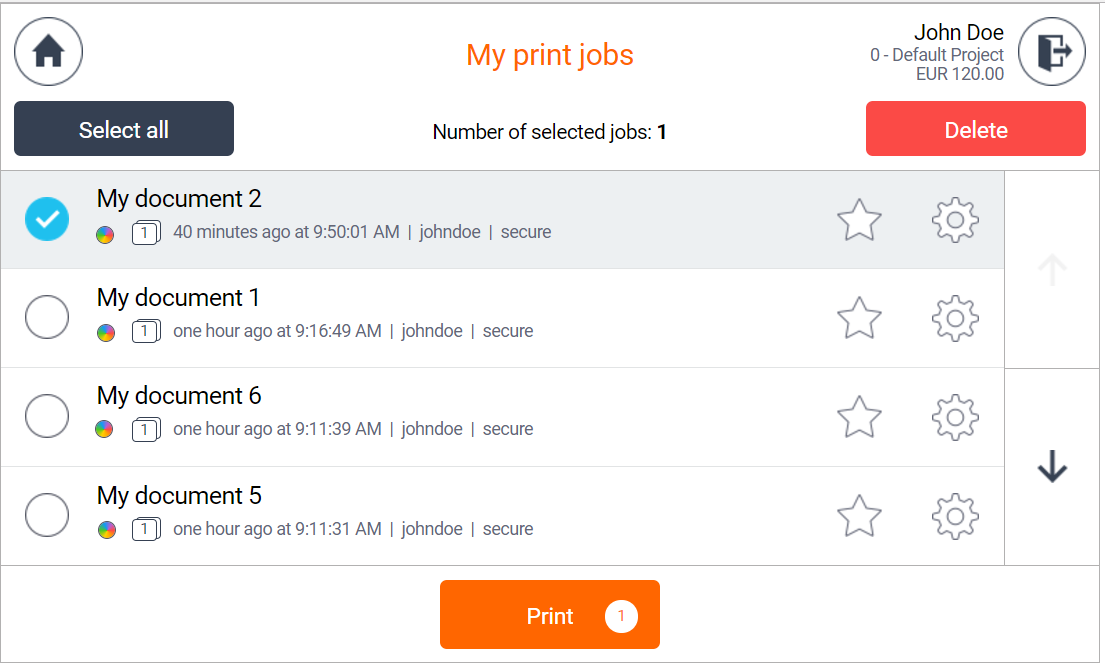
If you have selected at least one job, then buttons for the selected job's manipulation are displayed in an action bar under the header, and the print button is enabled in the footer.
Empty Job List
When there are no jobs in the folder, you will see the message "The folder is empty." instead of a job list.
Action Bar
The buttons in the action bar allow you to manipulate the selected jobs. In the middle, you can see text indicating the number of selected jobs.


Header Buttons
 The home button navigates you to the dashboard.
 The back button navigates you back to the print application from the job detail screen.
 The exit button logs you out.
 The home button navigates you to the dashboard.
 The back button navigates you back to the print application from the job detail screen.
 The exit button logs you out.
The exit button does not work on a Konica Minolta. After tapping the button, the user is instructed by the modal dialog to use the hardware button.
User Info
User info is on the right side next to the exit button.
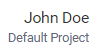
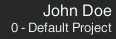 There are two text lines on the left side next to the exit button. The upper line is the username, and the lower line is the billing code.
If a billing code is not used, only the username is displayed. Alternatively, there is only the username and credit.
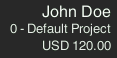 If the payment feature is enabled, there might be three text lines. The first line is the username, the second line is the billing code, and the third line is for user credit.
 If the payment feature is enabled, there might be three text lines. The first line is the username, the second line is the billing code, and the third line is for user credit.
Printing and Managing Button Descriptions

 The action bar button Delete deletes all selected jobs.

The action bar button Delete deletes all selected jobs.

 The footer bar Print button prints all selected jobs. Note that the number on the button indicates the number of selected jobs.

 The Favorite button makes a job as favorite. If a favorite folder is configured, it will be present in this folder.

 The Settings button navigates you to job detail screen.

 The Modified settings button indicates finishing options was changed. Button navigates you to job detail screen.
When there are more jobs in a given folder, a browsing arrows button is displayed on the right side to move one page up or down.
Job Detail Screen
When the finishing options feature is not enabled, you will see the job detail without the possibility to modify it. You can use the pagination buttons to see all job details.
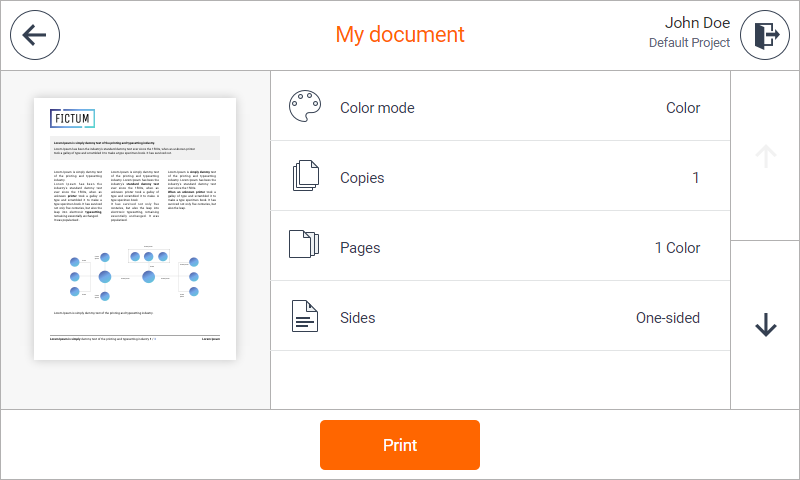
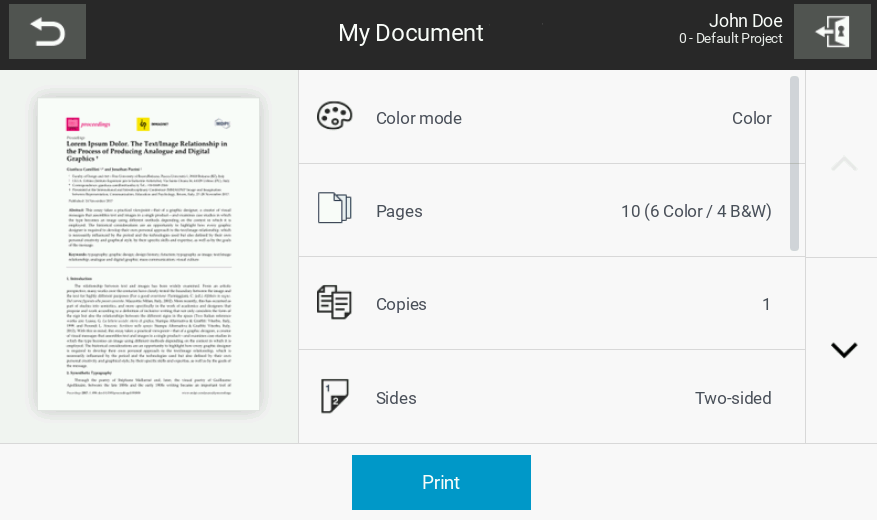
When a job preview is not available, it is not present on the job detail or finishing option screen. A user will see only the job details without a preview.

 You can use the Print button to print a job directly from the job detail screen.
Job Detail Screen with Enabled Finishing Options
When the finishing options feature is enabled, the user will see basic and advance finishing options and can modify the job.
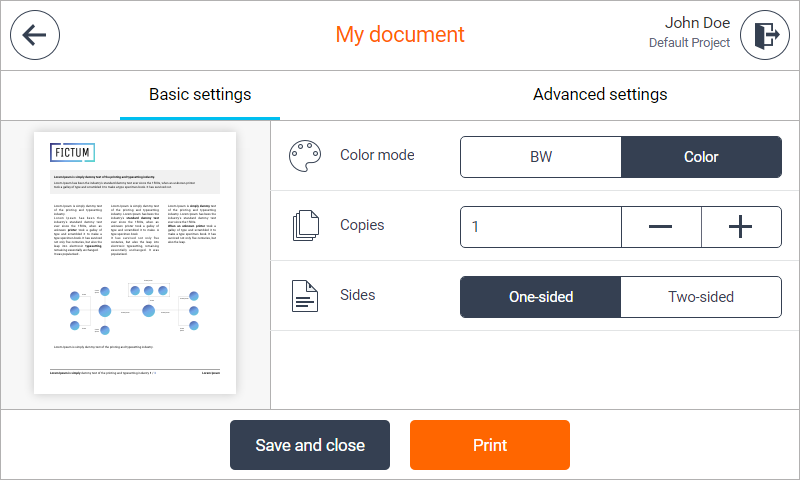
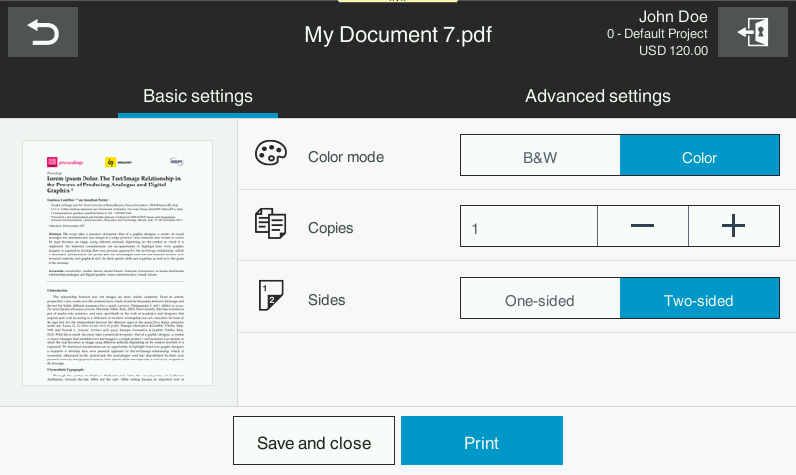 You can use the following actions when in the finishing options screen.

 You can save changes possibly made with the finishing options and continue browsing jobs in the print application by pressing the Save and close button.
Using Save and close button always save finishing option settings even when there is no change from the original document. Then modified settings button is shown.
You can print a document with possibly made changes immediately from the finishing option screen by pressing the Print button.

 You can switch between basic and advanced finishing option settings by pressing the Basic settings or Advanced settings button under the header.
You can modify the finishing options settings as described below.
Basic settings description

 You can change the color mode by tapping the BW (Black and White) or Color button. The black button indicates the current value.

 You can increase or decrease the amount of copies by tapping the '-' or '+' button. The current value is visible on the left in the edit box.

 You can choose to print a document in either simplex or duplex mode by tapping the One-sided or Two-sided button. The black button indicates the current value.
You can switch to advanced finishing option settings by tapping the Advanced settings button below the header.
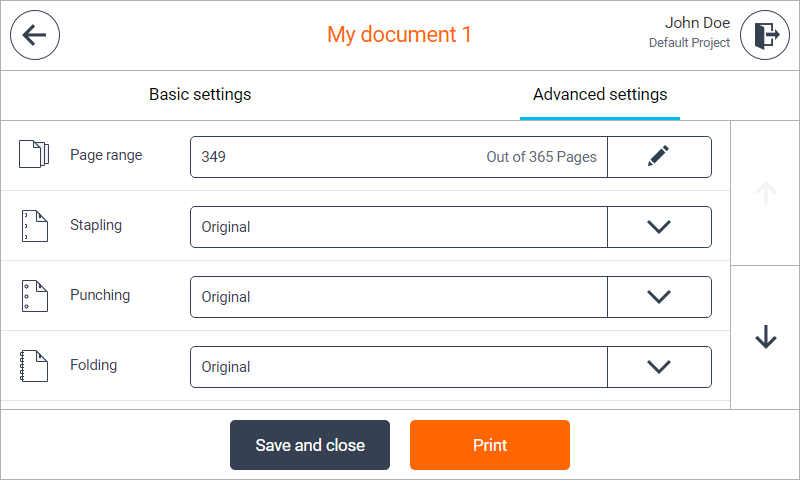
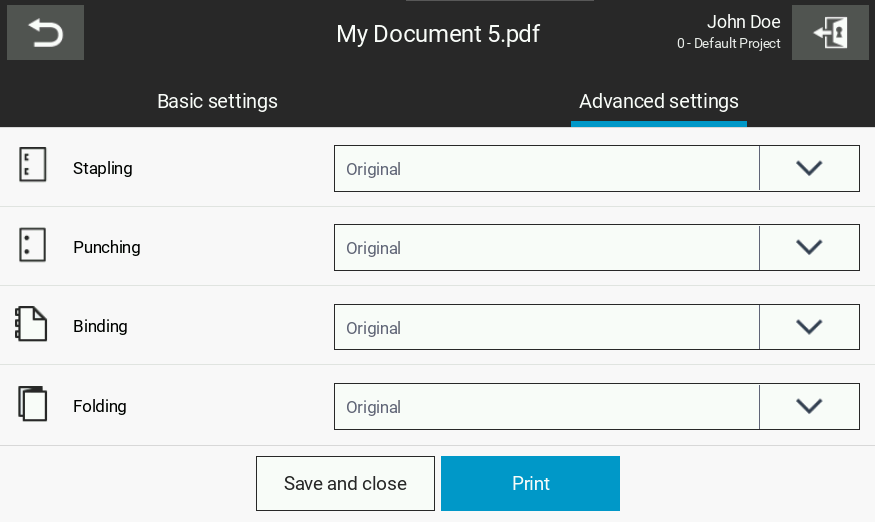
Advance Settings Description

You can change the page range in the modal dialog by tapping the button on the right side. The first item From indicates the first page from which the pages will be printed. The second item To indicates the last page that will be printed. You can change it by tapping the '-' and '+' buttons.
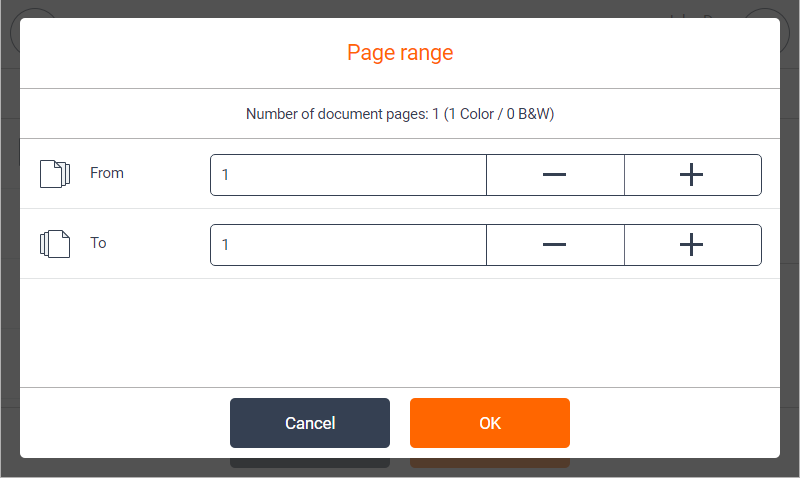
The Buttons in the Finishing Options Modal Dialogs




The current value is the selected one. You can change it and use the pagination buttons to get all options.
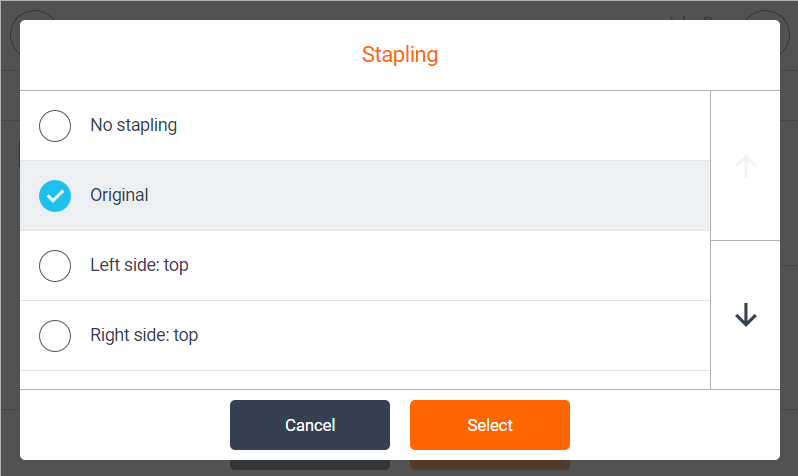
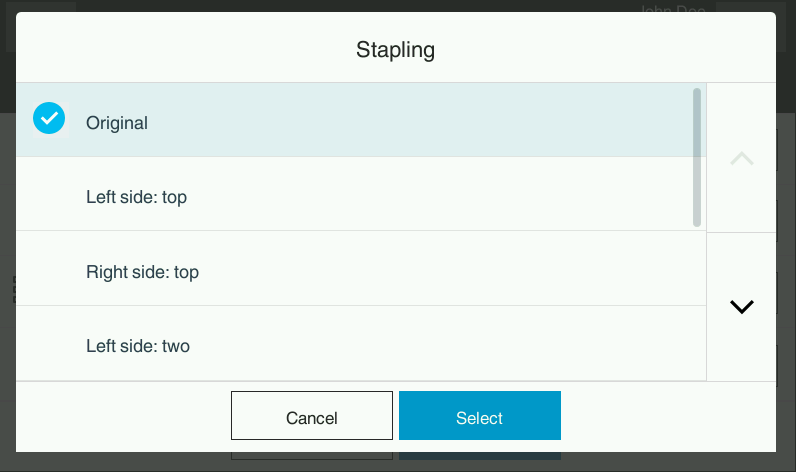

For all following advanced finishing options, the modal dialog is similar to the Stapling dialog.


Incompatible Job
When the show incompatible jobs feature is enabled, you can see incompatible jobs in the job list.
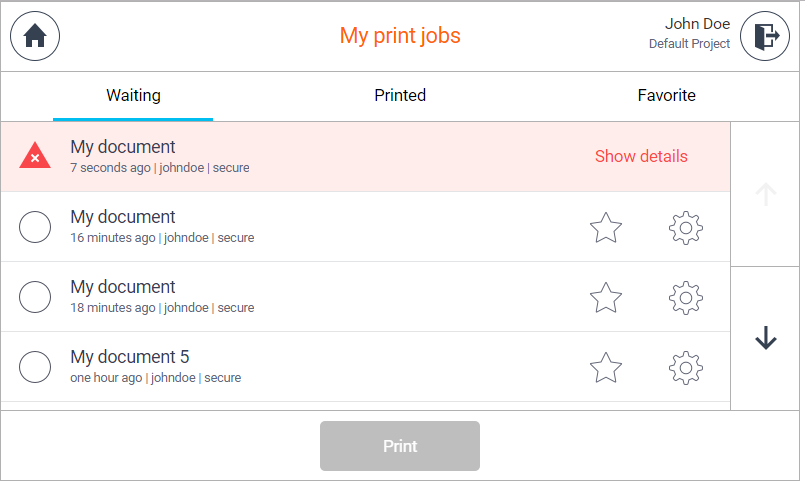
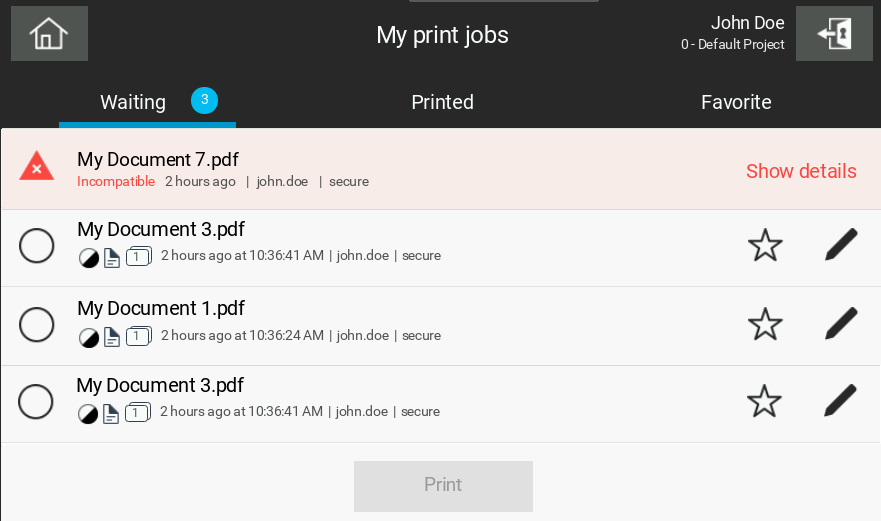


Note, you cannot mark a job as favorite or see the job detail when a job is incompatible.
An incompatible job cannot be selected and printed.
The reasons for incompatibility and suggested fixes are displayed in the incompatibility dialog.
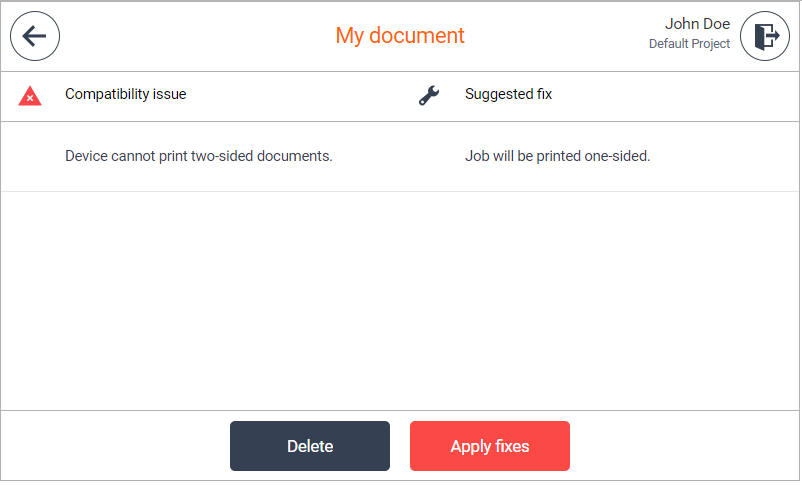
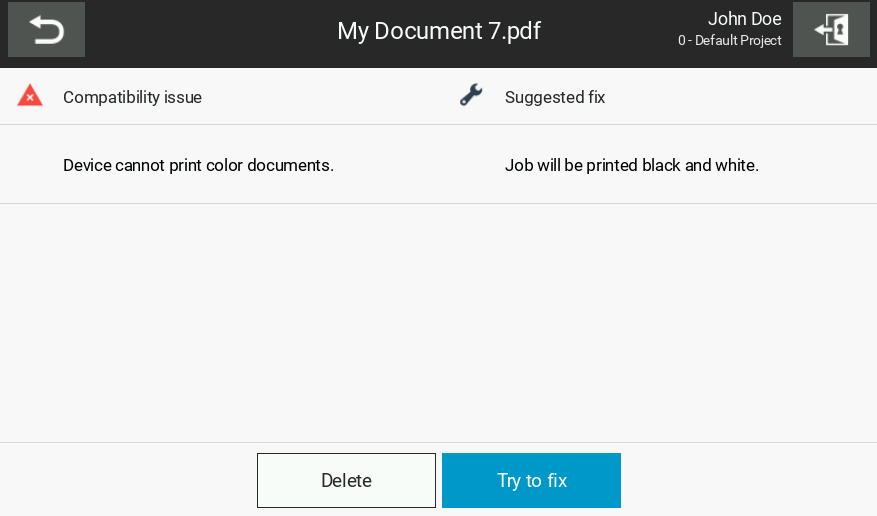

You can delete an incompatible job by tapping the Delete button.

 If the finishing options feature is enabled, you can try to fix the issue using the Apply fixes button.
The Apply fixes button is available only if the finishing options feature is enabled. If not, only the Delete button is available. You can navigate to the job list via the back button in the header.
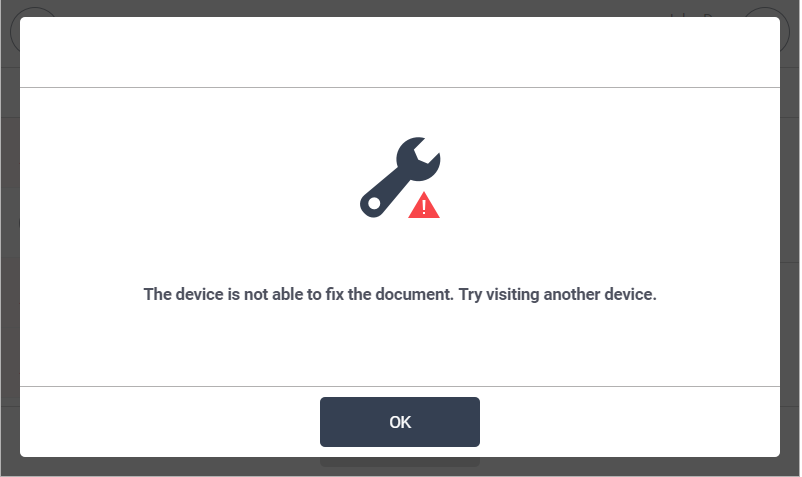
Note that a fix might not always work. The job's finishing options are switched to default values, which can help in most cases.
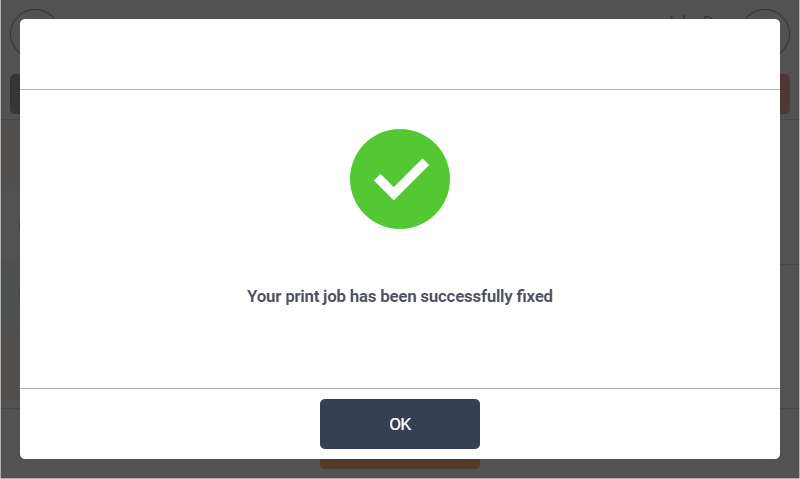
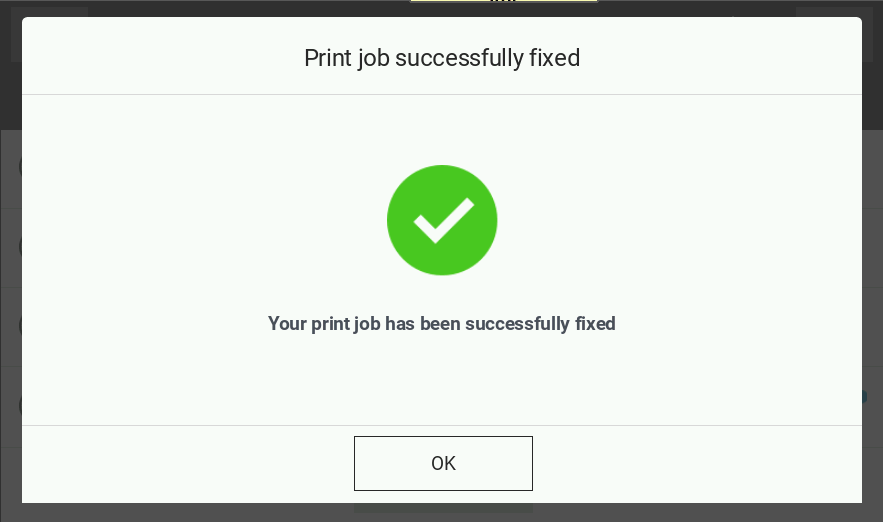
After the Apply fixes button has been tapped, the user is informed about the result through the modal dialog.