
Application download
-
Visit Microsoft Store and download an application called "YSoft SafeQ".
-
Or you can download it directly from this Microsoft Store page.
QR Code Scanning Screen
General
Place the camera over the QR code located at/on your printer.
-
Success: You are redirected to the Authentication screen.
-
Failure: You are redirected to QR code scanning screen.
![wp_ss_20161212_0002[1].jpg](/__attachments/a_8b85a39c931902cd4a5e6762cc4518b411342341ceac6a7cba1eb7f0607b9e83/wp_ss_20161212_0002%5B1%5D.jpg?cb=d4cb0d033e128924ce77ace49907a485)
Authentication Screen
General
-
Enter your email registered in YSoft SafeQ.If you don't know your email registered in YSoft SafeQ contact your administrator.
-
Send activation link button sends an activation link to the provided email.
-
Success: You are redirected to the Checking email screen.
-
Failure: A message notifies you.
You can reset your credentials in the Settings screen.
-
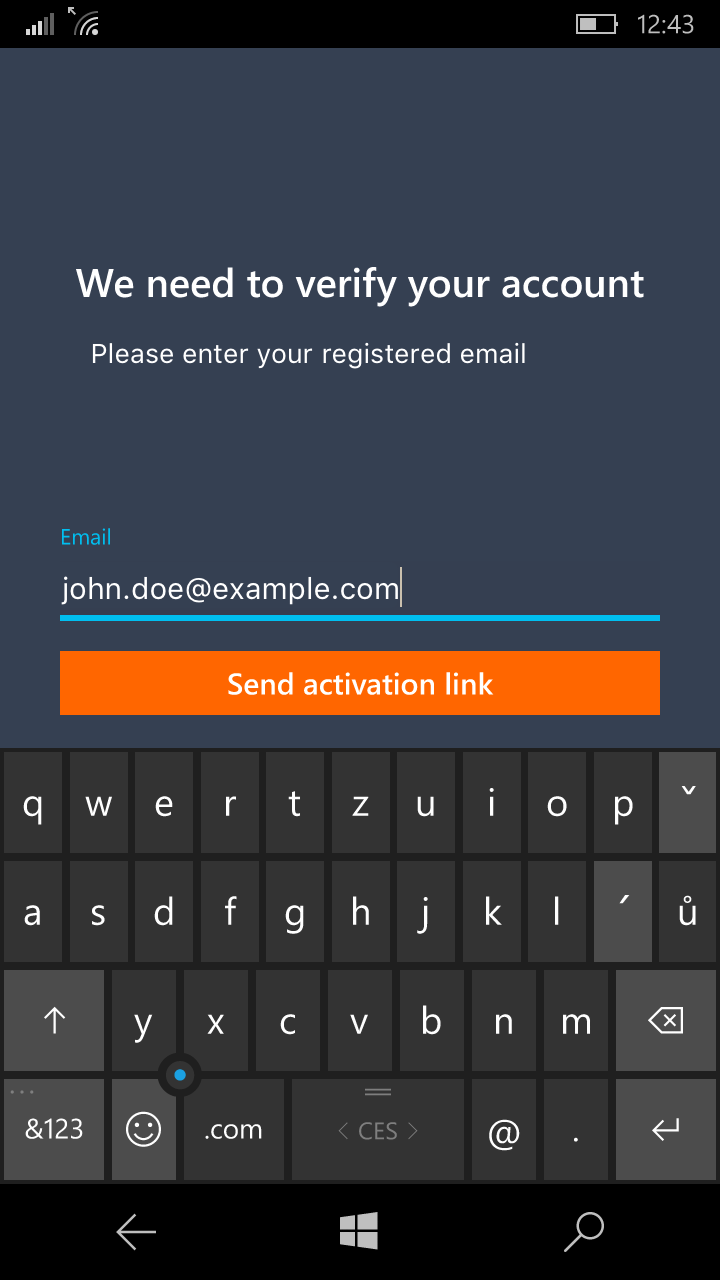
Wrong Email
This screen appears when you enter the wrong email.
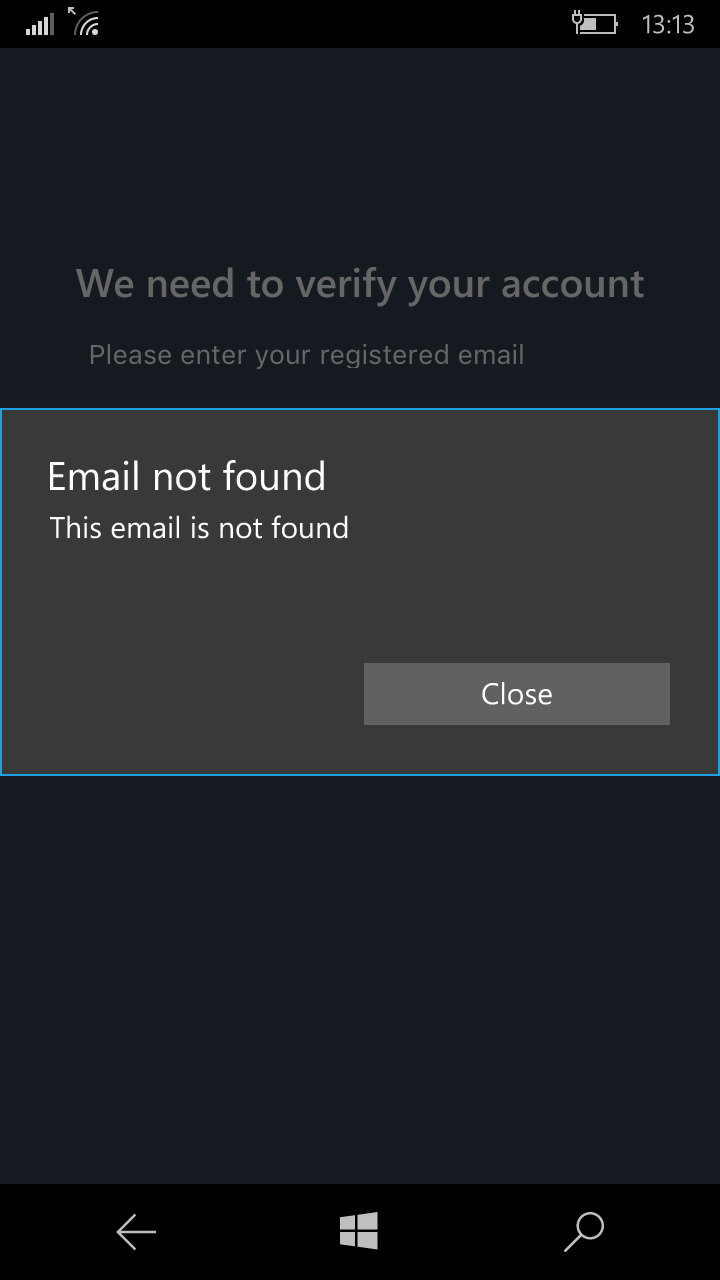
Checking email Screen
-
Open mail app button opens your email application on your mobile device.
-
After opening an email app and tapping on Activate button in the email, YSoft SafeQ Mobile Terminal will try to activate.
-
You will see the dialog about successful or unsuccessful activation.
.png?cb=8b60b7b53d7d52e725a67380711c0c86)
Successful activation dialog
This dialog is shown after successful activation. You will be logged in and redirected to the Job List Screen after scanning again.
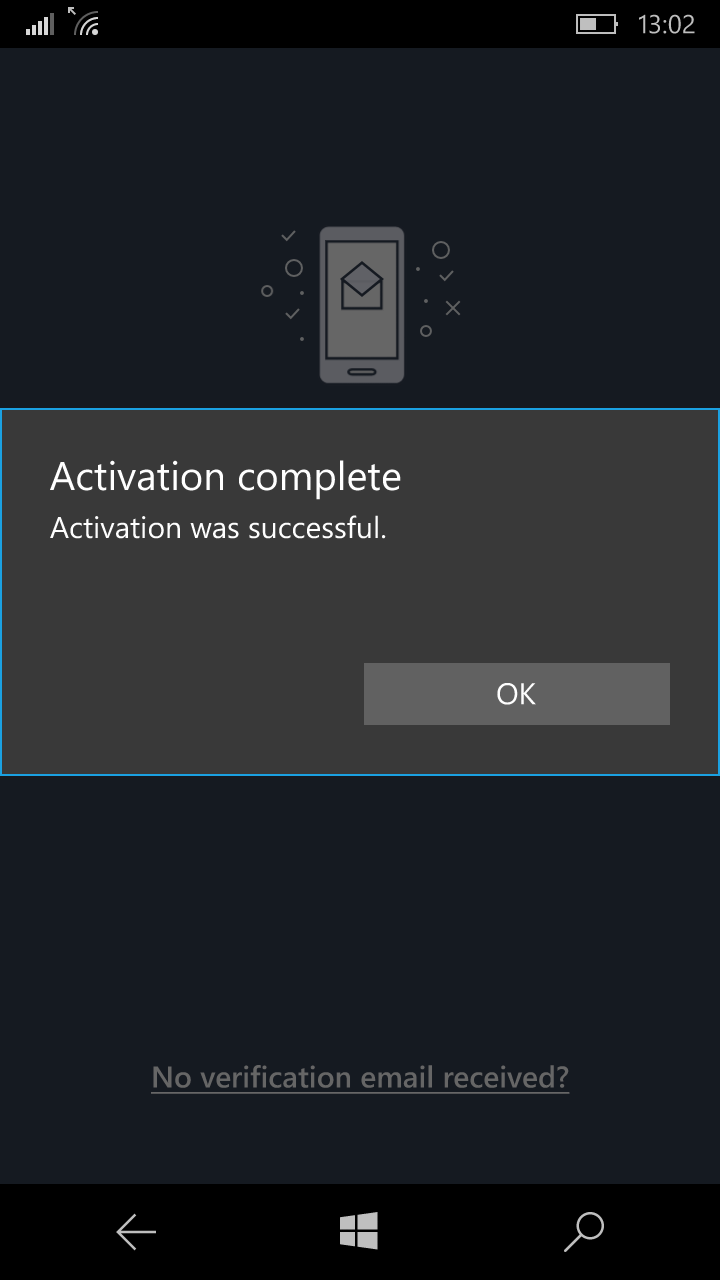
Job List Screen
General
-
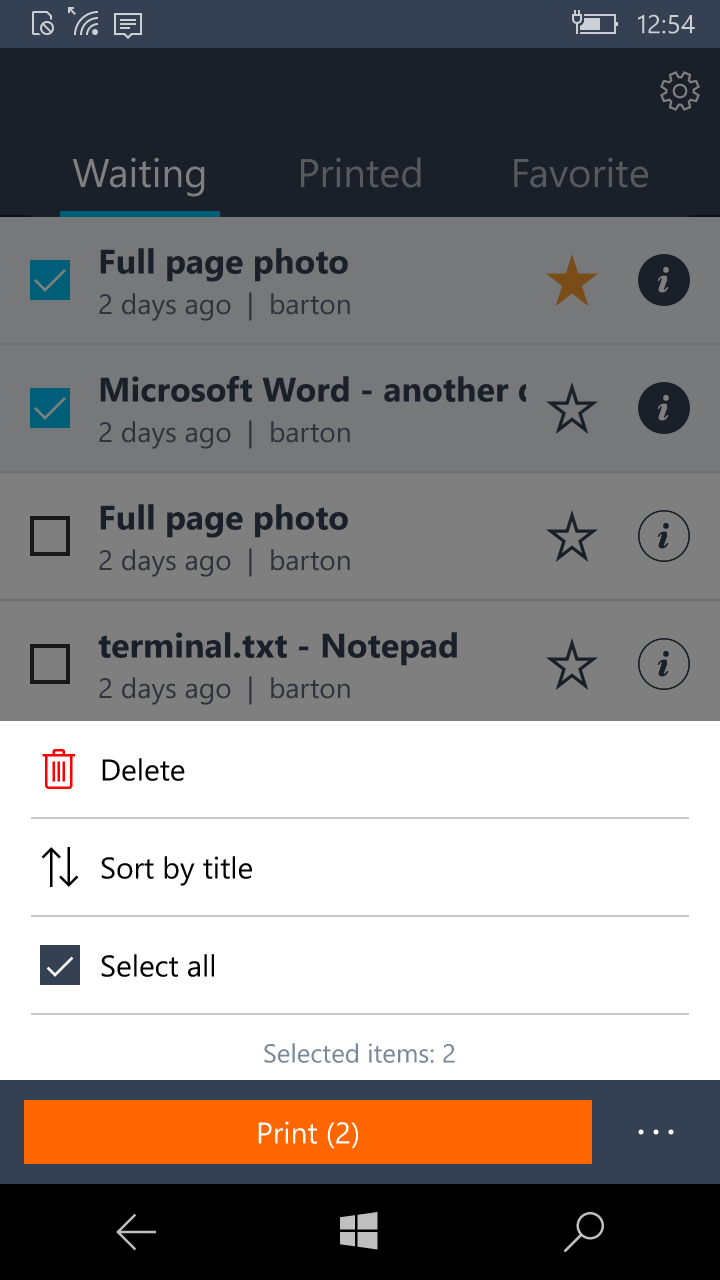
Release print jobs by selecting them and clicking the Print button.
-
Tapping the

-
You can mark a print job as a favorite by tapping the ☆ button.
-
You can enter the Settings screen.
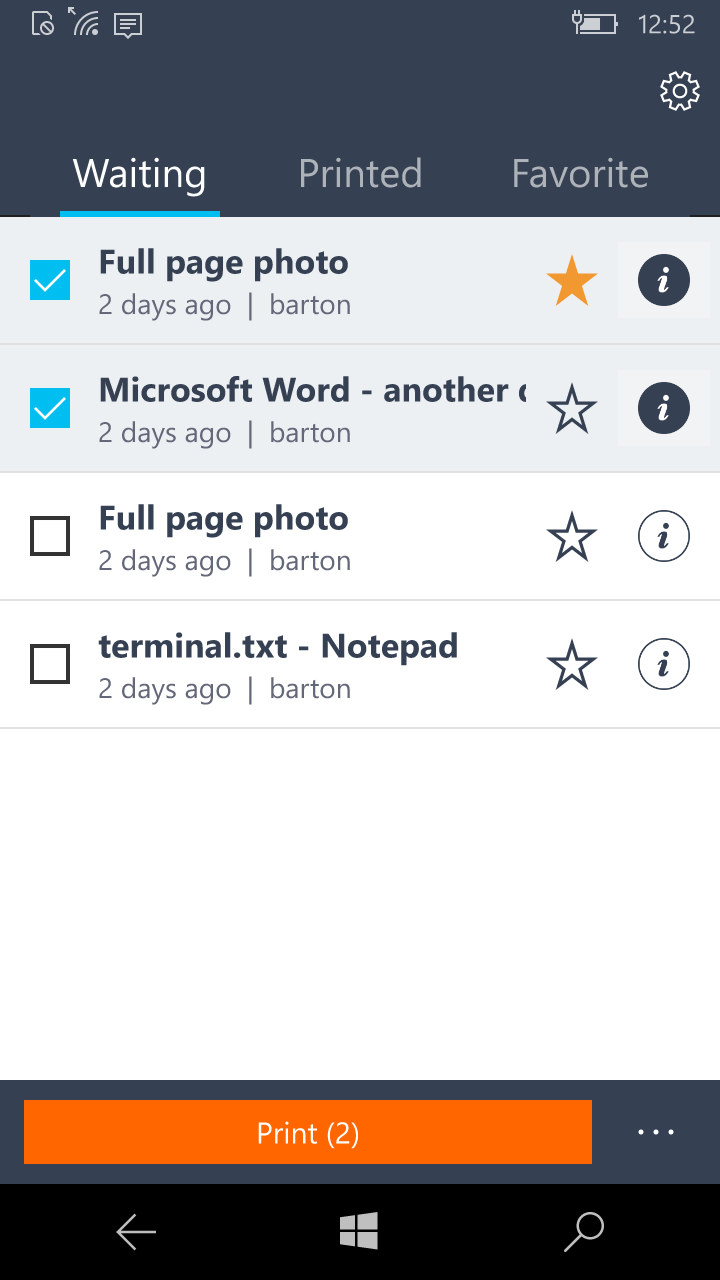
Popover Menu Visible
A popover menu becomes visible after tapping the "• • •" icon.
-
You can delete selected print jobs.
-
Sort jobs by name or date (the not used option is always available)
-
Select/deselect all available jobs
Print Job Detail Screen
General
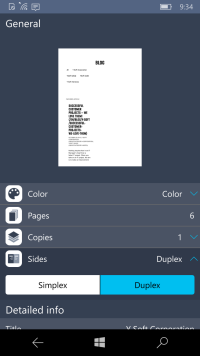
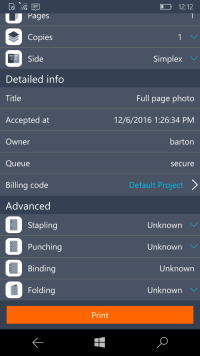
In the Print job detail screen, you can:
-
Print current job.
-
Open a print job preview.
-
See detailed information about a print job.
-
Edit finishing options (color, copies, side, stapling, punching, binding, folding).
-
Select the billing code.
-
If you cannot edit finishing options, the printer does not support them.
Billing Codes Page
General
-
Billing codes in YSoft SafeQ Mobile Terminal can be set individually for each print job
-
Billing codes set in YSoft SafeQ Mobile Terminal will override the billing code set in the client
On the Billing codes page, you can:
-
See a list of billing codes.
-
See detailed information about a print job.
-
Select a billing code.
-
Navigate to the lower level of billing codes.
-
See the path where the user has navigated.
-
Scroll to the path and select an item from the path directly.
-
Confirm the selection.
![wp_ss_20161026_0002[1].png](/__attachments/a_f74c40acff1d2895d0710fa35c2cc6920fcc213067ee6815bdea309641a8679b/wp_ss_20161026_0002%5B1%5D.png?cb=e0316e542c102841e5a77af9e478f5a4)
![wp_ss_20161026_0005[1].png](/__attachments/a_a5cf6b41b35c2584bc77a9952f7e70ebd12f28b2c8369744b327da5cc0a60373/wp_ss_20161026_0005%5B1%5D.png?cb=e2cd510968bd97424c90aa880d3310f6)
Searching for a Billing Code
After Billing codes search, you can:
-
See a found billing code if the billing code exists.
-
See the path of the found billing code.
-
Select the billing code.
-
Open the lower level of the billing code structure if available.
![wp_ss_20161026_0004[1].png](/__attachments/a_f05a9dcac10ebd932f08c008075dfab018ae79e0823c21a53e8599f5573caa55/wp_ss_20161026_0004%5B1%5D.png?cb=5d82948003d262ecfbc49904c3b5eb27)
Settings Screen
General
-
You can change the printer by tapping the Change printer button.
-
You can reset your stored credentials by tapping the Reset stored credentials button.Resetting stored credentials will require new activation with next use.
.png?cb=a59a943dd8221bbc1984f5b082937b56)
NFC Printer Identification
-
You must enable NFC technology on your mobile device.
-
When the printer is configured with an NFC tag, place the mobile device over the tag.
-
YSoft SafeQ Mobile Terminal identifies the printer and shows the Authentication screen.
-
If you have stored valid credentials, the Job List screen displays instead.