Requirements
-
The device has the appropriate Konica Minolta firmware installed to enable SSL/TLS-based device description download.
-
The property
kmOpenApiVersionis set to5-7,5-6or4-2(not4-13a).
How It Works
During Konica Minolta installation the device description is downloaded. By default, Terminal Server uses secured communication to download the device description, and if the secured communication fails, an unsecured communication is used.
You enforce secure-only communication, if the secured communication fails, the installation process fails also.
How to Enable
-
Log into YSoft SafeQ web administration as an administrator.
-
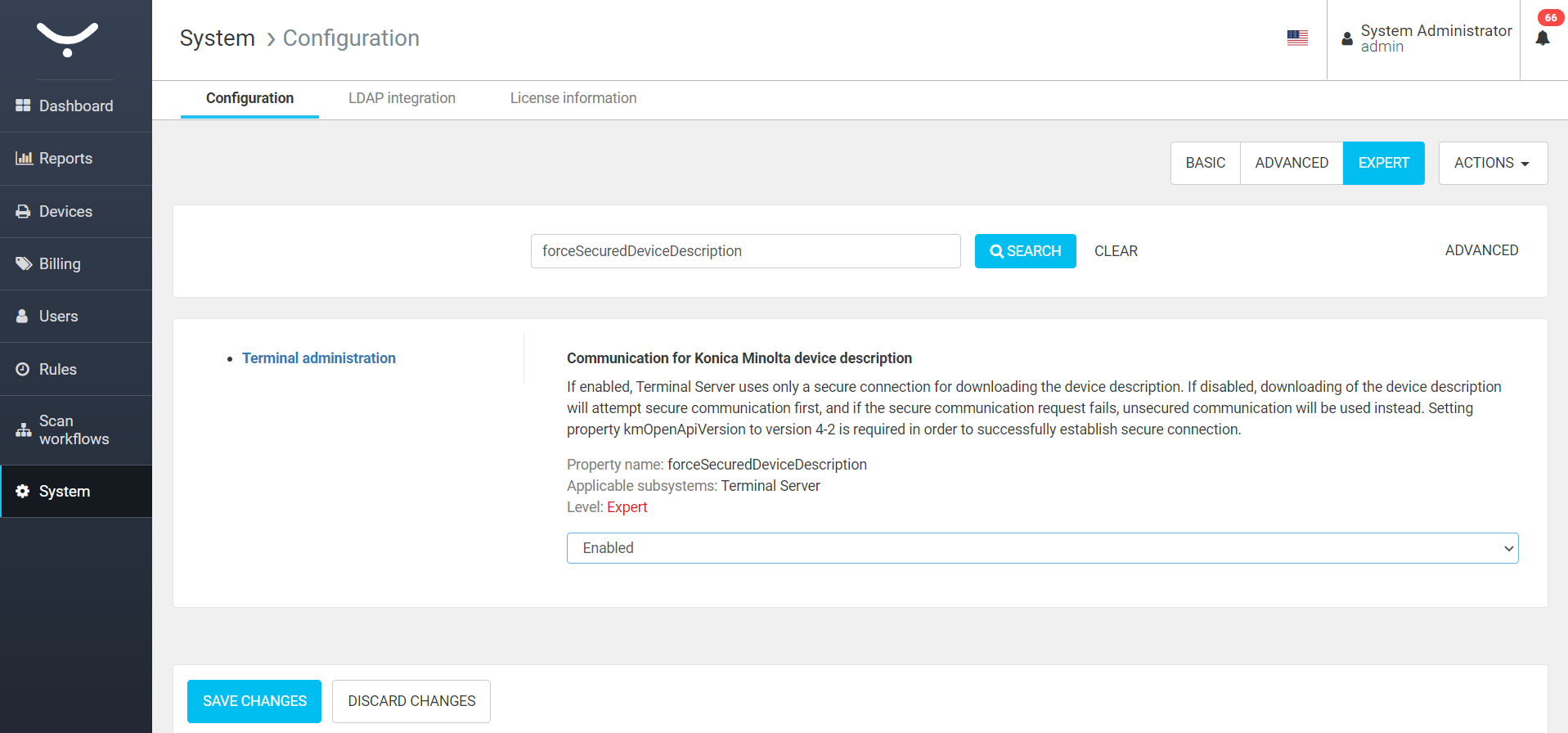
Go to System > Configuration
-
Make sure Expert view is enabled and you are in the tenant configuration.
-
Search for forceSecuredDeviceDescription.
-
Change value to Enabled
-
SAVE CHANGES
-
Restart Terminal Server.
Troubleshooting
The installation of embedded terminal fails and terminalserver.log shows error "Failed to get device information" or "Could not get device description":
2025-01-03 09:42:12.8437 DEBUG  NetMQPollerThread|NetMQSocket |         InvokeEvents | Sending: 'REQUEST.v1,RR-00-39-21-1D-6E:1,ConfigurationService.getConfiguration
2025-01-03 09:42:12.9219 DEBUG  NetMQPollerThread|NetMQDS9Box |    PrepareEndpoint._ | Received: 'REPLY.v1,RR-00-39-21-1D-6E:1,[forceSecuredDeviceDescription:false]
2025-01-03 09:51:08.1744 DEBUG  33|    MfpConfigurationSource |  GetMfpConfiguration | [10.52.178.10][1] Getting device description...
2025-01-03 09:51:50.3240 ERROR  33|    MfpConfigurationSource |  GetMfpConfiguration | [10.52.178.10][1] Could not get device description, make sure that the network address is correct and the device is online KonicaMinolta.Contracts.OpenApiRequestFailedException: One or more errors occurred. ---> KONICAMINOLTA.OpenAPISDK.CommonLibrary.SDKLibraryException: One or more errors occurred. ---> System.Net.Http.HttpRequestException: An error occurred while sending the request. ---> System.Net.WebException: Unable to connect to the remote server ---> System.Net.Sockets.SocketException: A connection attempt failed because the connected party did not properly respond after a period of time, or established connection failed because connected host has failed to respond 10.52.178.10:80
2025-01-03 09:51:50.3552 DEBUG  33|      EventExecutorManager | dleRequestResponse._ | Reply received : {"currentStep":4,"totalSteps":14,"messageId":"install_failed"
2025-01-03 09:51:50.3552 DEBUG  19|      EventExecutorManager | andleRequestResponse | [ITerminalInstallationService.InstallTerminal] done, result : [{"schema":{"reply":"InstallationStatus"},"body":{"reply":{"currentStep":4,"totalSteps":14,"messageId":"install_failed"
The message in the log says it is not possible to determine the MFD capabilities and the installation may not continue.
There were multiple causes observed in the past:
A/ Firewall blocking the connectivity to the MFD on port 80
Symptom:
Accessing http://<MFD_IP>/OpenAPI/DeviceDescription/ in a browser results in a connection timeout.
The same occurs when testing port 80 using telnet or Test-NetConnection.
Resolution
Either allow port 80 in the Firewall or make sure the MFD is accessible via port 443.
In the environment where http is prohibited the https can be used instead, prerequisite:
-
https://<MFD_IP>/OpenAPI/DeviceDescription/is accessible by a web browser, it returns an XML-
response code 404 means MFD is not supporting it or is miss-configured, see hints below or consult Konica Minolta
-
-
kmOpenApiVersionis set to5-7or5-6-
Configurable at YSoft SafeQ Management Interface > System > System Settings > view "Expert"
-
OpenAPISDK compatibility
-
5.6 available since the Build 66
-
4-2 supports https and TLS 1.2, but icons on may have poor rendering and functions might be limited - thorough testing of key user flows is recommended
-
4-13a does not support downloading of Device Description over https
-
-
-
(optional)
forceSecuredDeviceDescriptionenabled - prevents fallback to HTTP if HTTPS fails
B/ SSDP disabled in the MFD settings
Symptom:
Accessing http://<MFD_IP>/OpenAPI/DeviceDescription/ in a browser returns HTTP 404 (Not Found), and the OpenAPIManager cannot load device details.
Cause:
On some MFD models, the SSDP protocol must be enabled. When it's disabled, the device may block access to the Device Description, even though this is not stated in the SDK documentation.
Resolution:
Log in to MFD web interface as an administrator and enable SSDP protocol in the network section.
C/ Third party appliance interfering in the communication between YSoft SafeQ and the MFD
Symptom:
-
Embedded terminal installation succeeds only when connecting the MFD directly to the PC running YSoft SafeQ, bypassing the customer’s network.
-
No entries appear in the OpenAPISDK log, indicating the connection attempt didn’t reach the OpenAPI layer.
Likely Cause:
A proxy server, firewall, content filter, or intrusion detection system is blocking or altering the communication between YSoft SafeQ and the MFD.
Resolution:
-
Temporarily disable any third-party security software or network appliances.
-
Add an exception in the proxy or security software for the MFD’s IP address.
-
Verify MTU settings - ensure no appliance alters the MTU (Maximum Transmission Unit) proposed by YSoft SafeQ or the MFD. Typical signs of MTU interference:
-
DeviceDescriptionvia HTTP loads correctly (well-formed XML), but -
DeviceDescriptionvia HTTPS loads malformed or incomplete, disrupting TLS traffic
-
Proxy settings can be user-specific. For example:
-
The administrator can access the MFD web interface via browser.
-
But YSoft SafeQ, running under the SYSTEM account, cannot connect to the MFD.
Use Microsoft’s PSExec tool to launch a browser under the SYSTEM account. If the site fails to load, the issue is likely due to user-based proxy restrictions.
Resolution can be to adjust the proxy policy to allow SYSTEM access, or run YSoft SafeQ services under a user account that has Full server rights AND Proxy access permissions.
The proxy behavior may be controlled by the registry key ProxySettingsPerUser(consult Microsoft Support for details).
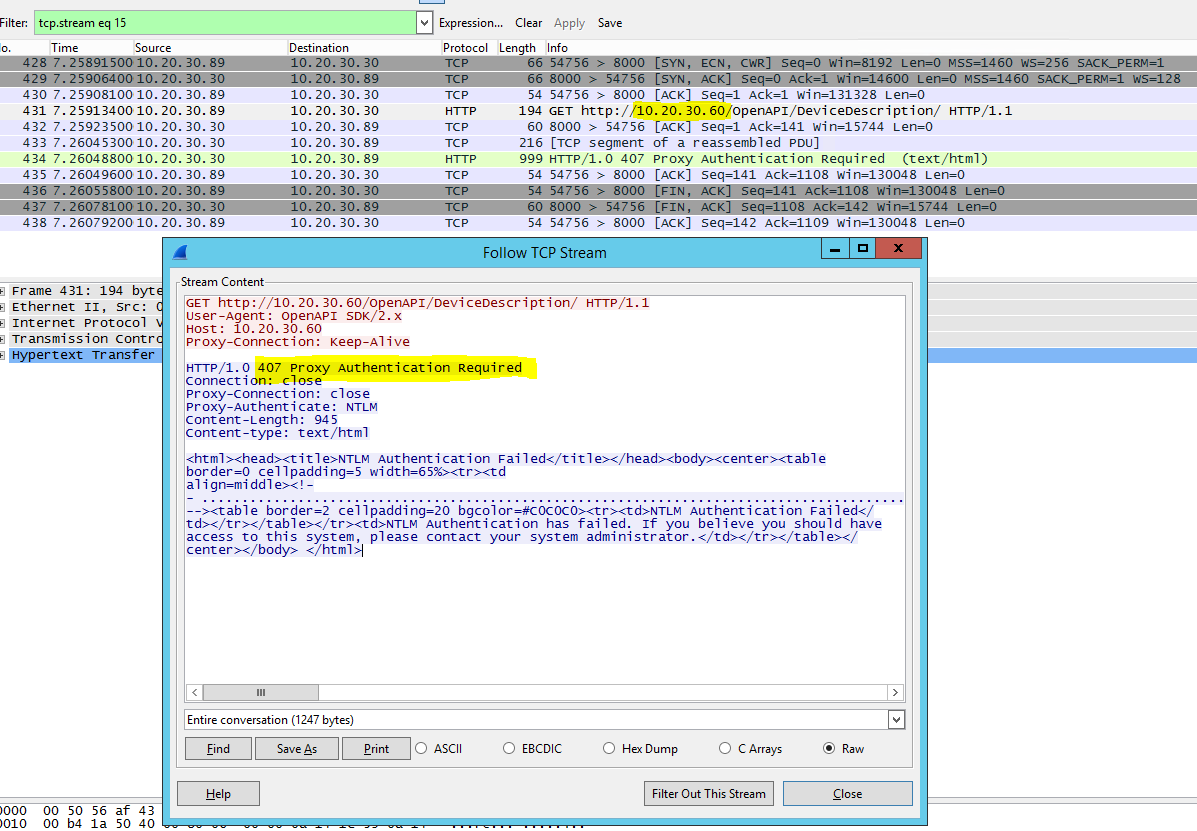
Wireshark can be used for Network Validation
Screenshot below displays Wireshark capture between the YSoft SafeQ (10.20.30.89) and the MFD (10.20.30.60) covering the time of failed installation. YSoft SafeQ tries to establish the connection to the MFD, but all packets are being routed to the Proxy server (10.20.30.30) and the Proxy server rejects them. To search for the MFD IP address in the Wireshark use CTRL+F in combination with Find String and Search in Packet bytes.