
Your system may be set up to for you to select a project for the copies and scans you make. If this is the case, after you log in and touch Copying/Scanning, the Project selection screen appears.
How to
-
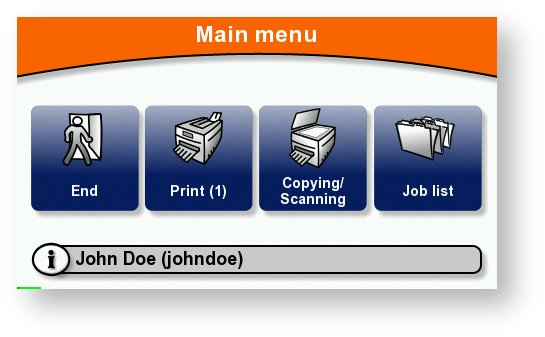
Select Copying/Scanning
-
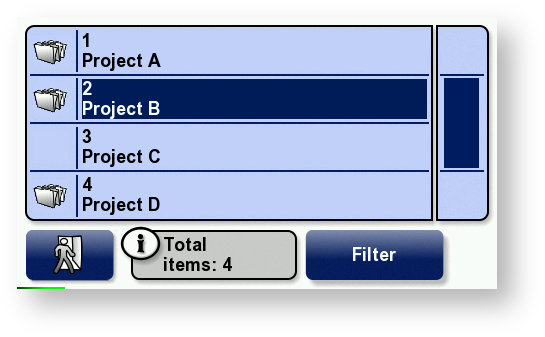
Project selection screen appears.
If you have a default billing code, it is highlighted (Project B is default billing code in this case).
OR
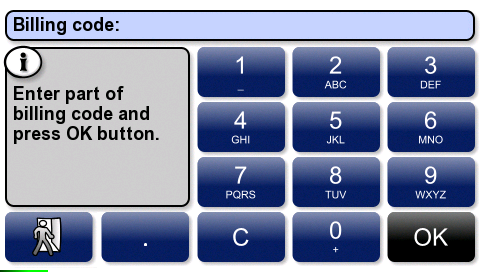
Project search screen appears.
You can search billing codes by Code number or Code name/description or use exit button to show Project selection screen.
-
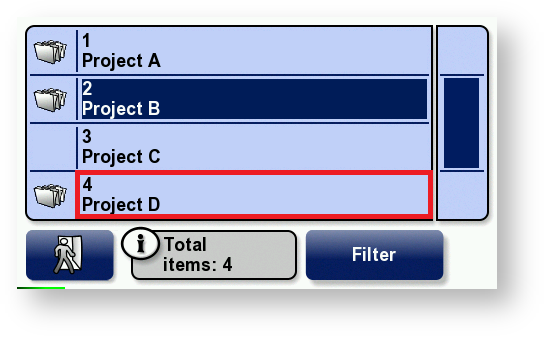
Press to select a billing code.
OR
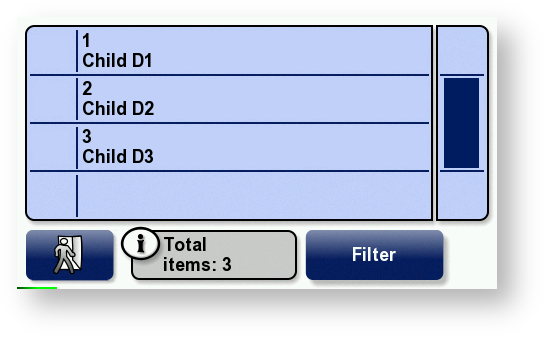
Touch the folder icon to display a list of sub-codes.
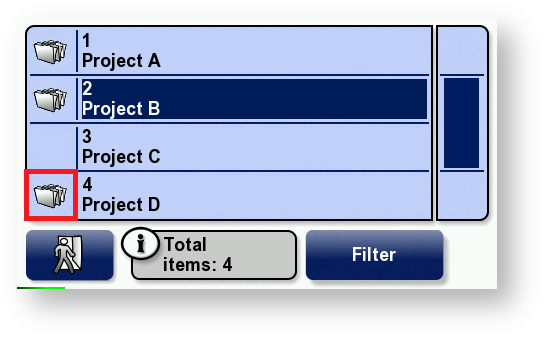
List of sub-codes displayed immediately.
-
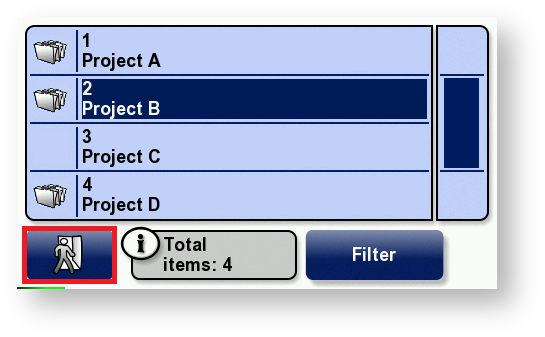
Press the Exit button to display:
-
the list of parent billing codes, if sub-codes is displayed
-
to use default billing code, if defined
-
to exit without selecting a billing code, if default code is not defined
-
-
To display more billing codes, touch the slider.
To search through all the billing codes, touch Filter; then type part of the billing code and touch OK.