
Under specific scenarios it may happen that YSoft SafeQ Management Interface gets inaccessible. This article provides the most common reasons and troubleshooting steps.
At first always attempt resolving issue by restarting “YSoft SafeQ Management Service” and waiting several minutes until till tomcat9.exe process stops utilizing CPU for more than 20%.
As a next step review errors in log files:
%SAFEQ_HOME%\Management\logs\management-service.log
%SAFEQ_HOME%\Management\logs\commons-daemon.log
JVM_Bind error on port 8005
This may occur for instance after the server restart, when Express Patching feature of MS Windows (process SYSTEM) or some other newly deployed tool binds the port prior Y Soft SafeQ. Only one application can listen on specific port at a time.
management-service.log
2020-11-02 15:29:33,049 main ERROR StandardServer - StandardServer.await: create[localhost:8005]:
java.net.BindException: Address already in use: JVM_Bind
commons-daemon.log (optional):
Jul 18, 2022 9:09:12 AM org.apache.catalina.core.StandardServer await
SEVERE: StandardServer.await: create[localhost:8005]:
java.net.BindException: Address already in use: JVM_Bind
Resolution
The latest versions of YSoft SafeQ are not binding the port 8005 any more. Alter the configuration as follows to achieve the same result:
-
Back up file:
<SafeQ6_HOME>\Management\tomcat\conf\server.xml -
Edit server.xml this way:
-
find the line: <Server port="8005" shutdown="SHUTDOWN">
-
change it to: <Server port="-1" shutdown="SHUTDOWN">
-
-
Save the file
-
Restart YSoft SafeQ Management Service
-
Verify the situation is resolved
Invalid object name 'tenants' (MS SQL database)
The YSoft SafeQ website shows error 404 when loading page. The issue typically happens when the account used for the database access has an incorrect default schema defined. The correct default schemas for the users are important due to the fact that by design YSoft SafeQ does not use schema as part of the table name and each user is responsible for a specific schema only. This may happen for example in installations where the DB access is done under the domain user account that has sysadmin rights.
management-service.log
2020-11-30 10:43:38,844 main ERROR SpringApplication - Application run failed
org.springframework.transaction.CannotCreateTransactionException: Could not open JPA EntityManager for transaction; nested exception is org.springframework.jdbc.BadSqlGrammarException: PreparedStatementCallback; bad SQL grammar [SELECT db_login, db_pass FROM tenants WHERE tenant_guid = ?]; nested exception is com.microsoft.sqlserver.jdbc.SQLServerException: Invalid object name 'tenants'.

or
2021-09-11 02:33:51,662 main                            ERROR   SqlExceptionHelper                                               - Invalid object name 'configuration_properties'.
2021-09-11 02:33:51,686 main                            ERROR    SpringApplication                                               - Application run failed
org.springframework.dao.InvalidDataAccessResourceUsageException: could not extract ResultSet; SQL [n/a]; nested exception is org.hibernate.exception.SQLGrammarException: could not extract ResultSet
Resolution
To resolve the situation proceed as follows:
-
Stop YSoft SafeQ services on management servers
-
Open <Management>\conf\safeq.properties
-
search for database.global.management.username.without.domain
-
this is the name of account used for the database access
-
usually the same name is used on all the management servers but it might be worth double-checking this on all of them
-
-
Run the MS SQL Management Studio
-
connect to the database server
-
find YSoft SafeQ database (default name SQDB6)
-
inside of database go to Security > Logins or Users (this may vary per version of MS SQL studio)
-
right-click database user (from the point 2) > Properties > General > set Default schema to cluster_mngmt > click OK
-
-
Verify that database user schema is now correct
-
run the SSMS under database access account (from point 2)
-
run SQL queries on YSoft SafeQ database where account is the db_owner
SQL-- note: running it on a different database will likely cause the first query to return guest and third query to fail select CURRENT_USER; select ORIGINAL_LOGIN(); select * from tenants; -
the content of table cluster_mngmt.tenants must be shown, the user schema must not be defaulted to dbo
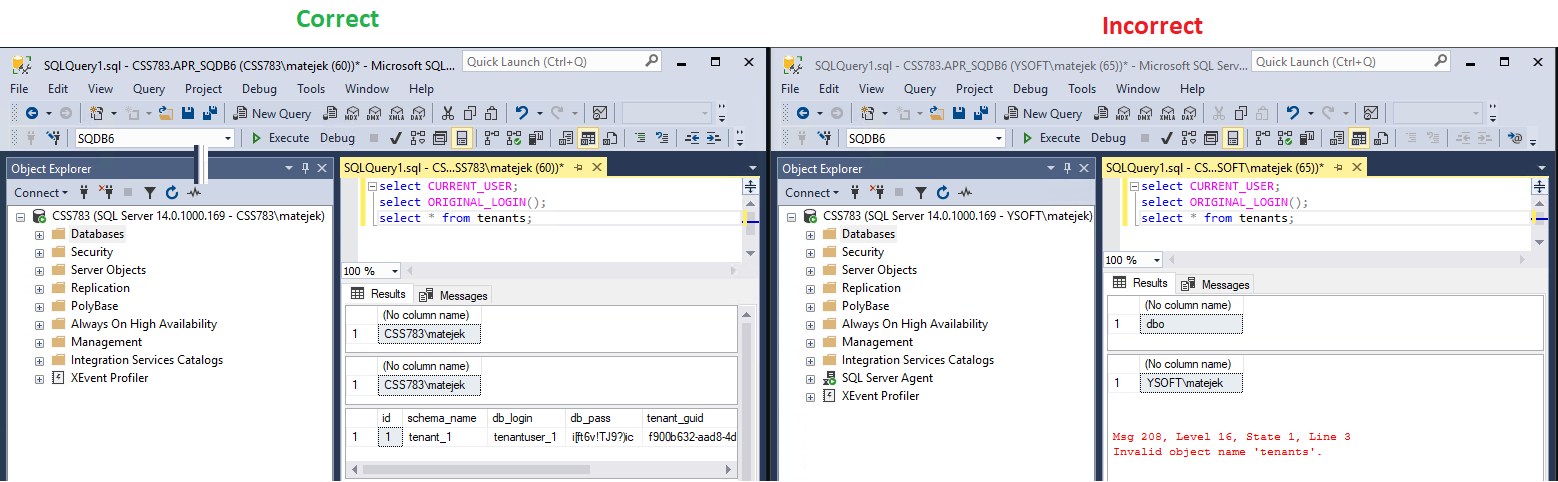
-
ℹ️ If you are sure that cluster_mngmt is set as a default schema of database user and you still get the incorrect result, the account likely has too high permissions on the SQL server and this causes fallback to dbo. For the account it is sufficient to have public role and db_owner rights for YSoft SafeQ databases. The account must not have sysadmin role. The permissions can be also inherited from various places and deep knowledge of SQL administration is required to troubleshoot it, things worth reviewing:
-
Make sure the account does not have administrative rights on the server hosting the MS SQL.
-
Make sure "NT AUTHORITY\Authenticated Users" group does not have "sysadmin" rights.
If this does not help, the easiest workaround for such a situation is to create a new domain account (service account) with the least possible rights on the SQL server and grant it only "db_owner" rights for YSoft SafeQ database. The alternate approach or in case this does not help is to troubleshoot the situation with the SQL administrator of a customer.
YSoft SafeQ may not operate well until the accounts are working as described on the screenshot above.
-
-
-
Review default schema also for other built-in database users
ℹ️ Depending on the choice "Use external database for data warehouse" during installation there will be either database SQDB6, or also a database SQDB6_SQDW.
ℹ️ The schema can be also checked via SSMS or by an SQL query launched on the database in question, example:USE [SQDB6_DWH] GO select name, default_schema_name from sys.database_principals where name in ('cluster_guest','cluster_mngmt','dwhtenantuser_1','tenantuser_1');
|
USER |
Database |
DEFAULT SCHEMA |
|---|---|---|
|
cluster_guest |
SQDB6, SQDB6_DWH |
dbo |
|
cluster_mngmt |
SQDB6, SQDB6_DWH |
cluster_mngmt |
|
dwhtenantuser_1 |
SQDB6, SQDB6_DWH |
tenant_1 for SQDB6; dwhtenant_1 for SQDB6_DWH |
|
tenantuser_1 |
SQDB6 |
tenant_1 |
-
Start YSoft SafeQ services on management servers
-
Verify the situation is resolved
Management Interface debugging
This is mainly useful when other means of troubleshooting have failed, or where log files do not produce any relevant error message.
Log http/https requests for Management Interface
This is helpful in case you need to debug something on the web and when you need to see the exact point when it happened, by default such a detailed set of information is not recorded.
-
Create backup of <SafeQ6>\Management\conf\log4j2.xml
-
Edit log4j2.xml
-
find this line
<Logger name="EventLogger" level="info" additivity="false"> -
add the following lines above it
<Logger name="org.springframework.security.web.FilterChainProxy" level="debug" additivity="false"> <AppenderRef ref="management_log_app"/> </Logger> <Logger name="org.springframework.security.web.access.intercept.FilterSecurityInterceptor" level="debug" additivity="false"> <AppenderRef ref="management_log_app"/> </Logger> <Logger name="com.ysoft.safeq" level="debug" additivity="false"> <AppenderRef ref="management_log_app"/> </Logger> <Logger name="org.springframework.web.servlet" level="debug" additivity="false"> <AppenderRef ref="management_log_app"/> </Logger> -
save the file
-
-
Create backup of <SafeQ6>\Management\tomcat\conf\server.xml
-
find this line
<Valve className="org.apache.catalina.valves.ErrorReportValve" showReport="false" showServerInfo="false" /> -
add the following line behind it
<Valve className="org.apache.catalina.valves.AccessLogValve" directory="../logs" prefix="management-tomcat" suffix=".log" pattern="%t %h %U %s %T %bb %I (%r %q)" resolveHosts="false" /> -
save the file
-
-
Restart YSoft SafeQ Management Service
-
This is example of log record when accessing Management Interface > System menu:
note: by default plain text traffic is not visible in Wireshark due to automatic redirection from insecure port 80 to secure port 443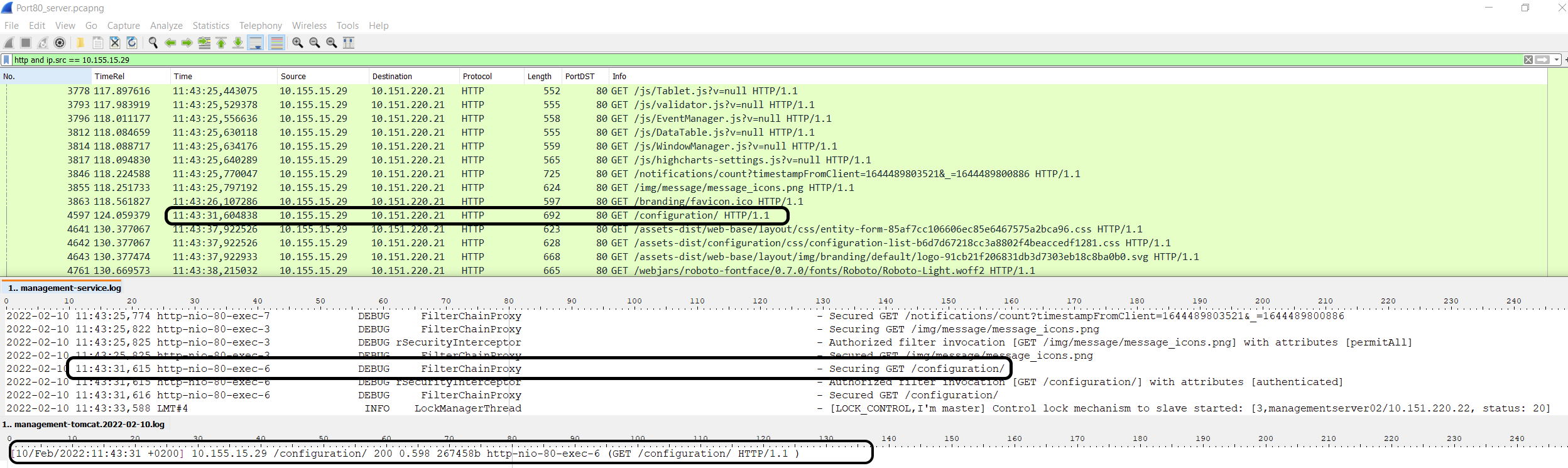
-
Disable higher level of debugging once no longer needed:
-
restore log4j2.xml from the backup
-
restore server.xml from backup
-
restart YSoft SafeQ Management Service
-
Get more information about Tomcat service startup failure
This is helpful in case the management-service.log or other logs show nothing interesting when service fails to start.
-
Go to services.msc and see parameters used to launch the service
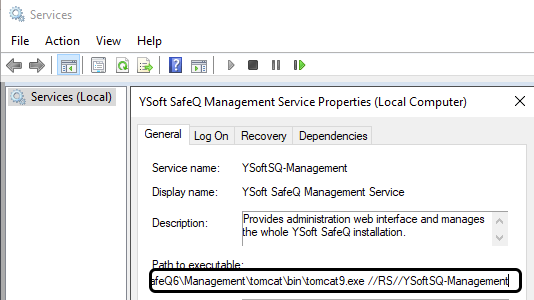
-
Run command line as an administrator
-
Try to start service in a command line
-
//RS// needs to be replaced by //TS//
-
the final command would be for example:
C:\SafeQ6\Management\tomcat\bin\tomcat9.exe //TS//YSoftSQ-Management
-
-
Example of possible outcome:
feb 08, 2022 10:19:57 PM org.apache.catalina.util.LifecycleBase handleSubClassException
SEVERE: Failed to start component [Connector[AJP/1.3-8009]]
org.apache.catalina.LifecycleException: Protocol handler start failed
at org.apache.catalina.connector.Connector.startInternal(Connector.java:1075)
at org.apache.catalina.util.LifecycleBase.start(LifecycleBase.java:183)
at org.apache.catalina.core.StandardService.startInternal(StandardService.java:449)
at org.apache.catalina.util.LifecycleBase.start(LifecycleBase.java:183)
at org.apache.catalina.core.StandardServer.startInternal(StandardServer.java:927)
at org.apache.catalina.util.LifecycleBase.start(LifecycleBase.java:183)
at org.apache.catalina.startup.Catalina.start(Catalina.java:772)
at java.base/jdk.internal.reflect.NativeMethodAccessorImpl.invoke0(Native Method)
at java.base/jdk.internal.reflect.NativeMethodAccessorImpl.invoke(NativeMethodAccessorImpl.java:62)
at java.base/jdk.internal.reflect.DelegatingMethodAccessorImpl.invoke(DelegatingMethodAccessorImpl.java:43)
at java.base/java.lang.reflect.Method.invoke(Method.java:566)
at org.apache.catalina.startup.Bootstrap.start(Bootstrap.java:345)
at org.apache.catalina.startup.Bootstrap.main(Bootstrap.java:476)
Caused by: java.lang.IllegalArgumentException: The AJP Connector is configured with secretRequired="true" but the secret attribute is either null or "". This combination is not valid.
A similar approach can be used with any Tomcat service, details at:
https://tomcat.apache.org/tomcat-9.0-doc/windows-service-howto.html
The page mentions also //ES// parameter, which can help to review service properties (for example IMS, Payment System, Job Service Distributed Layer), but it is not enough to just replace //RS// by //ES// as demonstrated above, it is also necessary to call a different exe file that resides in the same directory as the original one. Examples:
-
Payment System
Path in services.msc : C:\SafeQ6\YPS\bin\tomcat9.exe //RS//YSoftPS
Modified command : C:\SafeQ6\YPS\bin\tomcat9w.exe //ES//YSoftPS -
Job Service Distributed Layer
Path in services.msc : C:\SafeQ6\JobService\procrun\prunsrv.exe //RS//YSoftSQ-JSDL
Modified command : C:\SafeQ6\JobService\procrun\prunmgr.exe //ES//YSoftSQ-JSDL