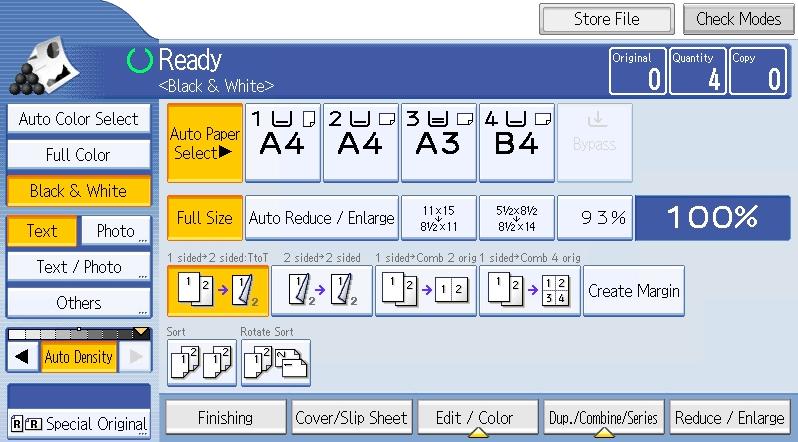
Selecting a Billing Code after Login
With YSoft SafeQ Embedded Terminal, you can choose billing (project) codes in the application menu for copying and scanning in one session without logging out and logging in.
-
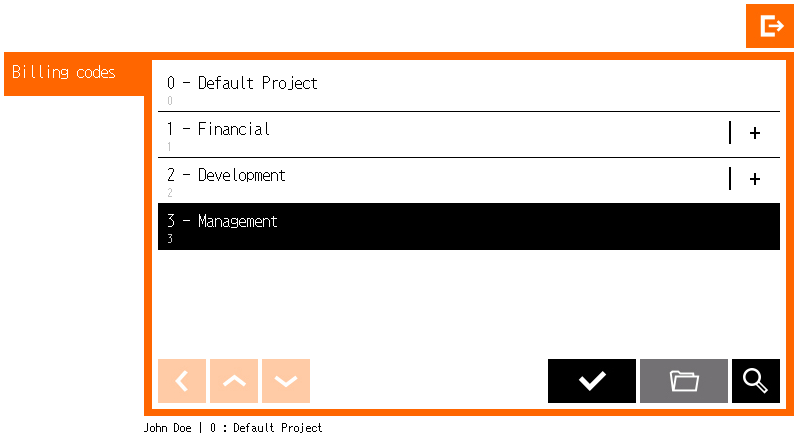
The billing code screen appears directly after login.




-
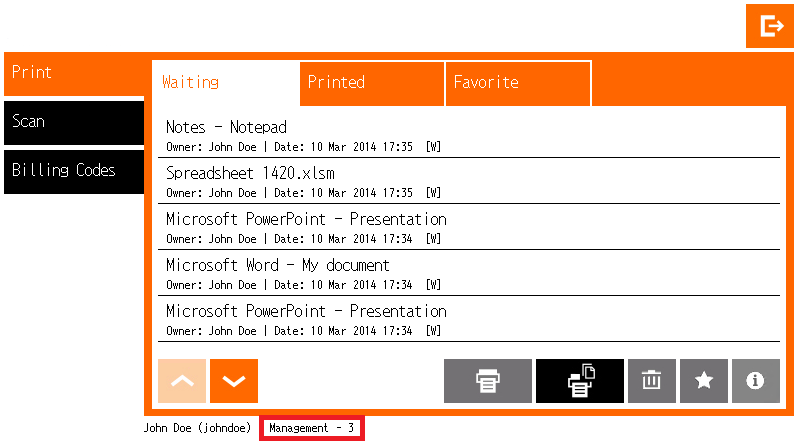
Once the billing code is confirmed, it displays at the bottom of the screen.
Selecting a Billing Code from the YSoft SafeQ Application
-
In the YSoft SafeQ application, select Billing Codes from the menu.
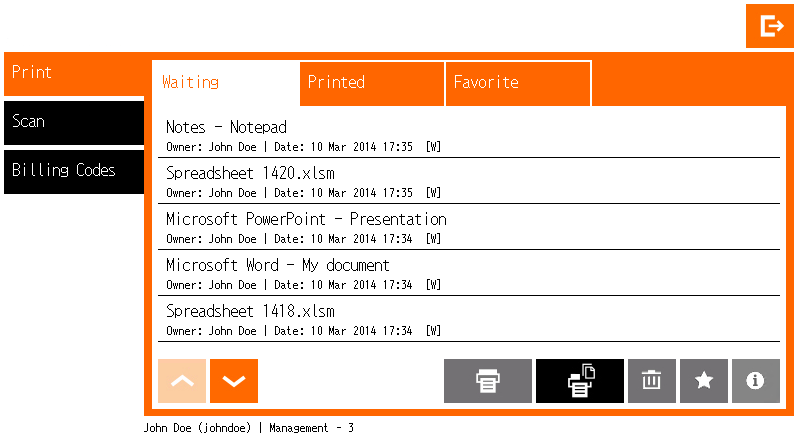
-
The screen with billing codes displays. The default billing code is highlighted.
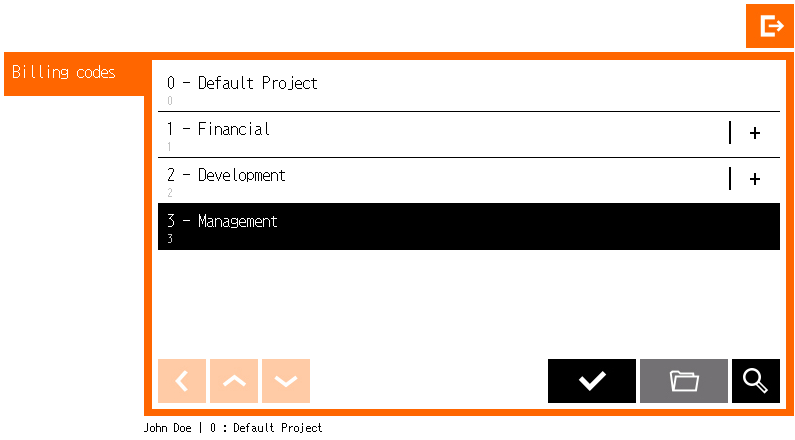
Default Billing Code
-
The default billing code is selected immediately after login (in this case: 0: Default Project). Until you change it, all copies and scans (and prints) will be accounted to your default billing code.
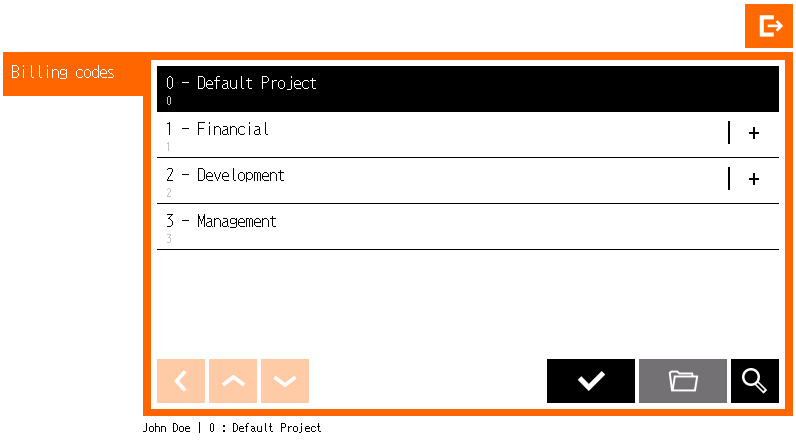
Your default billing code can be changed in the YSoft SafeQ web administration interface.
Searching for a Billing Code
-
In the YSoft SafeQ application, select Billing codes from the menu.
-
The screen with billing codes displays. If you want to search billing codes, tap the magnifier icon

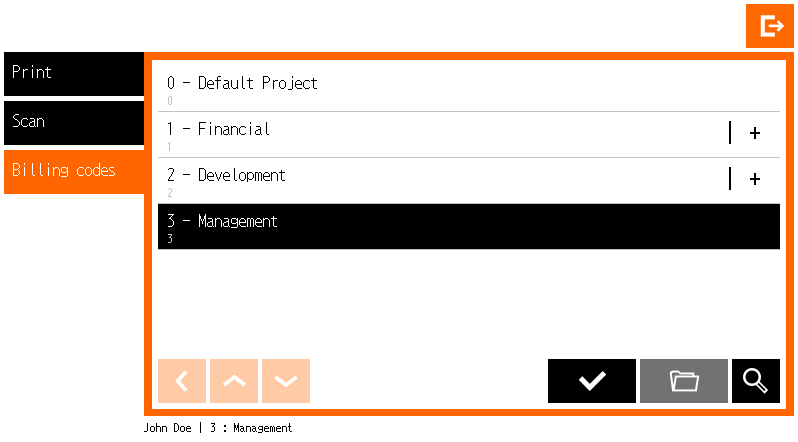
-
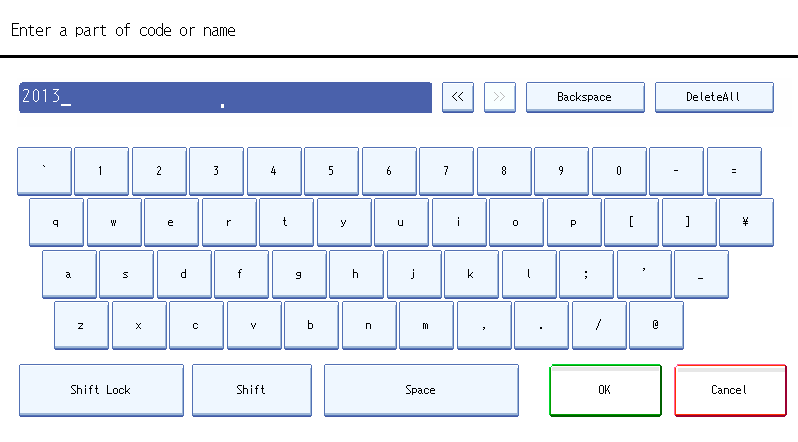
Type the name or number or text of the billing code you want to search for and tap OK.
-
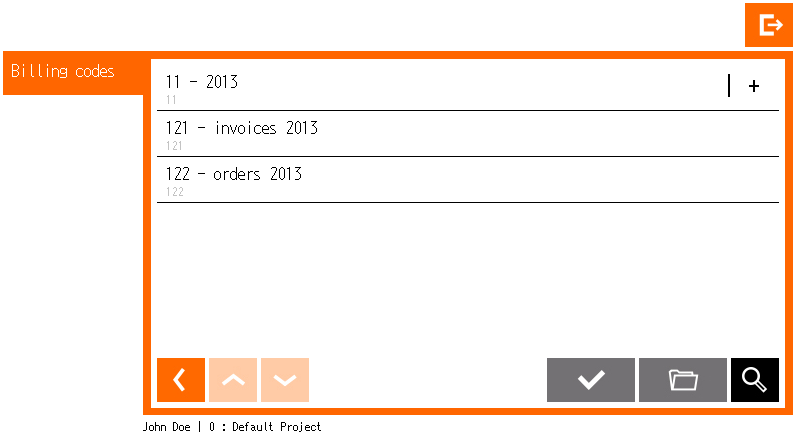
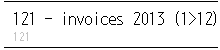
The results display.
Continue with Scanning or Copying
-
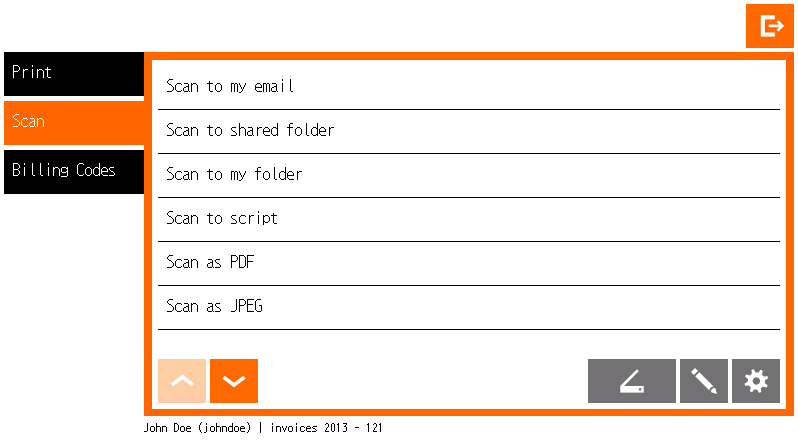
Once a billing code is selected, you can continue to the Scan menu to start scanning with the selected billing code.
-
Navigate to the Copy menu and perform a copy job for the selected billing code.