
Summary
In a rare situation the print job may get stuck in PRINTING state. This typically happens when:
-
printer is supposed to confirm the job reception via LPR / IPP protocol related messages but it is not doing it
-
printer buffer is full and there is a TCP Zero Window for considerably long time (e.g. in event of paper jam that is ignored by end user), this affects RAW protocol too
The user is usually (but not always, this depends on several factors such as the phase of job transfer when the printer stopped responding or the printer design) aware that there is some issue with his print job by looking into job list of the printer or by paying attention to error messages presented on the printer. Nevertheless users tend to ignore/skip/miss such warnings and information. In addition the job in PRINTING state blocks other job deliveries to the same printer. Any job queued up later on the same printer by any user ends up in a PENDING state, waiting for the original job to be delivered or for delivery to be terminated for example by MFD reboot.
In general it means that jobs stuck in PRINTING state for considerably long may have various negative impacts on a user experience:
-
the job in PRINTING / PENDING state is not accessible/visible by end user on the terminal or in End User Interface
-
this is security measure to prevent user from releasing the job multiple times by mistake
-
User usually wonders what happened with the print job and then he goes back to a workstation, sends a job for print again and releases it on a different printer, but he is not happy about it.
Resolution
To minimize occurrence of jobs stuck in PENDING / PRINTING state kindly make sure you are using YSoft SafeQ 6 Build 67 or newer (defect fix SBT-3648 for IPP and IPPS). After the update there may still be a few occurrences because the root cause is outside of YSoft SafeQ, but the frequency should drastically drop since we improved the handling of limiting situations by implementing timeouts ippPrinterConnectionTimeoutSeconds and ippPrinterResponseTimeoutSeconds . Once timeouts expire the print jobs should switch automatically to Printer Error state and printer will not be blocked for everyone and the affected user can release affected jobs from the waiting list again.
If the issue still occurs, these manual steps will help to clear the stuck session:
Option 1
Restart the YSoft SafeQ server. This is quick solution but it has multiple downsides:
-
Restart will terminate all active sessions, any user working on a terminal connected to the server or printing through that server will be affected and will have to try again once the restart is completed.
-
Jobs whose delivery was terminated by restart may end up in CANCELED state ( CANCELLED state is not visible to end user on the terminal, administrator can re-queue it to secure queue to make it visible )
-
On very old releases around build 40 the jobs terminated by restart may remain in PENDING state until deleted by system parameter "maxSpoolerJobTime".
-
-
If the server is member of a SPOC group a specific restart procedure needs to be followed:
https://portal.ysoft.com/documentation-and-knowledge-base/documentation?page=How_to_Restart_a_YSoft_SafeQ_Environment.html
It might be actually better to leave the restart for the evening once there is less users using the system. The printer affected will be unavailable for printing for any user until then.
Option 2
-
Identify print jobs that are stuck in PRINTING state for more than 30 minutes
-
First option - YSoft SafeQ Management Interface
-
set up a filter for print jobs that are in Printing... state
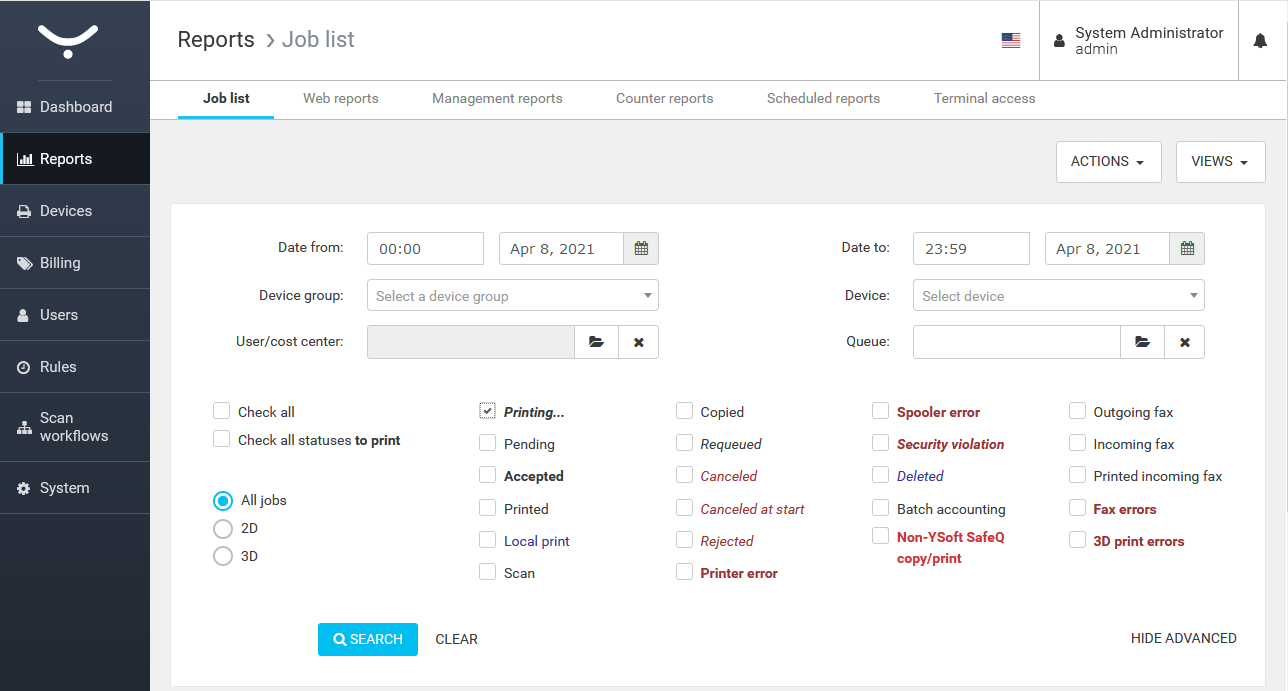
-
go through the list of jobs and review those where date is long in the past
-
you may review job details to see its size and think if it is so big for the delivery to take several minutes
-
-
Second option - SQL query
-
the query is to be launched on SQDB6 database (default name)
MS SQL
SQLselect sj.cur_status_time last_status_change, sj.accept_time, sj.id job_id, sj.job_guid, sj.filesize /1024 job_size_KB, ('PRINTING') status, sj.cur_status_origin status_origin, u.login username, d.name MFDname, d.description MFDdescription FROM tenant_1.smartq_jobs sj left join tenant_1.users u on u.id = sj.user_id left join tenant_1.smartq_jobs_log sjl on sjl.job_id = sj.id and sjl.status = sj.cur_status left join tenant_1.devices d on d.id = sjl.device_id where sj.cur_status in (4) and sj.cur_status_time < (SELECT DATEADD(mi,-30,GETDATE())) order by sj.cur_status_time descPostgreSQL
SQLselect sj.cur_status_time last_status_change, sj.accept_time, sj.id job_id, sj.job_guid, sj.filesize /1024 job_size_KB, ('PRINTING') status, sj.cur_status_origin status_origin, u.login username, d.name MFDname, d.description MFDdescription FROM tenant_1.smartq_jobs sj left join tenant_1.users u on u.id = sj.user_id left join tenant_1.smartq_jobs_log sjl on sjl.job_id = sj.id and sjl.status = sj.cur_status left join tenant_1.devices d on d.id = sjl.device_id where sj.cur_status in (4) and sj.cur_status_time < (select now() - interval '30' minutes) order by sj.cur_status_time desc -
the output example

-
-
-
Resolve the situation
-
Once you identified that job is really problematic, do this:
-
List all the jobs that are PENDING for problematic printer via YSoft SafeQ Management Interface > Reports > Job list
-
If there are such jobs, prevent MFD from accepting further jobs by one of the following:
-
disable IPP/RAW/LPR protocols on the printer (via printer administrative website)
-
block all the communication to printer via Firewall
-
turn the printer off and keep it off until you finish all the steps
-
-
Note: This will prevent queued pending jobs from being released right away after clearing up the stuck job, this is meant as prevention for possible security incident where user no longer stands next to the printer.
-
Note: Action "Cancel selected jobs" on YSoft SafeQ Management Interface would have no effect, it is not meant to terminate PENDING jobs.
-
-
Terminate the delivery of PRINTING job
-
Download TCPView and run it on the PC from which the FlexiSpooler tries to deliver job to the MFD
-
Use View > Update speed > Pause (to prevent endless refreshing of screen)
-
Use View > Refresh now
-
Wait till all the connections are listed
-
Identify the TCP connection that exists between FlexiSpooler.exe and printer IP address > right-click it and choose Close connection
-
at this point job that was PRINTING is in PRINTER ERROR or CANCELED state (CANCELLED state is not visible to end user on the terminal, administrator can re-queue it to secure queue to make it visible)
-
-
Note: Using TCPView is preferred to rebooting of MFD, rebooting printer might not resolve the situation in combination of some vendor / delivery backend .
-
-
Double-check that connection is closed (e.g. refresh TCPView or use "netstat -abno <printerIP>")
-
Wait till all the jobs for the problematic printer get switched from PENDING to PRINTER ERROR or any other state
-
Reboot the printer, resolve any error message the printer is giving and enable IPP/RAW/LPR protocols or remove temporary Firewall rule
-
Verify that printing / accounting on the printer now work
-
-
-
Instruct users
-
to tend to an error on printer screen (if any) before leaving the printer
-
to initiate print/copy/scan only at the printer that does not report any error on its screen
-
You can allow users to see and release print jobs with state CANCELED on the terminal by enabling a system property allowCancelledJobsToBePrinted (available from YSoft SafeQ 6 Build 57 (defect fix SBT-2560)).
Detailed root cause analysis
If the printer does not show any error message when the job delivery gets stuck in a PRINTING state, further analysis should be performed by a printer supplier. The network trace captured at the time of occurrence may only confirm that a printer stopped responding at a specific point of delivery, but it may not reveal why it acted that way.
Based on the past experience the root cause is always related to the communication issue between the FSP and printer. It is often the printer itself or it could be also a network issue, specifically the packet loss.
For example the IPP protocol provides an extra layer of verification through protocol specific control messages (such as if the printer is ready, how many jobs is waiting on it and so on), but in comparison to RAW protocol (that just blindly delivers packets via TCP/IP raw without any higher level of check) it has one small disadvantage - if one communication party confirms all the IPP messages on the TCP/IP layer but then does not answer them with appropriate IPP response (e.g. because printer gets stuck or there is a packet loss), the other communication party keeps waiting for the response and the job the delivery may get stuck simply because the IPP protocol is not doing any retries for those messages, it relies on error handling mechanism of communicating parties. Starting from build 67 the maximum waiting time for a response can be defined by timeouts ippPrinterConnectionTimeout and ippPrinterResponseTimeout, it will prevent session from being stuck forever. These timeouts were implemented because sometimes the customer has no ability to trace the network traffic to the extend required for the root cause identification and a workaround with a timeout may provide sufficient solution.
The LPR protocol is similar to IPP in this regard, it may also get stuck the similar way.
Only the RAW protocol is not prone to such issues. Often the restart of printer terminates the connection on TCP/IP stack so it should also unblock all PRINTING/PENDING jobs, but this is not true with all the vendors in all the protocols and that that is why the cleanup process described above includes TCPView utility to kill the TCP session manually.
To investigate the exact root cause further it would be necessary to identify the point where the first job to that specific printer got stuck, the following MS SQL query could be used for it:
select sj.cur_status_time last_status_change, sj.accept_time, sj.id job_id, sj.job_guid, sj.filesize /1024 job_size_KB, cur_status, sj.cur_status_origin status_origin, u.login username, d.name MFDname, d.description MFDdescription FROM tenant_1.smartq_jobs sj
left join tenant_1.users u on u.id = sj.user_id
left join tenant_1.smartq_jobs_log sjl on sjl.job_id = sj.id and sjl.status = sj.cur_status
left join tenant_1.devices d on d.id = sjl.device_id
where sj.cur_status in (4,8)
and sj.cur_status_time < (SELECT DATEADD(mi,-30,GETDATE()))
order by sj.cur_status_time desc
Query takes in account only the jobs that have PENDING / PRINTING for more than 30 minutes.
cur_status 4 means PRINTING, cur_status 8 means PENDING.
As soon as there are issues with jobs staying in PENDING / PRINTING for too long, it is necessary to identify the first job that is problematic for that printer (the oldest one) and review the log files from FSP (spooler.log) that was doing the delivery of that job. The log may either reveal some error message or it may provide just a context of what was happening around that time without any ERROR or WARN message (this depends on where exactly the communication got stuck). This can provide some clues but it is often still insufficient for root cause identification.
If the root cause is still not clear, as a next step it would be necessary to:
-
pick the most problematic MFDs
-
disable DHE/ECDHE encryption algorithm or switch them to IPP (from IPPS) to be able to read IPP messages
-
monitor the network traffic via Wireshark on servers and preferably also on a switch next to the MFD
-
wait for the issue to occur
-
review the network capture and pinpoint where the issue is
This would likely reveal either the network or the printer issue. And if this points to printer issue, it would be still necessary to perform debugging on a printer (by vendor) to find the real root cause and a fix. From the past experience the printer might not produce any error code at the time of error, but sometimes it does, such as low toner, paper jam and others. Vendors often do not wish to continue with troubleshooting after this point since it is too complex and time consuming or not even feasible. The vendor development department may request a solid reproduction steps as the printer debugging tools are limited and providing a solid way to reproduce the issue is impossible (since it is random). And this is one of the reasons why this KB article exists - to provide the most efficient way to mitigate the issue.
Y Soft may assist with the analysis of the network traces from the server to rule out YSoft SafeQ as a possible trigger. Should a further assistance be required to analyze traces from other places from the network, this often requires a paid professional service request. Please note due to complexity it is not possible to estimate the costs in advance and the outcome of analysis may still not be sufficient to prevent issue from happening.